Appendix
Linking Ownerless Tickets
The Ownerless Ticket report can be used to identify Tickets that are not attached to a Person.
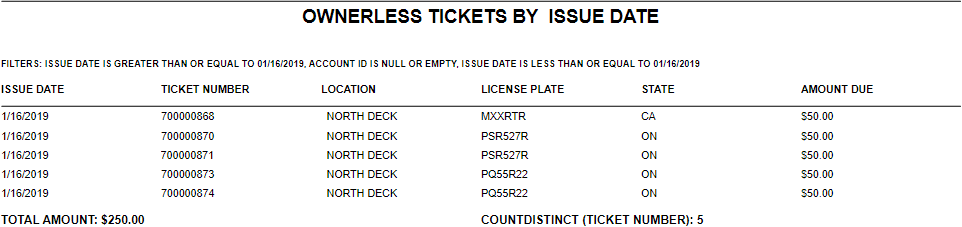
Ownerless Ticket Report Example
Open the Vehicle module and in the Person field, search for the Person account you will be linking this License Plate and Ticket to. You can search by Last Name, First Name, Local ID, or Alternate ID.
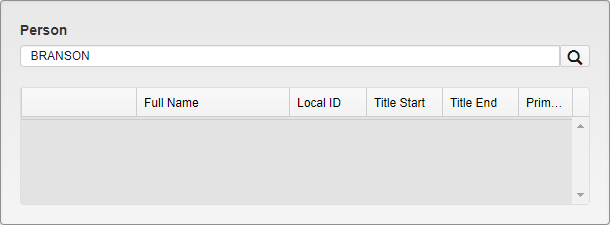
Person Search in Vehicle Module
When the browse list appears, select the appropriate Person account.
If the Person account is not in the database, click Add to add a new Person account.
If you click Add, a mini Person module will open and add all associated Person information (Name, Address, Status, etc).
When a new Person account is added, to ensure this Person is linked to the License Plate, click on the Set as Primary Person checkbox.
When adding addresses, check the Billing checkbox if this Person account will be billed for any Tickets or Permits issued to this License Plate/Vehicle.
After the Person is saved or selected, a grid of ownerless Tickets will open to allow you to select the linking preference.
Click on the Select checkbox to link the Ticket to the Person account.
Enter the Title Start Date and Title End Date.
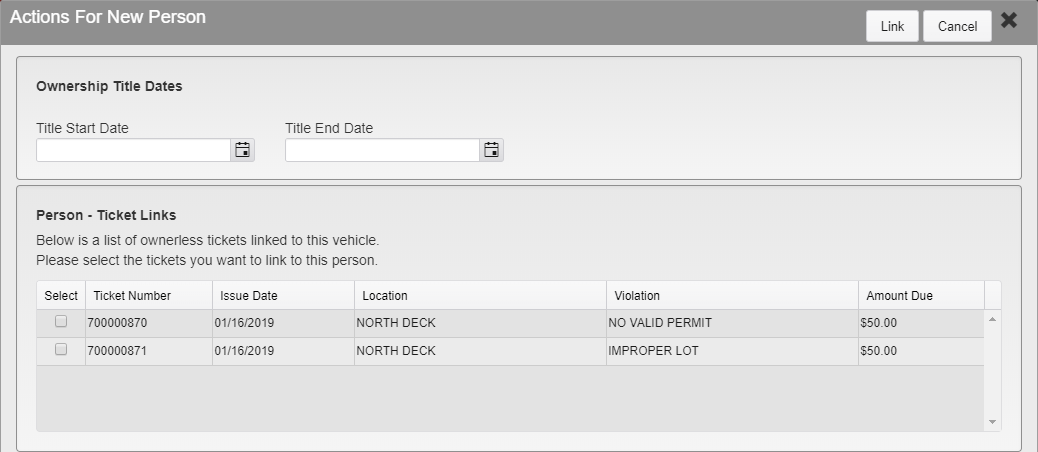
Actions For New Person Menu
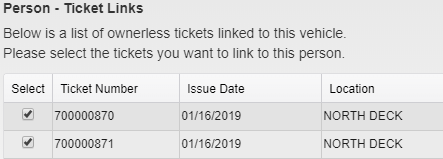
Person-Ticket Link Menu
Click Link.
Click Save.
Permit Vehicle Update Process
Removing a Person from a valid Permit that has already been paid for is not recommended. This ensures that there is a clear audit trail of who paid for the Permit.
If a new License Plate is being linked to a Permit, add the new License Plate and Vehicle to the Person account first. This action will automatically link the new License Plate to the Person account.
Remove Linked Vehicle and Add New License/Vehicle to Permit
Click on the X to remove the Vehicle-Permit link. This does not remove the Vehicle from the database.
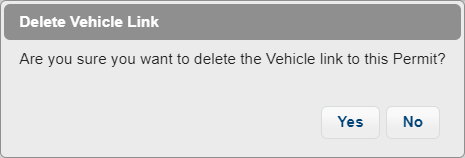
Delete Vehicle Link Confirmation
After the page refreshes, enter the new/updated license plate number to link to this Permit, then click the search icon.
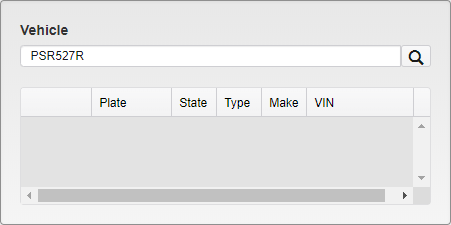
Vehicle Search
A browse list of your search results will appear. Select the correct License Plate.

Vehicle Search Results
If the License Plate number is not in the database, add the new License Plate to the Person account first.
Once saved, the new Vehicle will be linked to the Permit and the handheld will update with the new License Plate associated with the Permit Number.
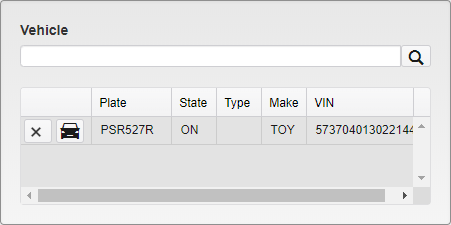
Newly Linked Vehicle
Edit Linked Vehicle Description
This is used to update vehicles without changing the plate number attached to a Permit.
Click on the car icon to edit and save. Update the Vehicle description (Make/Model, etc) and click Save. Any Vehicle changes will also update the Vehicle description in the Vehicle module.
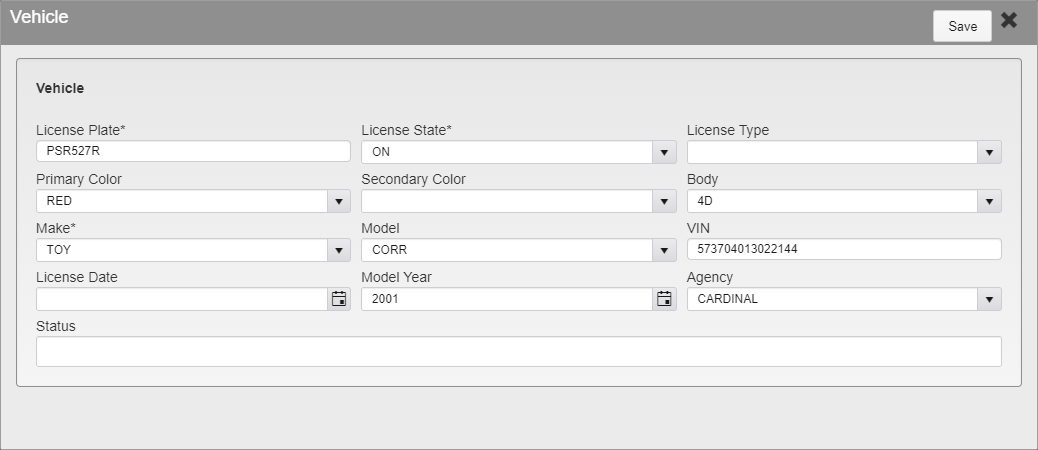
Vehicle Edit Menu
Was this article helpful?
That’s Great!
Thank you for your feedback
Sorry! We couldn't be helpful
Thank you for your feedback
Feedback sent
We appreciate your effort and will try to fix the article