Equipment Maintenance
Note: Equipment Maintenance is an optional module.
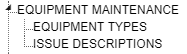
Equipment Maintenance TreeView
Equipment Types
Equipment Types are the types of equipment that your organization will monitor for maintenance and repair.
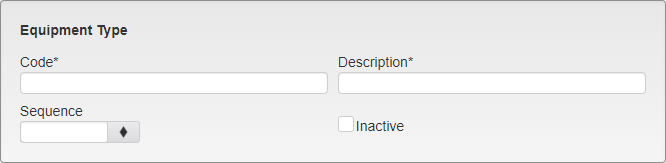
Equipment Type Options
Code - Enter the Code for the Equipment Type.
Description - Enter a description of the Equipment Type.
Sequence - Enter the Sequence number. This decides where on the dropdown the option will appear.
Inactive - Inactivates the Equipment Type.
Contacts
Contacts are the businesses and people that your organization uses for equipment repair.

Equipment Maintenance - Contact Listing
Contacts can be added through any existing Equipment Type listing or through the new Equipment Type page by clicking the Add button.
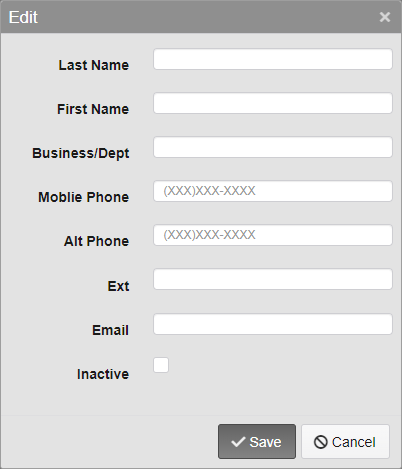
Equipment Maintenance - Contact Options
Last and First Name - Enter the name of the Contact.
Business/Dept - Enter the name of the business or department that the Contact is associated with.
Mobile Phone - Enter a mobile phone number where the Contact can be reached.
Alt Phone - Enter an alternate phone number where the Contact can be reached.
Ext - Enter the phone extension for the Contact.
Email - Enter an e-mail address where the Contact can be reached.
Inactive - Inactivates the Contact.
Linking Contacts to Equipment Types
Contacts must be linked to specific Equipment Types before they will be listed when entering Equipment Maintenance records. There is no limit on the number of Contacts an Equipment Type can be linked to, or on the number of Equipment Types a Contact can be linked to.
To link a Contact to an Equipment Type, open the listing for the Equipment Type in System Settings. All available Contacts will be listed below the Equipment Type information.

Equipment Maintenance - Contact Selected
Click on the check box next to the Contact you wish to link. Selected Contacts show a check mark in this box and are highlighted in dark gray. Once you have selected the Contacts, click the Save button in the upper right of the screen.
Issue Descriptions
Equipment Issue Descriptions are pre-set options available when entering an Equipment Maintenance request. Custom descriptions can be entered instead of selecting one of these.
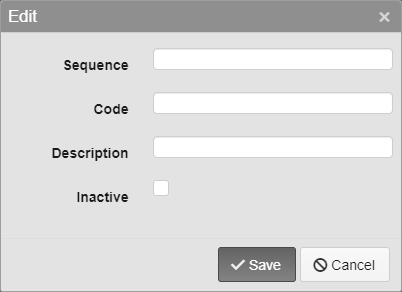
Equipment Issue Options
Sequence - Enter the Sequence number. This decides where on the dropdown the option will appear.
Code - Enter the Code for the Equipment Issue. 15 character limit.
Description - Enter a description of the Equipment Issue.
Inactive - Inactivates the Equipment Issue.
Was this article helpful?
That’s Great!
Thank you for your feedback
Sorry! We couldn't be helpful
Thank you for your feedback
Feedback sent
We appreciate your effort and will try to fix the article