Service Request
Note: Service Request is an optional module.
The Service Request module is used to track damaged Equipment and its repair status.
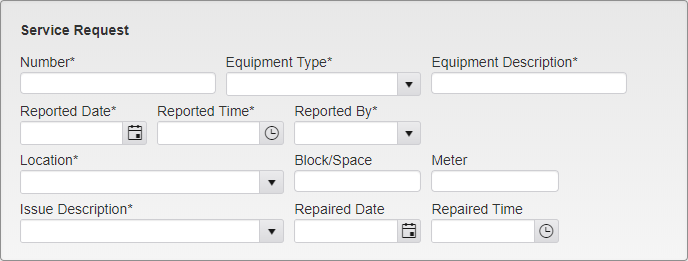
Service Request Module
Number shows the Service Request record number.
Equipment Type allows you to select the type of Equipment that requires attention. These must be set up in System Settings. Equipment Description will automatically fill in when the Type is selected.
Date and Time show when the Service Request was logged.
Reported By shows the officer who found and logged the Service Request.
Location, Block/Space, and Meter show the specifics of where the damaged Equipment is located. Location has a drop down that allows you to select from a list of Locations set in System Settings, or you can click in the box and type a custom Location.
Issue Description shows the type of damage to the Equipment. This option has a drop down that allows you to select from a list of common Issues set in System Settings, or you can click in the box and type a custom Issue Description.
Repaired Date and Time show when the Equipment has been reported as repaired.
Contact Attempts
Contact Attempts are records showing who has been contacted to repair damaged Equipment.
Note: Contact Attempts are not synced to or from handhelds.
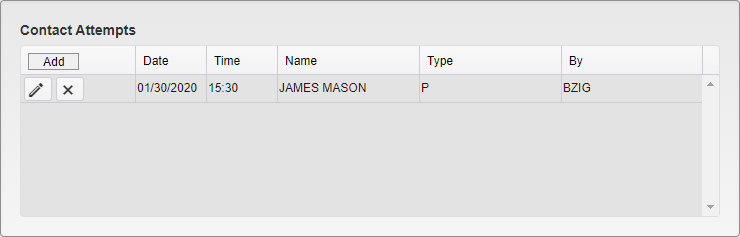
Contact Attempts Record
Click on Add to add a new Contact Attempt.
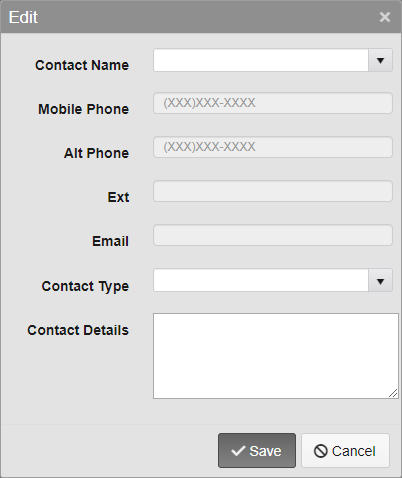
Contact Attempt Options
Select the Name of the person being contacted. Contact options are set in System Settings. Selecting the Name will automatically fill in the Mobile Phone, Alt Phone, Ext, and Email of that Contact, to be used to make the Contact Attempt.
Select the Contact Type used. Options are P (phone), E (email), and T (text).
Enter any additional Contact Details. These can include the result of the call, information given by the Contact, or actions taken.
Click the Save button to save the Contact Attempt.
Existing Contact Attempts show the Date and Time on which the Contact Attempt was made, the Name of the person contacted, the Type of contact, and the user that made the Contact Attempt. Additional details such as the Contact Detail notes can be viewed by clicking the edit button (pencil icon) on an existing Attempt.
Was this article helpful?
That’s Great!
Thank you for your feedback
Sorry! We couldn't be helpful
Thank you for your feedback
Feedback sent
We appreciate your effort and will try to fix the article