Group Security
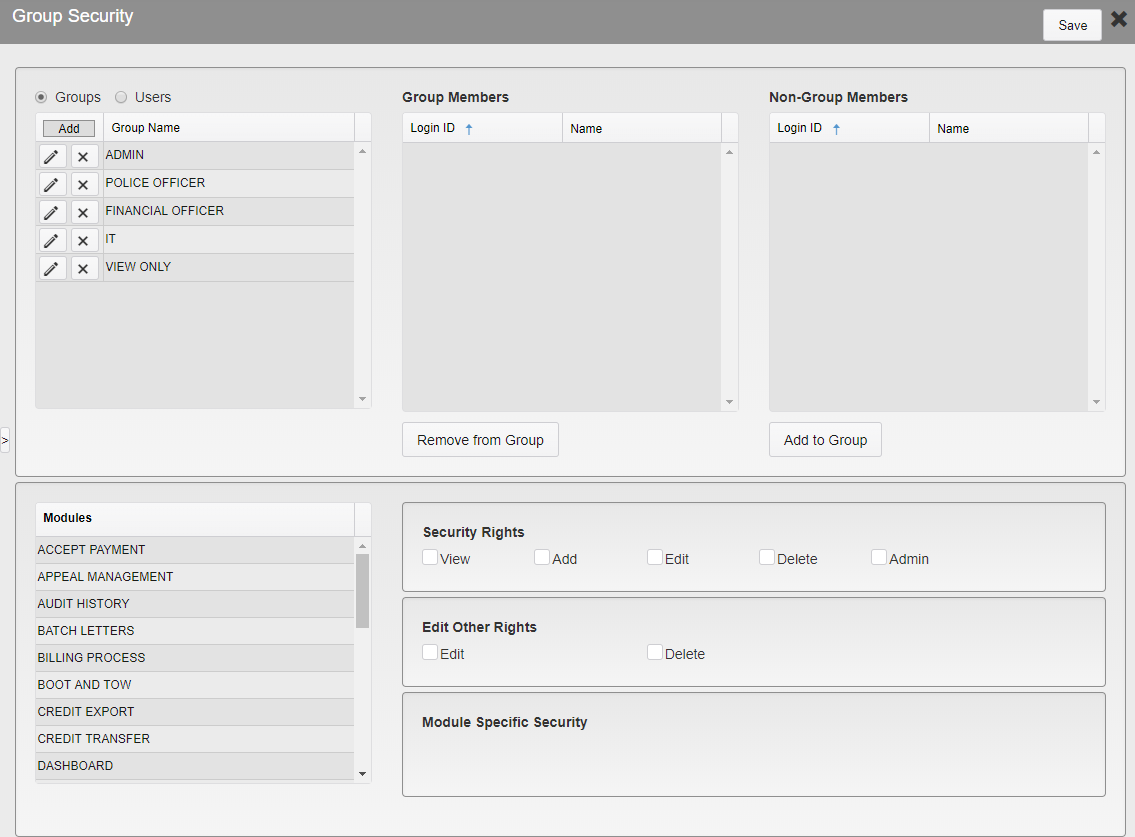
Group Security Options
On the left side of the screen is the list of modules available to grant a user access to. Below is a list of the modules and an explanation of the functions within that module.
Group Security Setup
Group Security is used to set user access rights to a group of users. A Group is created and security rights are assigned to the Group. After a record is added in Personnel, they may be assigned to a Security Group. Each member of the Group will have the same rights.
Groups are created according to functions needed by each agency. Some examples are:
Clerk Groups that can accept payments but not take non-monetary payments (adjustments).
Clerk Supervisor Group that can accept payments and take non-monetary payments as well as void payments.
Note: Users must be set up in the Personnel module before they can be added to a Group. Only the users that have been added in Personnel will appear in the grid as a member that can be added.
There are multiple record access levels, as well as module specific security in some modules. Not all modules have all of the listed Security and Edit Other options.
Security Rights
View – This allows the user to view records.
Add – This allows the user to create a new record.
Edit – This allows the user to make changes to existing record information.
Delete – This allows the user to delete a record.
Admin – This allows the user to have full access to records and all functionality for each module including any module specific security. For some modules, this is the only option.
Edit Other Rights
Edit – This allows the user to make changes to existing record information created by someone other than the user.
Delete – This allows the user to delete a record created by someone other than the user.
Module Specific Security
Some modules will have additional functions that allow security to be assigned per function. The available options will vary for each module. Modules that are not listed do not have any Module Specific Security.
Accept Payment
Non-Monetary - This allows the user to process Non-Monetary payments.
Add Fee - This allows the user to add a Fee to a payment.
Write Offs - This allows the user to write off a payment.
Returned Check - This allows the user to return a check.
Refund - This allows the user to process a refund.
Finalize Cash Drawer - This allows the user to finalize the Cash Drawer.
Permit Return - This allows the user to return a Permit.
No Sale - This allows the user to open the Cash Drawer without making a sale.
Appeal Management
Appeal Listing - This allows the user to run Appeal listing reports.
Appeal Letters - This allows the user to generate and send Appeal Letters.
Override Authorization - This allows the user to override the time limits on making an Appeal.
Batch Payment
Error Override - This allows the user to override any errors when adding items to Batch Payment. This includes making Partial or Overpayments and taking payments on Tickets that are on Collection, Appeal, or have been Exported.
Batch Letters
Appeals - This allows the user to send batches of Appeal letters.
Notices - This allows the user to send batches of Notices.
Statements - This allows the user to send batches of Statements.
Permit Renewal - This allows the user to send batches of Permit Renewal notices.
Online Permit Letters - This allows the user to send batches of Online Permit Letters.
BootTow Notices - This allows the user to send batches of Boot/Tow Notices.
Billing Process
Assess Late Fees - This allows the user to run the Assess Late Fees process.
Collection Export - This allows the user to run the Collection Export process.
Holds/Encumbrance
Process Holds - This allows the user to process existing holds on accounts.
Payment Plan
Add Fee - This allows the user to add a Fee to a payment plan.
People
Add Fee - This allows the user to add a Fee to a Person.
Permit
Add Fee - This allows the user to add a Fee to a Permit.
Personnel
Security - This allows the user to edit Group Security.
Reports
Ticket - This allows the user to run Ticket Reports.
Permit - This allows the user to run Permit Reports.
People - This allows the user to People Reports.
Finance - This allows the user to Finance Reports.
Time Payment - This allows the user to run
Appeal - This allows the user to run Appeal Reports.
Ticket
Add Fee - This allows the user to add a Fee to a Ticket.
Void - This allows the user to Void a Ticket.
TTM Utilities
Duplicate Tickets - This allows the user to run the Duplicate Tickets TTM Utility.
Ticket Export - This allows the user to run the Ticket Export TTM Utility.
eTicket Review - This allows the user to view and edit Tickets in the eTicket Review queue.
- eTicket Notification - This allows the user to manually run eTicket Notifications.
Utilities
Batch Permits - This allows the user to run the Batch Permits utility.
Export - This allows the user to run the Export utility.
Payment Import - This allows the user to run the Payment Import utility.
Import - This allows the user to run the Import utility.
- Mass Communication - This allows the user to use the Mass Communication utility. This includes setting up new Mass Communication criteria and generating letters.
Vehicle
Add Fee - This allows the user to add a Fee to a Vehicle.
Create a Security Group
Select the Groups option.
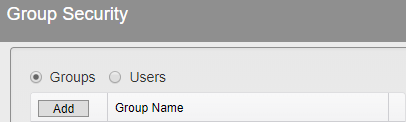
Group Security Options - Groups Method
Click Add to open the popup.
Enter the Group Name.
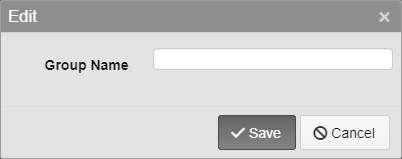
Group Name Options
Assign Rights to a Group
Click the Group to select it.
Move to the Modules section and click each module to assign rights for the group.
Note: Edit other rights is recommended to always be checked.
After each module has been set up users may be added to the Group.
Adding a User to a Group
Click the Group to select it.
Click on the user in the Non-Group Members list.
Note: Users must be set up in the Personnel module before they can be added to a Group. Only the users that have been added in Personnel will appear in the grid as a Non-Group Member that can be added.
Click Add to Group.
The user name will move to the Group Members list.
Deleting a Group
Click the X icon by the Group Name .
Viewing Rights for Each User
Select the Users option.
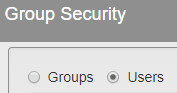
Group Security Options - Users Method
The users will now be listed by Login ID and Name. The boxes to the right of the users will now list the Groups they are a member of as well as the Groups they are not a member of.
Select the user and click each module to check the users rights.
Adding a User to a Group
Click the User to select it.
Click on the Group in the Not a Member Of box and then click the Add Group button.
The group will be moved to the Member Of box.
Deleting a User From a Group
Click the User to select it.
Click on the Group in the Member Of box and then click the Remove Group button.
The group will be moved to the Not a Member Of box.
Was this article helpful?
That’s Great!
Thank you for your feedback
Sorry! We couldn't be helpful
Thank you for your feedback
Feedback sent
We appreciate your effort and will try to fix the article