Templates
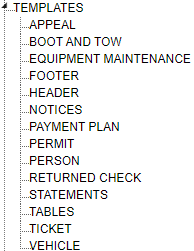
Templates TreeView
Templates are used as the base for all of the statements and notices sent from TickeTrak. They define the layout and information provided in a letter. Templates are created in separate sections based on where they will be used. This allows TickeTrak to only show relevant Templates when selecting one.
Templates are made in a text editor in the software. The text editor is What You See Is What You Get. However the text looks in the editor is how it will look when printed or emailed.

Formatting Options
Above the text editor is a formatting bar. These options work the same as the formatting options found in Microsoft Word or Google Docs.
Headers and Footers

Header/Footer Settings
Headers and Footers should be set up first to apply them to other Templates. They require a Code and a Title, as well as a Height in inches.
Headers are entirely plain text with no additional options.
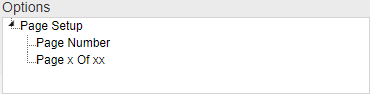
Footer Options
Footers have Page Number options. To use these options, click on the option you wish to use to highlight it. Then click and drag the option into the text editor and drop it where you want the option to be. A statement will appear that tells the software to generate the page number in that location when the Template is used to create a document.
Tables
Tables are used to generate large amounts of information in one letter or report. Tables cannot be printed on their own and must be included in another letter or report.
Enter a Name for the Table and select the Template View for the information the Table will contain. Select the Key Field Type (Single or Multiple) and click Validate Sql Statement.
Once the statement is validated, the Field Name options below the Query box will have the relevant fields available in the dropdowns. You may select up to 8 Field Names to include that data in the Table. You may enter a custom Column Name for each selected field.
Save the Table when you are finished.
The Template View options are as follows:
Notice Table
Notice Table Boot Tow
Payment Plan Table
Ticket Table
Vehicle Account History
Vehicle History
Option currently unavailable.
WaitList
Statement Table
Making Templates
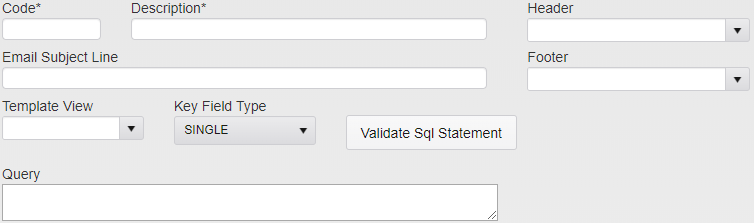
Template Setup Options
All Templates require a Code and Description. An optional Email Subject Line is available if a Template will be sent to customers via email. Headers and Footers made elsewhere in Templates can be selected and will show up as the Header and Footer of the letter generated by the Template in addition to the verbiage entered into the text editor for that Template.
Select the Template View that will be used for this Template. The available Template Views vary based on what you are making a Template for.
After selecting the Template View, select if you are using a Single or Multiple Key Field Type. Then, click Validate Sql Statement. This will generate and check the Query and update the Placeholders menu.
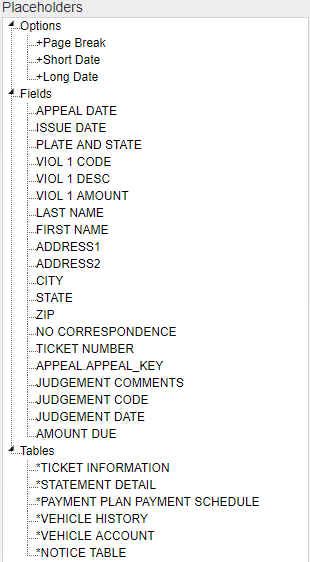
Placeholders Sample
To insert a Placeholder into the text, click on the option you wish to use to highlight it. Then click and drag the option into the text editor and drop it where you want the option to be. A statement will appear that tells the software to generate the page number in that location when the Template is used to create a document.
When the Template is complete, click Save in the upper right to save the Template.
Was this article helpful?
That’s Great!
Thank you for your feedback
Sorry! We couldn't be helpful
Thank you for your feedback
Feedback sent
We appreciate your effort and will try to fix the article