Schedule Service
Services can be scheduled to run at specific times and intervals. These include Notices, Late Fees, and Statements.
Note that there is a WaitList Cleanup process all ready set up that cannot be removed. This is set to remove any expired WaitList offers from the WaitList and from any Web Portal carts they may have been added to.
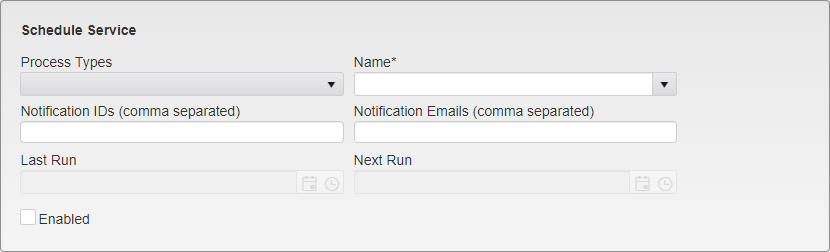
Schedule Service Options
Process Types - Select the Process Type to schedule. Options are:
- BootTow
- Collection
- DeleteCarts
- eTicketNotice
- Export
- Holds_Encumbrance
- Import
- Late_Fees
- MassComm
- NationalDmv
- NationalDmvResponse
- Notices
- OnlinePermitMail
- OnlinePermitPickup
- Payment_Import
- PermitRenewalNotice
- ServiceRequestEmail
- Statements
- WaitlistCleanup
Name - Select the Template to be used when running the service and sending letters. This drop down auto-populates with the Templates set up in the relevant section for the chosen Process Type.
Notification IDs - Enter the TickeTrak usernames to send a Notification to when the scheduled service is run.
Notification Emails - Enter the Emails to send a Notification to when the scheduled service is run.
Last Run - This field will be automatically filled in and updated to the current date and time when the service runs.
Next Run - This field will be automatically filled in with the next time the service is scheduled to run.
Enabled - Check this box to have the service run as scheduled.
The Frequency Criteria determine when and how often a scheduled service is run. The options for this vary based on the frequency at which the service is run.
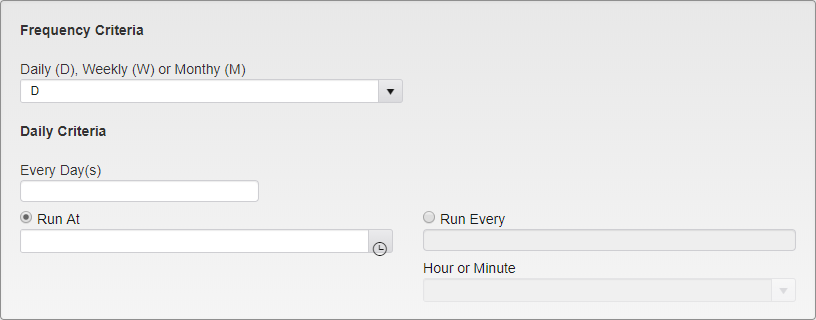
Frequency Criteria - Daily Options
Every Day(s) - Enter the number of days between runs. For example, if you wish to run the service every day, enter “1”. If you wish to run the service every other day, enter “2”, every third day enter “3”, etc.
Run At - Enter the time you wish to run the service at.
OR
Run Every - Enter the number of hours or minutes between runs and select Hour or Minute on the dropdown.
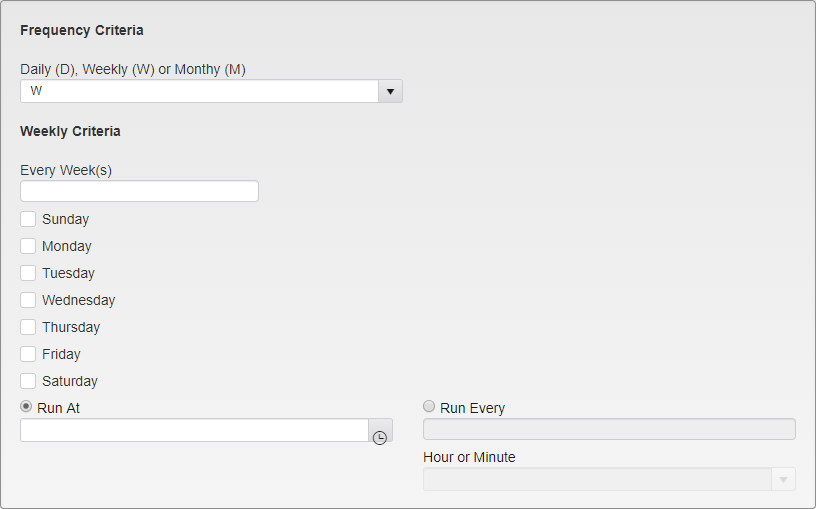
Frequency Criteria - Weekly Options
Every Week(s) - Enter the number of weeks between runs. For example, if you wish to run the service every week, enter “1”. If you wish to run the service every other week, enter “2”, every third week enter “3”, etc.
Weekday Checkboxes - Select the day(s) of the week you wish to run the service on.
Run At - Enter the time you wish to run the service at.
OR
Run Every - Enter the number of hours or minutes between runs and select Hour or Minute on the dropdown.

Frequency Criteria - Monthly Options
Monthly Frequency - Select if the process will run on the 1st, 2nd, 3rd, 4th, or Last day of the month.
Every Month(s) - Enter the number of months between runs. For example, if you wish to run the service every month, enter “1”. If you wish to run the service every other month, enter “2”, every third month enter “3”, etc.
Weekday Checkboxes - Select the day(s) of the week you wish to run the service on.
Run At - Enter the time you wish to run the service at.
OR
Run Every - Enter the number of hours or minutes between runs and select Hour or Minute on the dropdown.
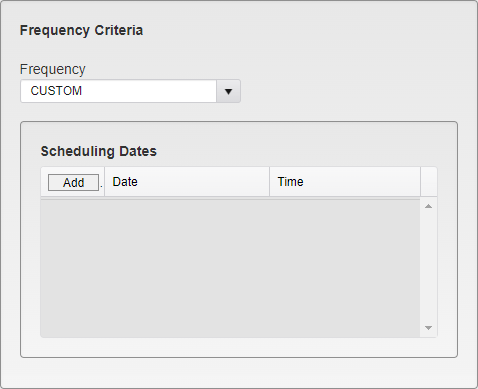
Custom Scheduling Entry
Custom Frequency - Select if the process will run a set number of times at specific dates and times.
Click on Add to enter a new Scheduling Date.
Note: You must Save the Scheduled item with the Process Type and Name selected before Scheduling Dates can be entered.
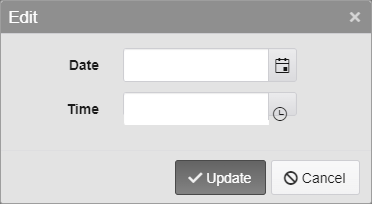
Custom Scheduling - Add Entry
Enter the Date and Time at which the item will run. These can be entered manually, or you can click the Calendar or Clock icons to pull up a Date Selector or a list of times, respectively. You cannot enter a past time in the Scheduling Dates.
Note: The Time settings are in 24-hour format. Entering 1:00 will result in the item running at 1 AM. Entering 13:00 will result in the item running at 1 PM.
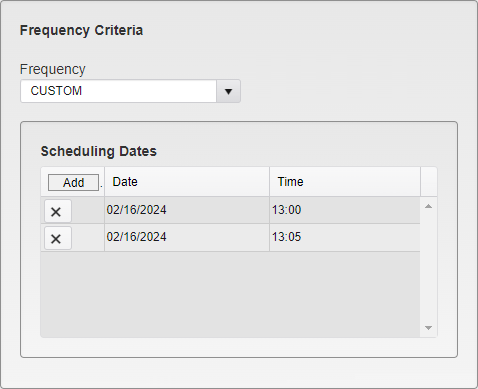
Custom Scheduling - Dates Entered
Once a Date and Time have been entered, they will appear in the Scheduling Dates box.
To delete an entry, click the X next to it.
When the Scheduled item is Activated, it will run at the entered Dates and Times and only at those times. Once all entered times have passed and been run, the item will automatically change to Inactive. The Scheduling Dates box will be unchanged, allowing you to see when the item was run for recordkeeping.
Was this article helpful?
That’s Great!
Thank you for your feedback
Sorry! We couldn't be helpful
Thank you for your feedback
Feedback sent
We appreciate your effort and will try to fix the article