Batch Letters
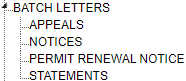
Batch Letters TreeView
General Settings
All templates must first be set up in Template before they can be run.
Print Options - All batch template letters will have the same Print Options.
Delivery Order - This is the order in which the letters are processed and emailed or printed. You may use the First Available address or Send to All addresses.
If you are printing letters you must also select which address to use as multiple addresses are possible.
Billing - Multiple billing addresses are possible, so you must also select Last Entered or Address Type.
Last Entered - This is the last or latest address in the system.
Address Type - Choose to send to a specific address type.
Choose the print order, by Last Name or by Zip Code.
Example 1: If you are sending notices to everyone that has an unpaid Ticket, you may have email addresses for some Persons but not all.
If you choose 1. Email1 and 2. Printed then choose First Available, all letters where the person has an Email1 will be emailed and only the ones with no Email1 will be printed.
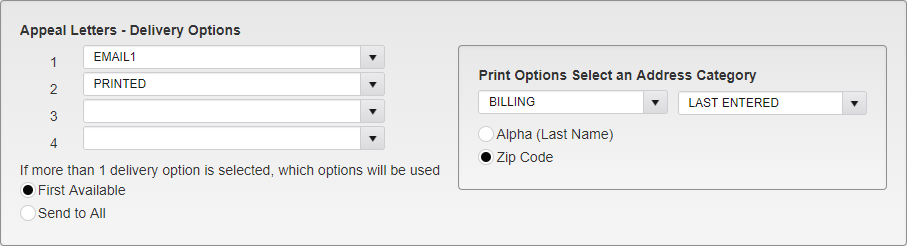
Example 1 Setup
Example 2: You are sending an email notice to an employee and their department head.
If you choose 1. Email1 and 2. Email2, then choose Send to All, all persons with and Email1 and Email2 will be emailed a notice to each address. No letters will be printed.
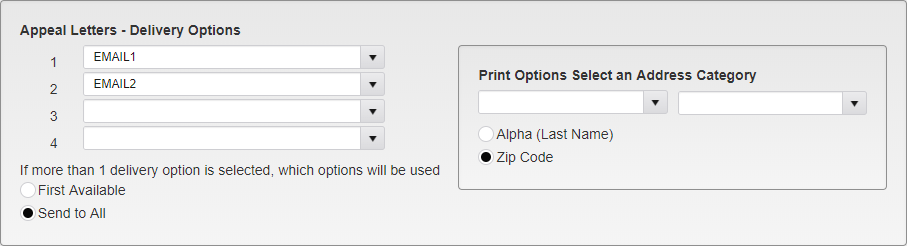
Example 2 Setup
Appeals
Appeal Letters are assigned to each Appeal as it happens. The only options are the print options.
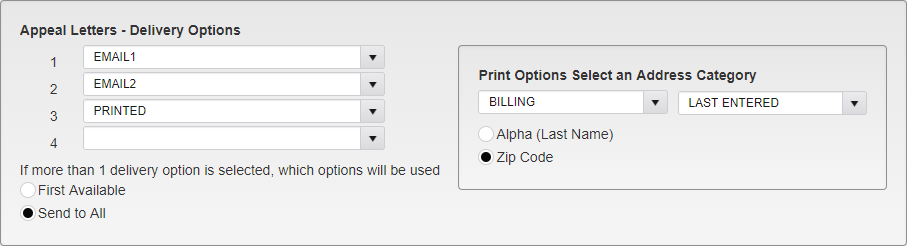
Appeal Delivery Options
Notices
Notices can be sent to all Tickets that meet the selected criteria and have a Person record attached, with either an email address or a physical address to send the notice to. Notices can be created for multiple levels and each level may have different options.

Notice Options
Name - Select a name for the notice.
Notice Level - Select a notice level.
Note: Tickets must have a Notice 1 before they can get a Notice 2, and have a Notice 2 before they can get a Notice 3, etc.
Notice Template - Select the notice template to use.
Note: This template letter must be created in Template in System Settings first.
Search Criteria
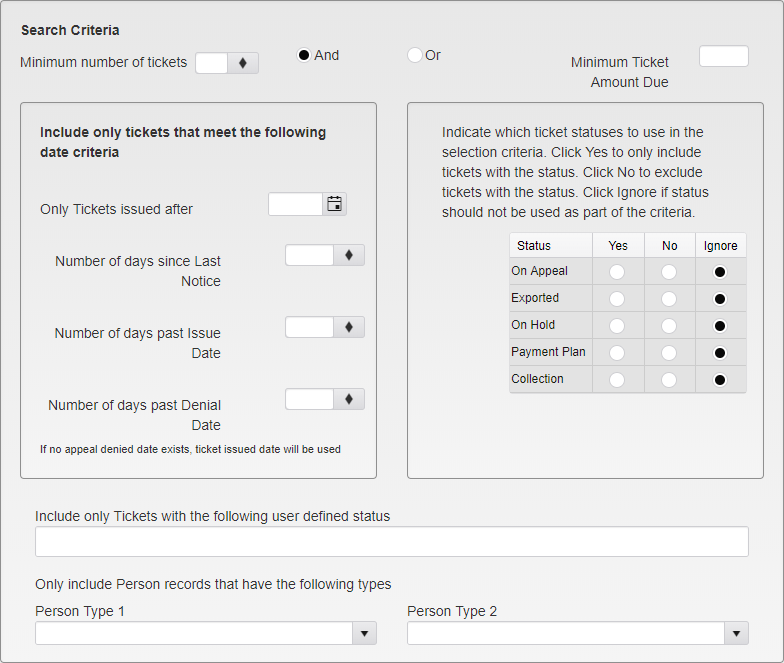
Notice Search Criteria
Minimum number of tickets and/or Minimum Ticket Amount Due - Choose the Minimum number of tickets and/or a Minimum Ticket Amount Due.
Only Tickets issued after - Tickets issued before this date will not be included in the criteria.
Number of days since Last Notice - For notice Level 2 or above, select the number of days since the last notice was sent.
Number of days past Issue Date - Select the number of days since the Ticket was issued.
Number of days past Denial Date - If the Ticket was on Appeal and then the Appeal was denied, select the number of days since the denial date.
Only include Tickets with the following user defined status - Only Tickets with the chosen status will be included.
Only include Person records with the following Person Type 1 - Only Tickets associated with a Person with this Person Type 1 will be included.
Only include Person records with the following Person Type 2 - Only Tickets associated with a Person with this Person Type 2 will be included.
Include tickets with the following status - Select Yes to only include Tickets with the status. Select No to not include Tickets with the status. Select Ignore if the status should not be used as part of the criteria.
On Appeal
Exported
On Hold
Payment Plan
Collection
Enter Print Options.
Permit Renewal Notice
Permit Renewal Notices can be sent to Persons with Permits that are about to or have just expired, prompting them to renew.

Permit Renewal Notice Name Options
Name - Enter a name for the Permit Renewal Notice.
Template - Select the template to be used for the notice.
Note: This template letter must be created in Template in System Settings first.
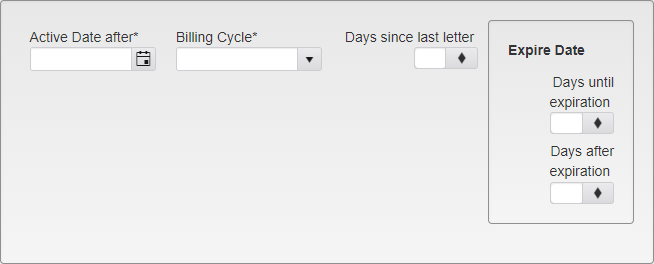
Permit Renewal Notice Date Options
Active Date after - Select the earliest date on which the Permit Renewal Notice will be in use.
Billing Cycle - Select the Billing Cycle that the Renewal Notice will follow. Permits without a Billing Cycle selected will be automatically excluded from any Permit Renewal Notice runs.
Days since last letter - Enter the number of days since the last letter was sent about the Permit before an additional Notice is sent.
Expire Date - Enter when the Renewal Notice will be sent, based on the number of Days until or after expiration of the Permit.
Note: You can only enter days until or days after. Selecting one will clear the other.
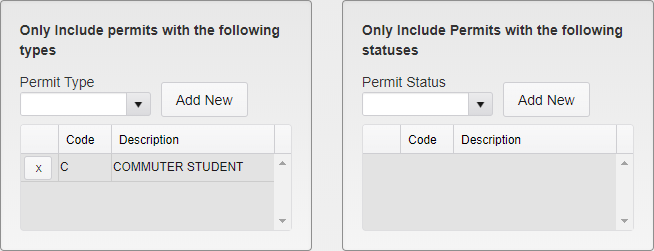
Permit Renewal Notice Type and Status Options
Select the Permit Types and Permit Statuses that this Permit Renewal Notice will cover. To remove a previously selected Type or Status, click the X button next to it. There is no limit to the number of Types or Statuses that can be selected.
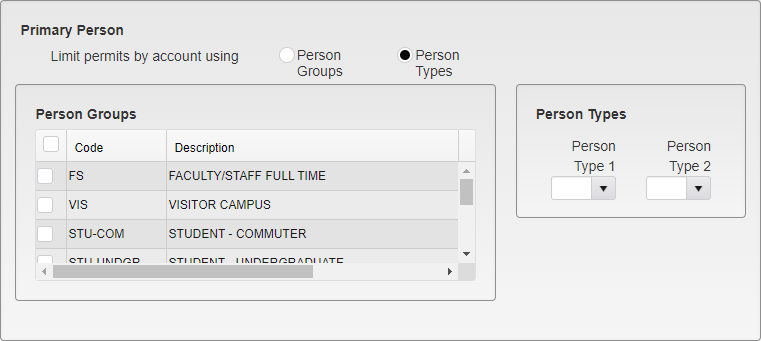
Permit Renewal Notice Person Options
Select if this Permit Renewal Notice will be limited by Person Groups or Person Types.
For Person Groups, select the Groups that the Renewal Notice will apply to. Multiple groups can be selected.
For Person Types, select the Types that the Renewal Notice will apply to. Only one Person Type 1 and Person Type 2 can be selected.
Enter Print Options.
Statements
Statements can be sent to Persons that meet the selected search criteria. They are not leveled like notices and can be sent as many times as you wish. You may create multiple statements if desired.

Statement Options
Name - Enter a name for the statement.
Statement Template - Select the template to be used for the statement.
Note: This template letter must be created in Template in System Settings first.
Records to Include
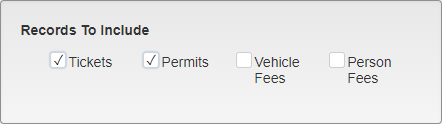
Statement Records to Include
Select which record types to include in the Statement. Options are Tickets, Permits, Vehicle Fees, and Person Fees.
Ticket Date Criteria
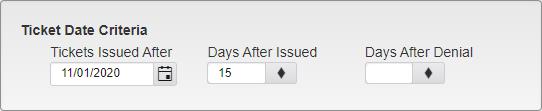
Statement Ticket Date Criteria
The criteria in this section only applies to Tickets. If Tickets are not included in the record selection, this section will have no effect on the records included in the Statement.
Tickets Issued After - The Statement will only incldue Tickets issued after the selected date.
Days After Issued - The Statement will only include Tickets once they are the entered number of days old.
Days After Denial - If a Ticket has been Appealed and Denied, the Statement will only include those Tickets after the entered number of days after the Appeal Denial.
Search Criteria
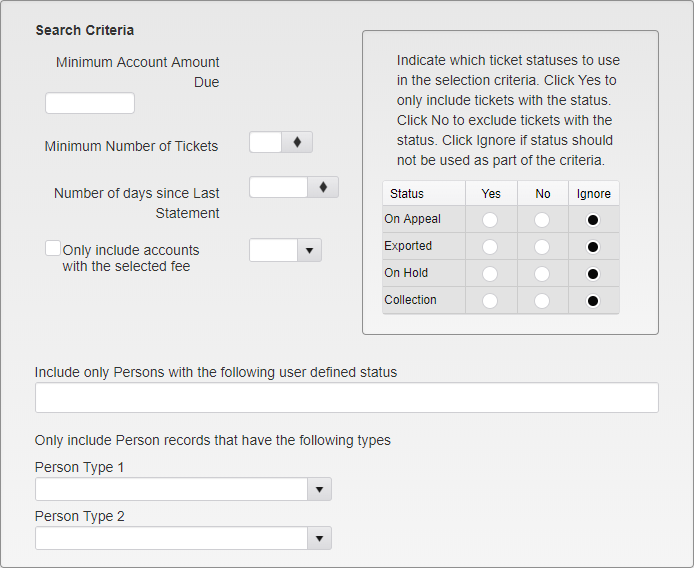
Statement Search Criteria
Minimum Account Amount Due - Select the minimum due on the account to get a statement.
Minimum Number of Tickets - Select the minimum number of unpaid Tickets to get a statement.
Number of days since Last Statement - Select the number of days since the last statement was sent.
Only include accounts with the selected fee - Select a Fee that must be on a Person to get this statement.
Only include Persons with the following user defined status - Only Persons with this status will be included.
Only include Person records with the following Person Type 1 - Only Persons with this Person Type 1 will be included.
Only include Person records with the following Person Type 2 - Only Persons with this Person Type 2 will be included.
Include tickets with the following status - Select Yes to only include Tickets with the status. Select No to not include Tickets with the status. Select Ignore if the status should not be used as part of the criteria.
On Appeal
Exported
On Hold
Collection
Enter Print Options.
Was this article helpful?
That’s Great!
Thank you for your feedback
Sorry! We couldn't be helpful
Thank you for your feedback
Feedback sent
We appreciate your effort and will try to fix the article