Payment Plans
Payment Plans can be set up for Persons who owe large amounts of money. Tickets, Permits, and Fees can all be included as part of a Payment Plan. The exact minimum requirement to be allowed to set up a Payment Plan is set in System Settings.
Create New Plan
To create a new Payment Plan, first search for the Person that the Payment Plan is for.

Setup Payment Plan
Any combination of fields can be used to search. Click Find in the upper right to search.

Payment Plan Settings
Select the Plan Type for the Payment Plan. Current options are Self Pay or Payroll Deduction.
Select the Start Date for the Payment Plan. This is the date that the first Payment will be due.
Enter either the Number of Payments or the Payment Amount for the plan. When one is entered, the other will automatically calculate and populate in the field.
Select the Payment Interval.
Weekly will set Payments as due every seven days after the Start Date.
BiMonthly will set Payments as due on the 1st and 15th of each month.
Monthly will set Payments as due once a month on the same day of the month as the Start Date.
Annual will set Payments as due once a year on the same month and day as the Start Date.
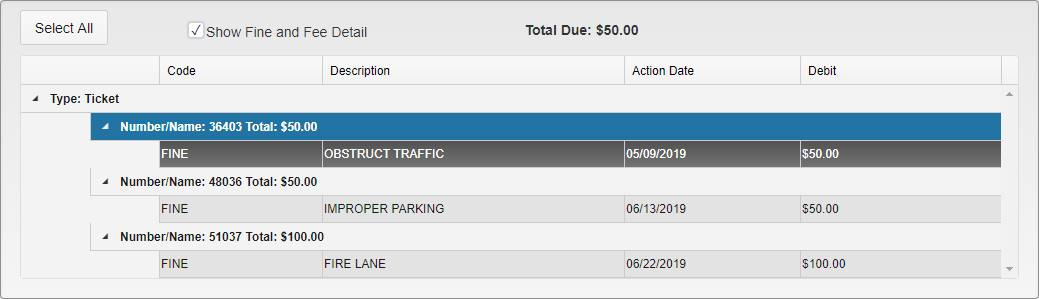
Payment Plan Ticket Selection
Click on the items to include in the Payment Plan. Selected items are highlighted in blue.
You can click Select All to quickly select all of the items. Uncheck the Show Fine and Fee Detail box to collapse the information on all of the items. Total Due shows the current total of the selected items.
When all of the settings have been selected, click Save in the upper right to create the Payment Plan. The new Payment Plan will automatically open in the View or Modify Plan module.
View or Modify Plan

View/Edit Payment Plan Search
Any combination of fields can be used to search. Click Find in the upper right to search. Select a Payment Plan to view.

Payment Plan Details
The Plan Type can be changed from Self Pay to Payroll Deduction or vice versa. The Amount Paid and Amount Remaining will automatically update whenever a payment is made. The Closed Date will automatically fill in when the Payment Plan is either paid off or has been closed manually.
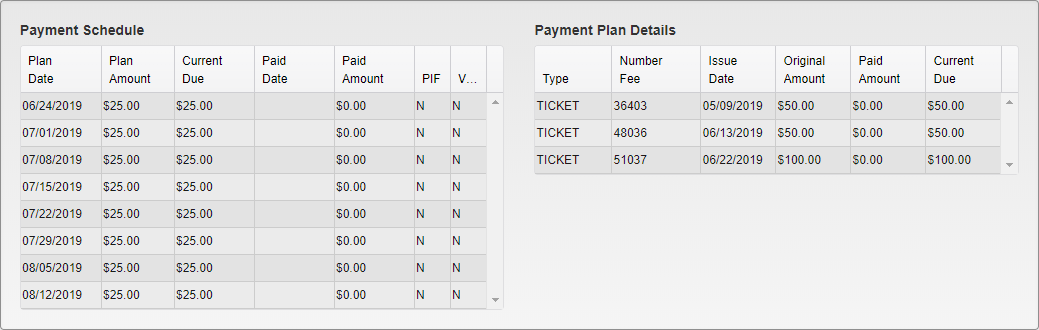
Payment Plan Schedule and Details
The Payment Schedule shows every payment on the plan and the details for that payment, including the due date, the amount due, the amount remaining to be paid, and the paid date and amount if a payment has been made.
Payment Plan Details shows a list of all of the items that are part of the Payment Plan and the amounts paid and remaining on them.
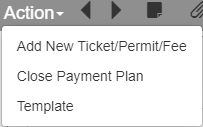
Payment Plan Action Menu
To Add New Ticket/Permit/Fee, the item being added must already be attached to the Person that Payment Plan is for. Clicking this option brings up a mini Payment Plan module with eligible items listed.

Add Item to Payment Plan
Select the items to be added to the Payment Plan and click Process. The new items will be added to the Plan and the schedule will update to include the new charges.
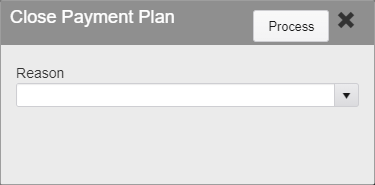
Close Payment Plan
To Close Payment Plan, simply select the Reason and click Process. Reasons are set up in System Settings.
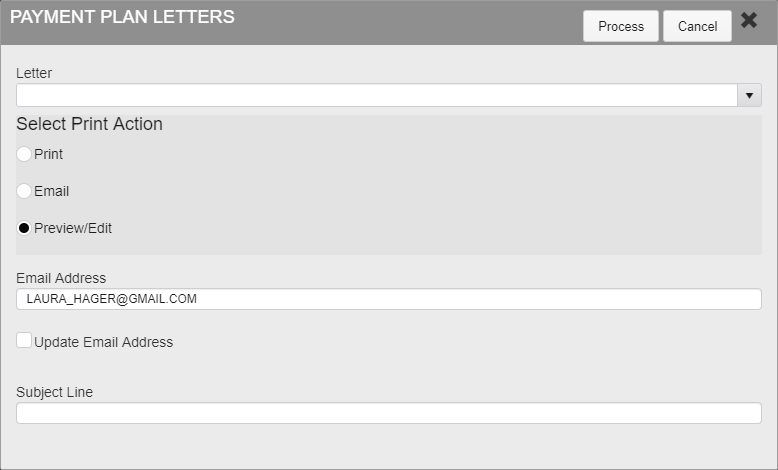
Payment Plan Letters
The Templates option in the Action Menu allows you to send letters to the Person on the Payment Plan. Select the Letter that will be used as a Template, and if the letter will be Printed, Emailed, or Previewed/Edited before being sent.
The Persons email address can be updated if the listed email is changed and the Update Email Address box is checked. The Subject Line will automatically fill it when a Template Letter is selected, though it can then be edited.
Selecting the Preview/Edit option loads the letter to be sent with the relevant information filled in, along with the selected Header and Footer for that Template. All of these can then be edited to ensure accurate information.

Preview/Edit Letter
Once the letter has been edited, select if it will be Emailed or Printed. If it is being emailed, additional emails can be entered as carbon copied or blind carbon copied to additional recipients. When all edits and additions have been made, click Process to send or print the letter.
Was this article helpful?
That’s Great!
Thank you for your feedback
Sorry! We couldn't be helpful
Thank you for your feedback
Feedback sent
We appreciate your effort and will try to fix the article