Permit
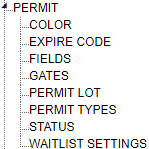
Permit TreeView
General Settings
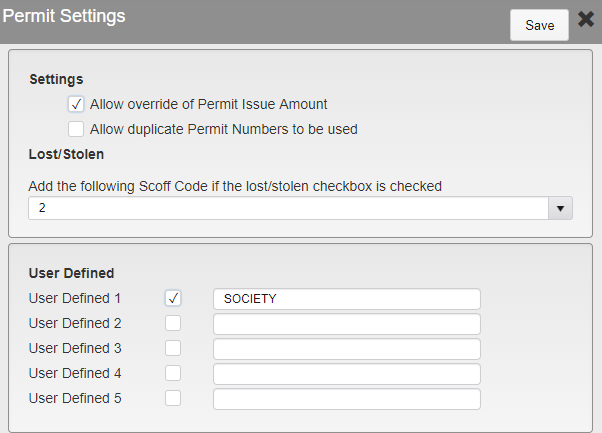
Permit Settings
Allow override of Permit Issue Amount - Allows the default issue amount to be changed when creating a Permit in TickeTrak. This is not used in the Web Portal.
Allow duplicate Permit Numbers to be used - Allows more than one Permit with the same number and type to be created.
Lost/Stolen - When the Lost/Stolen box is checked in Permit the selected Scofflaw will be created.
Add the following Scoff Code - Select the Scoff Code to be used when Lost/Stolen is checked.
User Defined 1 - 5 - User Defined fields add up to 5 more fields to be used for agency-specific needs. The User Defined 1 field is available in Global Search.
Enter the field header in the text box and click the checkbox next to it to activate the field.
Color
Enter Codes and Descriptions for the Colors to be used. Codes have a 10 character limit.
Note: Permit has a unique Color list that is not used anywhere else in TickeTrak.
Expire Code
Enter Expire Codes and their Descriptions to be used when expiring Permits. Codes have a 10 character limit.
Fields
Settings for the Fields that appear in the Permit module are found here.
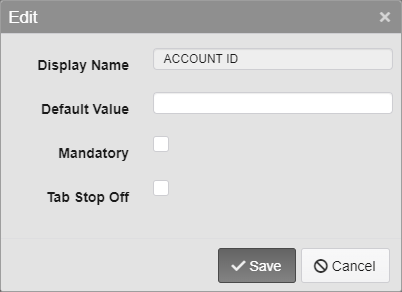
Fields Options
Display Name - The name of the Field being edited. This cannot be changed.
Default Value - Enter the default value for the Field. This is the value that will appear in the field when the Insert key is pressed on the keyboard while in that field.
Mandatory - Check this box to require this Field when saving a new Permit.
Tab Stop Off - Check this box to skip this Field when pressing tab to move through the Fields.
Note: Custom Fields are set up under the general Permit settings.
Gates
Enter Codes and Descriptions for Gates at which Permits can be used. For example, these can be gates to parking garages, specific lots, or particular areas. Codes have a 10 character limit.
Permit Lot
Enter Lots at which Permits can be used.
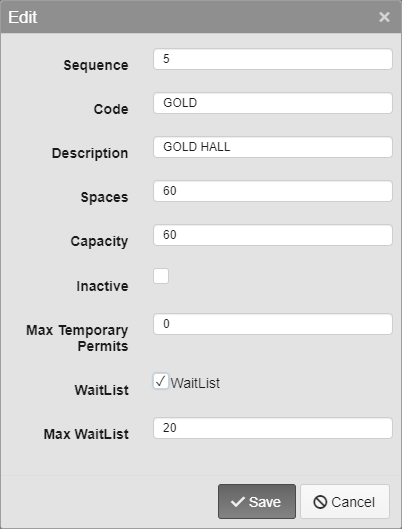
Permit Lot Options
Sequence - Enter the Sequence number. This decides where on the dropdown the option will appear.
Code - Enter the Code for the Permit Lot. 10 character limit.
Description - Enter a description of the Permit Lot.
Spaces - Enter the total number of spaces in the Lot, including spaces that are restricted, handicapped, timed, ect.
Capacity - Enter the maximum number of permits or maximum number of vehicles allowed in the Lot. This may be lower than the total Spaces to allow for guests, visitors, or service vehicles.
Inactive - Inactivates the Permit Lot.
Max Temporary Permits - Enter the maximum number of limited time Permits allowed for the Lot.
WaitList - Actives the Lot as a WaitListed Lot. This allows for the creation of a WaitList if the Lot is full.
Note: WaitList cannot be turned off if there are active records on the WaitList.
Max WaitList - Enter the maximum number of people that can be on the WaitList for this Lot at one time.
Permit Types
General Permit Settings are found on the left side of the Permit Type Settings page.
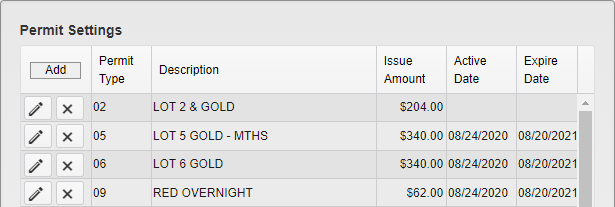
Permit Type Settings
While the Rate Schedule, Prorated Issue Amount, and Prorated Return Amounts are found on the right side of the page.
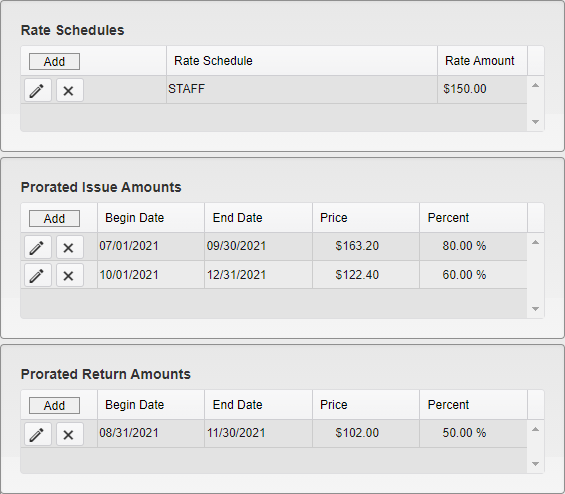
Permit Type Settings - Additions
Permit Settings
Permit Type Code - Enter a Code for the Permit Type. 5 character limit.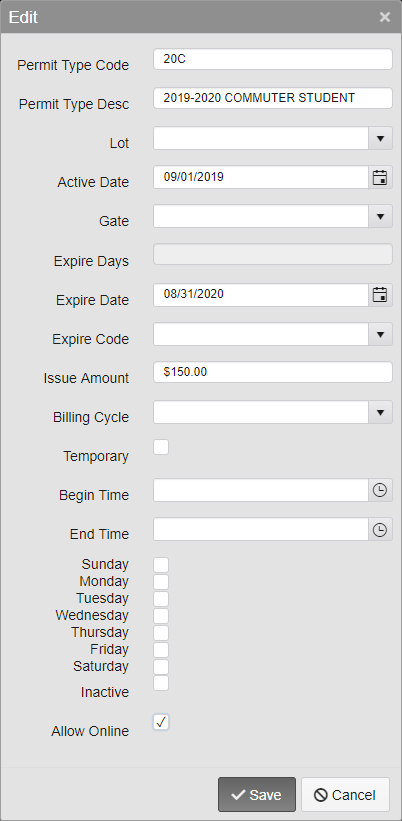
Permit Type Desc - Enter a description for the Permit Type.
Lot - Select the Lot the Permit can be used at from the dropdown.
Active Date - Enter the date the Permit Type will become Active on. Only available for non-temporary Permits.
Gate - Select the Gate the Permit can be used at from the dropdown.
Expire Days - Enter the number of days the Permit Type is valid for before it expires. Permits using Expire Days will allow the customer to enter a Starting Date when purchasing through the Web Portal, and set the Expiration Date that many days after the Start Date.
Expire Date - Enter the date the Permit Type expires on.
Note: Permits expire at midnight on the Expire Date, not immediately.
Note: Expire Days and Expire Date are mutually exclusive.
Expire Code - Select the Code that will be used when the Permit expires.
Issue Amount - Enter the initial price of the Permit.
Billing Cycle - Select the type of Billing Cycle the Permit Type will use. Only available for non-temporary Permits.
Temporary - Select this checkbox to make this Permit Type Temporary. Temporary Permits do not allow the selection of a Billing Cycle, and do not show up on the Web Portal for purchase.
Begin and End Time - Enter the time of day that the Permit is valid.
Weekday Checkboxes - Select the checkboxes for the days of the week that the Permit is valid on.
Inactive - Inactivates the Permit Type.
Allow Online - Select this checkbox to allow this Permit Type to be purchased online through the Web Portal.
Once a Permit Type has been created, clicking on it to highlight it and activate the Rate Schedule, Prorated Issue Amount, and Prorated Return Amount boxes.
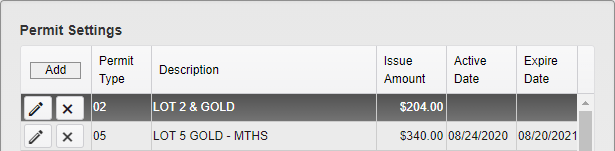
Highlighted Permit Type
Rate Schedules
The left side of this page has the general Rate Schedule settings.

Permit Rate Schedule General Settings
The Permit Type and default Issue Amount are shown and cannot be changed.
Select the Rate Schedule Code that will be used to apply this Rate to Person accounts from the dropdown, then enter the starting Issue Amount for the Rate.
Note: The Rate Schedule must be saved before any Proration options can be set for it.
The Proration settings for this specific Rate Schedule are located on the right side of the page. These function and are set up identically to the regular Proration settings seen below, but only apply to the specific Permit Type and Rate Code they are connected to.
Prorated Issue and Return Amounts
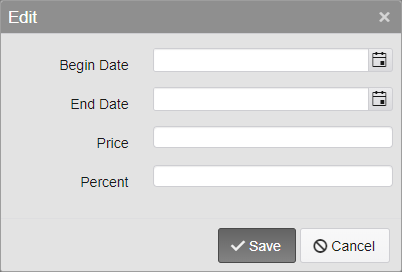
Proration Options
Begin Date - Select when the Proration begins.
End Date - Select when the Proration ends.
Price - Enter the price or return amount of the Permit during this time span. This can be set to the full value of the Permit.
Percent - Enter the percentage of the original Permit price that the Permit will cost or be returned for during this time span. This can be set to 100%.
Note: Price and Percent will always correspond. Entering one will automatically calculate the other. For example, if a Permits original price is $200, entering $100 in Price will automatically fill in 50 in Percent. Similarly, entering 50 in Percent will automatically fill in $100 in Price.
Note: Prorated Return Amounts are required for Permits that can be Returned.
Status
Enter other Statuses to be attached to Permits. These can be anything your organization wishes to make note of.
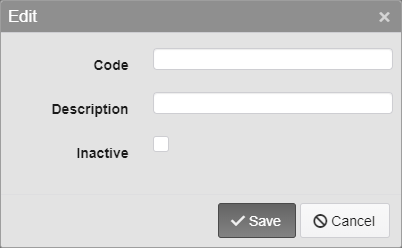
Status Options
Code - Enter the Code for the Status. 10 character limit.
Description - Enter a description of the Status.
Inactive - Inactivates the Status.
WaitList Settings
Note: WaitList is an optional module.
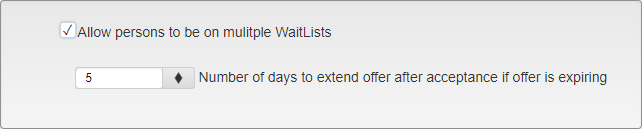 WaitList Settings
Check the Allow persons to be on multiple WaitLists box to allow people to add themselves to more than one WaitList at a time.
Enter the Number of days to extend offer after acceptance if offer is expiring. This setting will look at the number of days remaining before an offer expires when a user goes to accept an offer. If they are unable to purchase a Permit at that time, the offer expiration will be extended by the number of days entered. This allows users to contact the office and return an existing Permit so they may purchase the offered one.
Enter the Delivery Options for how Letters are sent when someone is added to a WaitList.
Was this article helpful?
That’s Great!
Thank you for your feedback
Sorry! We couldn't be helpful
Thank you for your feedback
Feedback sent
We appreciate your effort and will try to fix the article