Ticket
Action Menu
Add Fee - Opens a window to allow you to add a Fee to the Ticket.
Appeal - Brings up the Appeal module for the Ticket.
Block Collection - Prevents the Ticket from being sent to Collections.
Void Ticket - Brings up the Void module for the Ticket.
Change to a Warning - Changes the Ticket to a warning and zeroes the amount due.
Audit History - Opens the Audit History for the Ticket.
Template Letters - Opens a window that allows you to select a Template Letter and send it to the Person the Ticket is attached to.
Delete Ticket - Deletes the Ticket. You will be prompted to confirm that you wish to delete the Ticket.
Place on Hold/Encumbrance/Remove Hold - Places a Ticket on Hold or Encumbrance or removes the Hold. The option that appears depends on your System Settings and the current status of the Ticket.
Accept Payment - Opens the Accept Payment window with the Ticket information filled in.
Quick Pay - Opens the Accept Payment window with just the Ticket information filled in. No other related Tickets or Fees will be shown.
Note: The find button will always perform a search of the entire module.
Ticket Information
Header
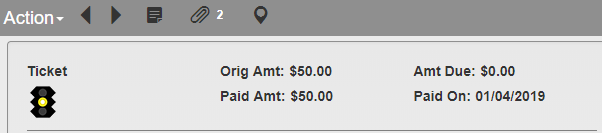
Ticket Header
The module header shows Original Ticket Amount, Amount Due, Paid Amount and Paid On. If several payments have been made on the Ticket, Paid On will show the most recent payment date. Past payment dates are listed in the Ticket History and Finance sections.
General Information
This module is used to search for existing Tickets or enter new Tickets into the system.
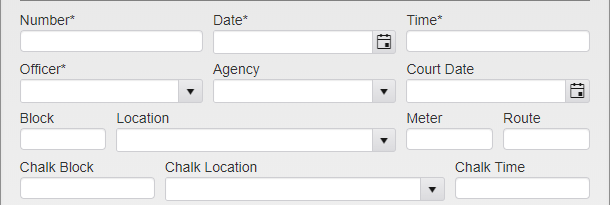
Ticket Menu
Enter the Ticket Number and click Find to perform a partial search for the entered number. Click Select next to the entry you wish to view, or click Cancel in the upper right to continue data entry.
The Date and Time are when the Ticket was issued. The issuing Officer can be selected from the dropdown, along with their Agency.
The Court Date is used if your organization uses a court appeals system.
Block, Location, Meter, and Route are all used to track the location of the Vehicle. Chalk Block, Chalk Location, and Chalk Time are used when chalking a Vehicle.

Ticket Status
Status is used to enter statuses for the Ticket that have been defined by your organization. Click the box to open the Status dropdown. Click on the Status you wish to include to add it to the Ticket.
To remove a single Status, click the X next to that Status. To clear all of the Statuses, click the X at the end of the box.
Additionally, up to five User Defined Fields can be added to the module via System Settings. These fields can be used for any bookkeeping or notes as decided by your agency. Each field allows entries of up to 50 characters.
Violation
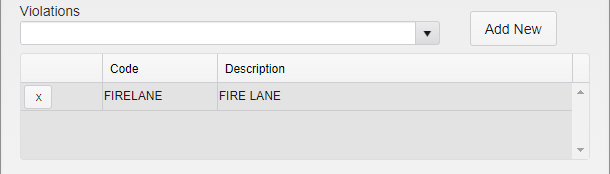
Violation Entry
To add a Violation, type the code or description into the Violations field or select the Violation from the drop down. Then click Add New.
To delete a Violation, click the X by the violation. Violations can only be removed if no payment has been made and no late fee has been added to the Ticket.
Comments
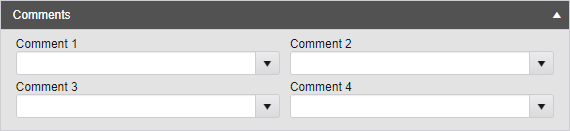
Ticket Comments
Click on the Comments header to open up the Comments entry box. Select Comments from the dropdowns.
Note: Some Comments may only be available in specific Comment fields.
Vehicle
Type in the License Plate and press tab on your keyboard. A browse list will appear if an exact matching plate is found.

Exact Matches
Type in the License Plate and click the search icon and a partial search is performed. This lists all plates that begin with the entered search term.

Partial Matches
Select from the list or click Cancel to continue data entry.
If new information has been entered, a Vehicle record will be created when the Ticket is saved.
If the Vehicle has a primary Person attached, the Person information will be automatically entered in the Person section and the Ticket will be linked to them.
Person
Type in any of the following and press tab.
Last Name, First Name
Local ID
Alternate ID
DL Number
This will perform a partial search for Persons that match the entered search term. Select from the list or click Cancel to continue data entry. If the Person you are searching for is not on the list, click Add in the upper right of the window to open a mini Person module for data entry. Click Save and you will be returned to the Ticket module.
If no match is found you will be prompted to create a new record. A mini Person module will open and allow data entry. Click Save and you will be returned to the Ticket module.
The Person icon can be used to view the mini Person module and update the record if needed.
Changing the Linked Person
Overwrite the Person information and click Save. A History record is created with the changed information.
Finance
Each Fine and Fee is displayed in the Finance grid. Click the arrow to expand and see payment information if present.
History
The History box contains a record of all major changes and additions to the Ticket, as well as the dates they were made and the account that made them.
Was this article helpful?
That’s Great!
Thank you for your feedback
Sorry! We couldn't be helpful
Thank you for your feedback
Feedback sent
We appreciate your effort and will try to fix the article