TTM Utilities
Duplicate Tickets
The Duplicate Tickets Utility shows a listing of all Tickets that have been entered from handhelds with the same Ticket number.
If duplicate Tickets exist, Personnel with Duplicate Tickets rights set up in System Settings will receive a Notification stating the current number of duplicates awaiting processing.

Duplicate Ticket Notification
Click View Duplicates to be taken to the Duplicate Tickets Utility.

Duplicate Ticket Listing
The listing shows the information for the most recent Ticket entered with that Ticket number.
To view the conflicting Tickets side by side, click the pencil icon next to the listing.

Duplicate Comparison
If the Tickets are different, click Process to update the duplicate Ticket and add a “D” to the end of the Ticket number and add it to the system. A pop up will appear starting that the task has been completed successfully.
If the Tickets are the same, click Delete to delete the new duplicate Ticket. Duplicate Tickets can also be deleted directly from the listing by clicking the X icon. A pop up will appear asking you to confirm that you wish to delete the Ticket.
Ticket Export
Ticket Export allows you to create a document containing all Tickets issued within a specific date range.
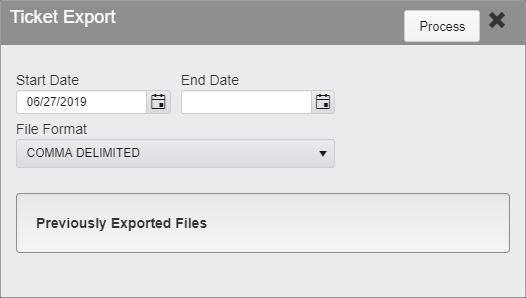
Ticket Export
Enter the Start and End Dates for the export. Select the File Format for the export. Current options are Comma Delimited, Fixed Length, Quote Comma Delimited, and XML. Click Process to run the export.
When the process is complete, a Notification will be sent to the user that ran the process with a link to the file. This file will also be available in Ticket Export in the Previously Exported Files box.
eTicket Review
eTicketing allows for Tickets to be entered by the Officer and then approved by an administrator and e-mailed to the Vehicle owner, all without ever printing out a physical Ticket.
eTicket Review Queue
eTicket Review is the queue that all eTickets enter for approval. Tickets that are entered via eTicketing are not in the system for payment and do not incur Late Fees until they are approved by a an administrator.
eTicket Review Queue Sample
The eTicketing Review utility lists all tickets in the queue. The listing shows basic information about the Ticket, including the Number, the Issue Date and Time, the issuing Officer, and more.
To fully review a Ticket, click on the pencil icon on the left side of it. Information on the Ticket can be edited before it is Issued and added to the system. Information required in the Ticket Module is also required when Issuing a Ticket from this utility.
The right side of the Ticket page shows information about the Ticket itself.
eTicket Item Review
eTicket Review - Ticket Information Sample
Number - The Ticket Number. This is generated by the handheld and currently cannot be changed.
Date - The Date the Ticket was Written.
Time - The Time the Ticket was Written.
Officer - The Officer that wrote the Ticket.
Agency - The Agency associated with the Officer.
Court Date - The Court Date was assigned to the Ticket, if any.
Location - The Location where the Ticket was issued.
Block, Meter, Route - Additional Location information entered by the Officer.
Chalk Block, Chalk Location, Chalk Time - The Location and Time of the Virtual Chalking for the Vehicle, if any.
Violation - The Violations included on the Ticket.
Warning - Checked Violations are listed as Warnings and do not add a charge to the Ticket.
Comments - Comments selected or written by the Issuing Officer.
The left side of the Ticket page shows information on the Vehicle and the related Person and Permit.
eTicket Review - Vehicle Information Sample
License Plate, State, and Type - The License Plate information of the Vehicle.
Primary and Secondary Color - The color(s) of the Vehicle.
Body - The body style of the Vehicle.
Make, Model, and Model Year - The Make and Model information for the Vehicle.
VIN - The VIN associated with the Vehicle.
License Date - The date of the Vehicle’s License Plate.
eTicket Review - Person Information Form
Name - The Name of the Person associated with the Ticket. To select a Person, enter their Name formatted as Last,First, or their Alt ID, Local ID, or Account ID. Then click the magnifying glass icon. A list of matching Person records will appear. Click the Select button next to one to assign then to the Ticket.
Some Tickets may have a Person attached when they enter the queue. These are records where the Vehicle Ticketed all ready has a Person connected to it in the system. This can be changed if need be.
Email 1, 2, and 3 and Local ID - Additional information about the Person. These are automatically filled out when a Person is selected.
eTicket Review - Permit Information Form
Permit Number and Type - The Permit recorded at the time of Ticketing, if any.
If a Ticket has Images attached to it, they will appear at the bottom of the screen. Click on one of the thumbnails to enlarge it.
eTicket Issue Options
eTicket Review - Issue Options
Once the Ticket has been reviewed, it can be processed in one of three ways.
Issue - Issue the Ticket. The Ticket cannot be Issued if there is not a Person attached to it. The Ticket will enter the system and be payable just like a Ticket issued via the handheld without going through eTicketing.
Issue Warning - Issue the Ticket as a Warning. The Warning cannot be Issued if there is not a Person attached to it. The Ticket will enter the system with all of its Violations marked as Warnings. The Ticket will not have an amount due.
Void - Void the ticket. Does not require a Person. Void the ticket and enter it into the system for records and tracking. Violations will be entered on the Ticket at their regular amounts and immediately Voided.
Issued Date and Written Date
Once a Ticket has been issued, it is added to the system for payment. On the Ticket page, you will see both an Issue Date and Time, and a Written Date and Time.
Issued and Written Information Sample
The Written Date is when the Ticket was written by the officer in the field. The Issue Date is when the Ticket was reviewed and added to the system.
Late Fees, Appeals, Scoffs, and all other time-based items relating to Tickets use the Issue Date for their calculations. The Written Date is for information only and is not used by the system as criteria for any other processes like Late Fees, Notices, Appeals, etc.
eTicket Notification
eTicket Notification
Click Process to manually run eTicket Notifications. These are letters set up to be sent out to people who were issued an eTicket. The criteria for this must be set up in System Settings before use.
This process can also be set up in the Schedule Service and run automatically on a set schedule.
Was this article helpful?
That’s Great!
Thank you for your feedback
Sorry! We couldn't be helpful
Thank you for your feedback
Feedback sent
We appreciate your effort and will try to fix the article