Appeal
Appeals may be made using the Web Portal or in TickeTrak 10. If the Appeal is made via the Web Portal, an email and/or notification can be sent to designated addresses.
While a Ticket is in the Appeal process, no Late Fees are added and the Ticket may be excluded from other processes such as Notices, Statements, or Scofflaw.
Multiple levels of Appeal may be set up and each one has different options, such as the number of days past the Issue Date it may be Appealed or if a Fee is added. If a Fee is added, it is added to the Person account. If desired, you can require a Ticket to be paid prior to being placed on Appeal. Specific violations can be set up so they are not appealable at all, or not appealable via the Web Portal.
Opening the Appeal Module
From the TreeView, right-click on the Ticket and click Appeal.
From the Ticket module, open the Ticket and click the Action menu and click Appeal.
From the Navigation Bar, click Module and Appeal.
From the notification, if the Appeal was done in the Web Portal.
If the Appeal has multiple levels, the history of the previous levels will be in the grid at the bottom of the form. Click on it to see the details. Notes may be added to the Appeal record. If the Appeal was done from the Web Portal and attachments were added, they will be displayed in the Appeal form. The plea the user typed in will appear as a second note icon on the Appeal module.
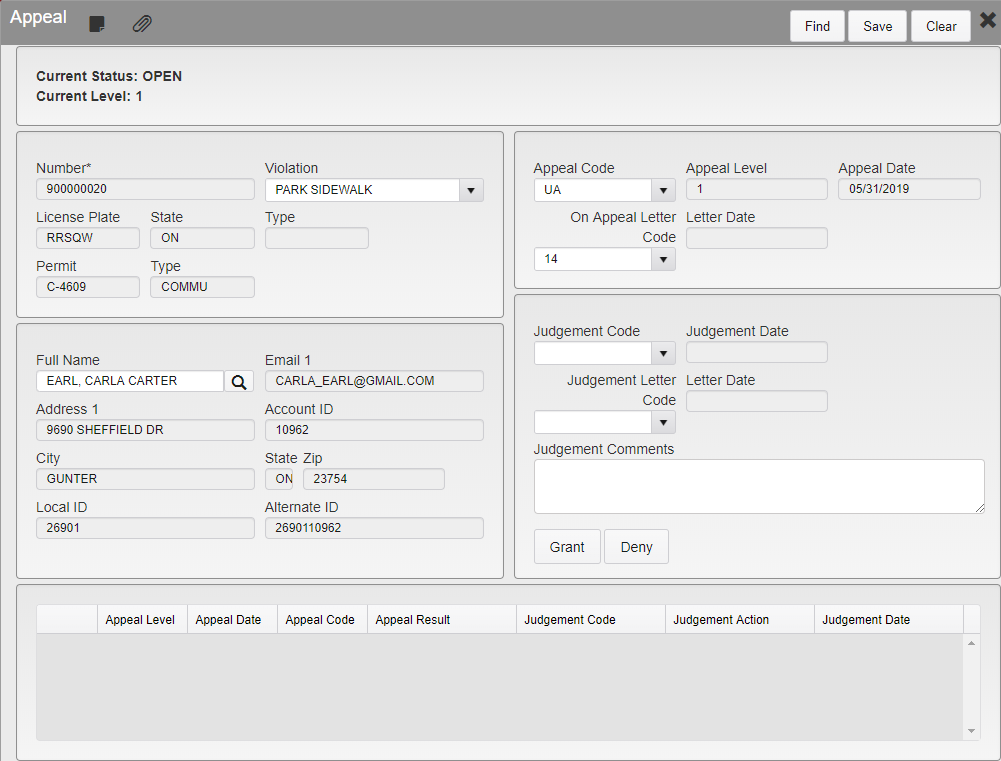
Appeal Module
There are 3 states of Appeal:
On Appeal
Appeal Denied
Appeal Granted
On Appeal
The Ticket must have a Person record associated with it to be placed on Appeal.
If the maximum number of days past the Issue Date has been reached, an admin can overwrite this and still allow the Appeal.
Appeal Denied
Open the Appeal module and select the Judgment Code, select the Letter they will be sent, and enter any comments. Click the Deny button.
If the Appeal is denied, then the Ticket is still outstanding. Late Fees will apply based on the Appeal Denied date.
Appeal Granted
Open the Appeal module and select the Judgment Code, select the Letter they will be sent, and enter any comments. Click the Grant button.
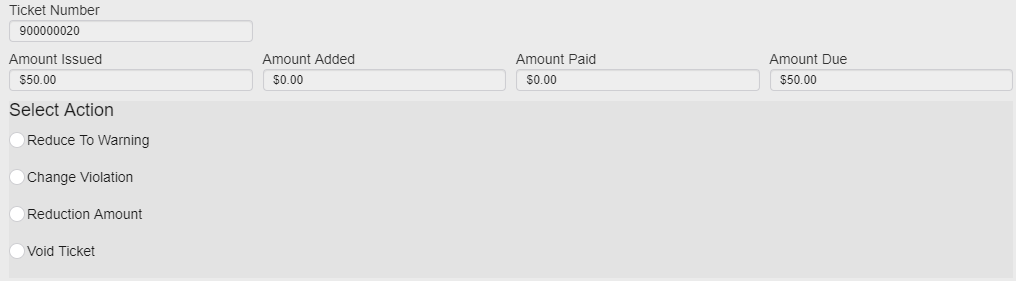
Appeal Granted Actions
The possible actions are:
Reduce To Warning
Change Violation
You will be prompted to enter the From Violation and To Violation.
Reduce Amount
You will be prompted to enter the reduction amount. This is the amount the fine will be decreased by.
Void Ticket
You will be prompted to enter the Void Reason code.
If the ticket is not Voided or Reduced to a Warning, then the Ticket will remain unpaid.
Appeal Letters
At each stage of the Appeal process, a letter may be sent to the Person. Letters must be set up in System Settings before they can be selected during the Appeal process. When the judgement is entered, you will be prompted to print or email the letter now, or save it as part of a batch to be printed at another time. The Persons Email Address 1 will be displayed and the address can be overwritten or updated if desired.
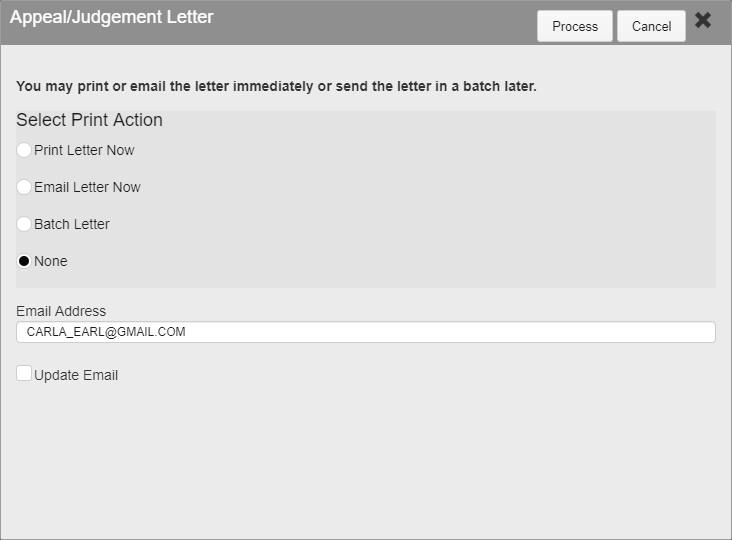
Appeal Letter Selection
Was this article helpful?
That’s Great!
Thank you for your feedback
Sorry! We couldn't be helpful
Thank you for your feedback
Feedback sent
We appreciate your effort and will try to fix the article