Utilities
Boot/Tow Notice
Note: Boot/Tow is an optional module.
The Boot/Tow Notice utility is used to generate Boot/Tow eligible records based on the number of Tickets or outstanding amount due on a single Vehicle. This utility will generate letters and send them to the Person connected to the Vehicle, as well as attach the letter to the Boot/Tow record.

Boot/Tow Notice Selection
Click on the Notice you wish to run, then click Process in the upper right.

Boot/Tow Notice Notification
You will receive a notification when the process is complete. Click Open to view all of the letters generated.
Export
The Export utility is used to export records from the TickeTrak database for use in other systems. Once an Export is set up, it can be run manually by clicking Process, or it can be scheduled to run on regular intervals in System Settings.
To find an existing Export, type the name of the Export into the Export Name field and click Find in the upper right. A list of matching results will pop up. Click Select to the left of the Export you wish to view. Otherwise, click Cancel to return to the Export utility.
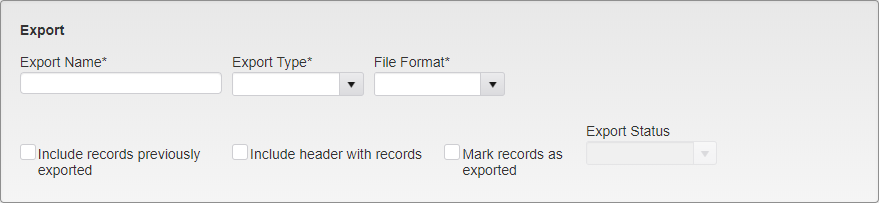
Export Options
To set up a new Export, enter the Export Name and select the Export Type and File Format.
The Export Type can be Permit, Person, Ticket, Online Permits, Permit Finance, or Ticket Finance. This selection determines the available Fields in the Field Selection Criteria. Available File Formats are Quote Comma Delimited, Fixed Length, and XML.
The following settings will vary depending on your needs:
Include record(s) previously exported - This will include all tickets and payments even if they have been sent before. Generally, this is only used during testing or troubleshooting.
Include header with records - In the Quote Comma Delimited or Fixed Length files, a header may be included if desired.
Mark records as exported - If this is used in Ticket Finance Export, unlike the other Exports, the main Export flag on the ticket is not set. Instead, some new flags used to mark if a Ticket or Payment Transaction has been sent. Generally, this should always be selected.
Select the Export status to add to the citation history.
- Note: Credit Export exports Credit information from Person profiles but does not Export the Credit itself.
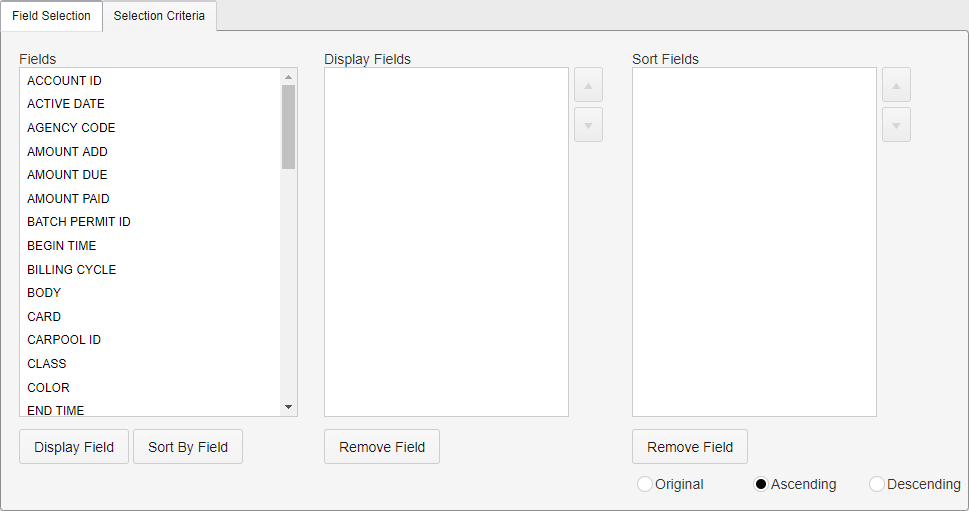
Export Field Selection
Click on a Field to select it. Then, click Display Field or Sort By Field to add it to the respective list.
Display Fields shows the fields that will be displayed on the export when it is generated. The order they are listed in can be changed by clicking on a field in the Display Fields box and clicking the up or down arrow to change its location on the list.
Sort Fields decides how the entries will be sorted. These can be set to sort in the Original order they were entered, in Ascending order, or in Descending order.
Click on a field and then click Remove Field under the relevant box to remove the field from the listing.
Click on the Selection Criteria tab to go to the Selection Criteria menu. The Selection Criteria decides what data is pulled for the Export.
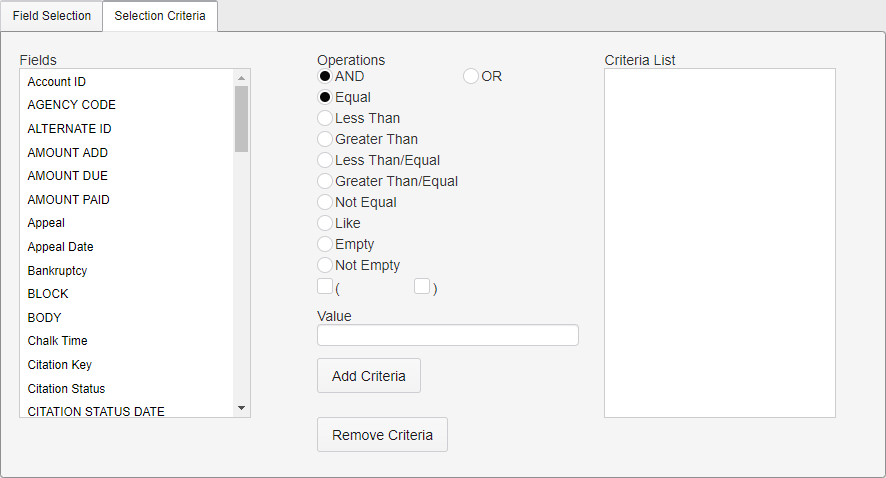
Export Selection Criteria
Click on a Field to select it. Enter a value for the Field and select the Operation, them click Add Criteria. To add additional Criteria, repeat this process while selecting AND or OR to determine if the new Criteria will place further restrictions on the selection or include additional data.
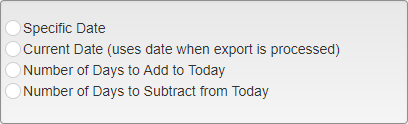
Date Options
Some Fields will have special options when chosen. For example, any Dates will have Specific Date, Current Date, Number of Days to Add to Today, and Number of Days to Subtract from Today. The latter three options use the current date, and either look specifically for things on today’s date, or those within the entered number of days around today’s date.
As an example, to select all unpaid Tickets from January 2019, you will need to:
Select Issue Date, select Specific Date, enter a value of “01/01/2019”, and select the Greater Than/Equal operation. Click Add Criteria.
Select Issue Date again, select Specific Date, enter a value of “01/31/2019”, and select the Less That/Equal operation. Select the AND operation and click Add Criteria.
Select Amount Due, enter a value of “0.00”, select the Greater Than and AND operations, and click Add Criteria.

Export Notification
After entering all Fields and Selection Criteria, click Save in the upper right to save the Export. Click Process to run the Export.
Note: You must save before the Export can be run.
Once an Export has been run, you will receive a Notification with a link to download the Export file.
Ticket Finance Export
Ticket Finance Export is an Export batch file process that can be used to export ticket data for syncing to a third party system. Whenever a change is made to the amount due on a ticket, it is eligible for Export.
Configuring and scheduling is the same as any other type of Export. However, Ticket Finance Export files will need to be synchronized to a third party system separately. Your IT Department or Developers will need to be involved to configure this synchronization to the third party system. Please contact your Cardinal representative for more information about including Ticket Finance Export to your system.
Ticket Finance Export has some required fields to work properly with a third party system. These fields are listed below.
Field | Description |
Ticket Number | Ticket Number. This Number should be kept so that any payments received in a third party system can be communicated back to TickeTrak. |
Charge Code | Charge code is the Violation Code written in the Ticket. One line is included for each Violation. If a Fee is added to a Ticket, then the Charge Code is the Fee Code. No Charge Code is included on a payment. This field allows you to track the specific parts of a Ticket that have been paid. |
Debit Amount | Amount of the Violation. This field can be positive or negative. This is the original amount owed on the Ticket. |
Paid Amount | Monetary Payment Amount. This field can be positive or negative. This is the amount that has currently been paid towards the Ticket. |
Adjustment Amount | Non- Monetary Payment Amount. This field can be positive or negative. This is the amount that has been Adjusted on or off of the Ticket, which causes changes to the overall amount due that is not reflected in the Debit Amount. |
Export Type | Data added in System Setting - Payment Types - Export Type or a system generated type will be added. This allows for proper recordkeeping when marking Tickets as Exported to various systems (Ticket Finance, Collections, etc.) |
ID Field | An ID field to link the Person connected to the Ticket to person records in your third party system. This may be the Alternate or Local ID in TickeTrak, depending on the setup your agency uses. |
Other fields as needed. | Any additional data you wish to include in the Export, such as Person or Vehicle information, can be added. |
Results
The samples will show only the fields indicated above in the selection criteria section.
Note: Each activity that has not previously been exported will be included in the Export file. If a ticket is added and paid prior to Export, both activities will be included in the file. The exception to this is if a payment is made but then voided prior to Export, when Export is run, the payment and the payment void will not be included as the net change to the account is 0.
Ticket Number - For the purposes of the sample ticket number is not included but it is included in the final Export.
Note: The following samples are for violations that are $20.00.
When a new Ticket is Exported, the following information will be shown.
Ticket Number | Charge Code | Debit Amount | Payment Amount | Adjustment Amount | Export Type |
TICK1 | 01 | 20.00 | 0.00 | 0.00 | Fine |
New payment on a Ticket. Different payment types will be listed under Export Type. If the payment is split, there will be a separate line for each payment type. This example is for a cash payment.
Ticket Number | Charge Code | Debit Amount | Payment Amount | Adjustment Amount | Export Type |
TICK2 | 0.00 | 20.00 | 0.00 | Cash |
Charge Code | Debit Amount | Payment Amount | Adjustment Amount | Export Type | Explanation |
0.00 | 0.00 | 20.00 | Adj | Non-Monetary Payment. | |
0.00 | 0.00 | 20.00 | Void | Void Ticket. | |
02 | 20.00 | 0.00 | 0.00 | Fine | Violation added |
Late1 | 5.00 | 0.00 | 0.00 | Fee | Late Fee added |
Fad | 10.00 | 0.00 | 0.00 | Fee | Fee Code “Fad” added |
0.00 | 0.00 | 20.00 | Removed | Violation removed | |
0.00 | 1.00 | 0.00 | AmEx | Partial $1.00 Payment with AmEx. Settings indicate the remaining Balance remains on Ticket. | |
0.00 | 1.00 | 0.00 | MC | Partial $1.00 Payment with MC, remaining amount adjusted off according to settings. | |
0.00 | 0.00 | 19.00 | PPZERO | ||
0.00 | -20.00 | 00.00 | VOID | Void Payment (Transaction). | |
Appeal Options, Ticket is PAID prior to Appeal | |||||
On appeal, nothing is added. | |||||
0.00 | -20.00 | 00.00 | AmEx | Appeal granted, Ticket Void. Ticket was exported when added and when paid. The payment transaction must be Voided, then the Appeal can be granted and the Void can be added. | |
0.00 | 00.00 | 20.00 | VOID | ||
01 | 20.00 | 0.00 | 0.00 | Fine | Change violation, new violation exported. A credit is created to remove the amount of the old violation |
0.00 | 0.00 | 20.00 | Credit | ||
Changed to Warning, Nothing, a credit is added to the person record. | |||||
Appeal Options, Ticket is NOT paid prior to Appeal | |||||
On Appeal, nothing is added. | |||||
0.00 | 0.00 | 20.00 | Void | Appeal Granted, Ticket Void. | |
02 | 20.00 | 0.00 | 0.00 | Fine | Change violation. New violation added, old violation is paid with the credit created. |
01 | 0.00 | 0.00 | 20.00 | Fine | |
0.00 | 0.00 | 15.00 | Appeal | Amount reduced to $5.00. | |
Other Situations | |||||
0.00 | -20.00 | 0.00 | CK | Returned check, Chargeback, not included if the payment transaction had not already been included | |
0.00 | 0.00 | -20.00 | Void | Undo Void Ticket. | |
01 | -20.00 | 0.00 | 0.00 | Fine | Change link on the ticket. One record to remove the amount from the first person and one record to add the amount to the second person. One of the ID fields is used to tell which one is added and which one is reduced. |
01 | 20.00 | 0.00 | 0.00 | Fine | |
Note: It is advised when the IT departments write the process that imports the data into another system write it in such a way that if any records are found with an error the import process will complete.
Import
Note: Import is an optional utility.
Imports allow you to upload batches of data to the database without having to manually enter each individual. Currently Person and person Vehicle Permit Imports are available. Data order is set in System Settings and is unique to your organization.

Import Selection List
Imports can be run manually or set up to run on a schedule. To manually run an Import, click on the Import format you wish to use to highlight it.

File Upload Button
Select the file you wish to upload by clicking the button and navigating to the file, or drag and drop the file over the button. Person Imports can be Comma Delimited or Quote Comma Delimited file types, and Person Vehicle Permit Imports must be text files.
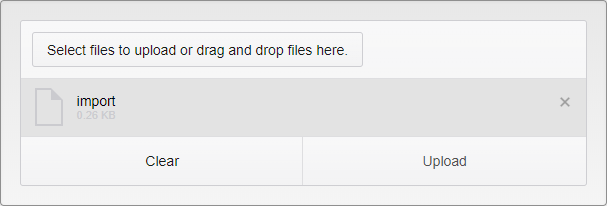
Import Upload
To remove a single file, click the X by the file you wish to remove. To remove all files, click Clear. Once all files have been selected, click Upload to upload the files.
After uploading the files, click Process in the upper right to run the utility.

Import Notification
Once the utility finishes running, you will receive a notification stating the number of imported records and the number of errors. The notification will also include a link to a log file with any errors listed.
Past log files can also be viewed on the Import page.
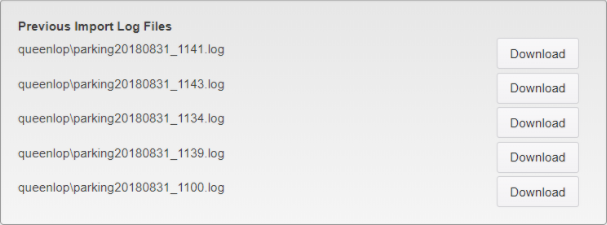
Previous Import Log Files
Click on the Download button next to a log file to download it for viewing.
The log file will contain the file name and the criteria used to check for and handle duplicates. It also lists the number of people added/updated and rejected, and the number of addresses added.
Mass Communication
Mass Communication allows you to send out Template Letters to People based on a variety of criteria. This allows for letters to be sent to everyone with a Credit on their account, everyone with a Permit in a specific Lot, and more.
Note: This process can generate a large number of letters. Before using it, please check with your internal IT department to ensure there is not a limit on the number of e-mails your system can send out at once.
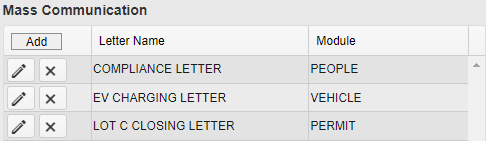
Mass Communications Selection
To start a new Mass Communication setup, click Add at the top of the listing. To edit an existing one, click the pencil icon next to the Mass Communication you wish to edit. To delete one, click on the X icon next to it.

Mass Communication - Action Bar
Click on Action at the top of the Mass Communication editor to open the Action menu and reveal the Delete MassCommuncations option. Click on this to delete the setup you are currently viewing.
The Save button will Save the changes made to the current setup.
The Process button will run the Mass Communication, generating Letters based on the entered criteria and sending them out. A Notification with information about the run will appear on your account. Mass Communication can also be Scheduled to run at a later date in System Settings.
The Clear button will completely clear all the entered criteria in this setup. This includes the Letter Name and selected Template.
The X button will return you to the Mass Communication selection view.
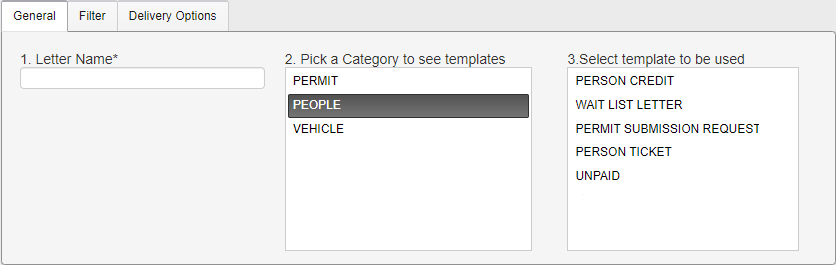
Mass Communications - General Tab
Enter a Letter Name for the Mass Communication setup.
Click on a Category to select it. The Category determines which Template Letters can be selected, and the Template then determines which fields are available on the Filter tab.
The Templates available are set up in System Settings under the associated Category. All Templates are available for selection in Mass Communication.
Click on a Template to select it and populate the Filter tab.
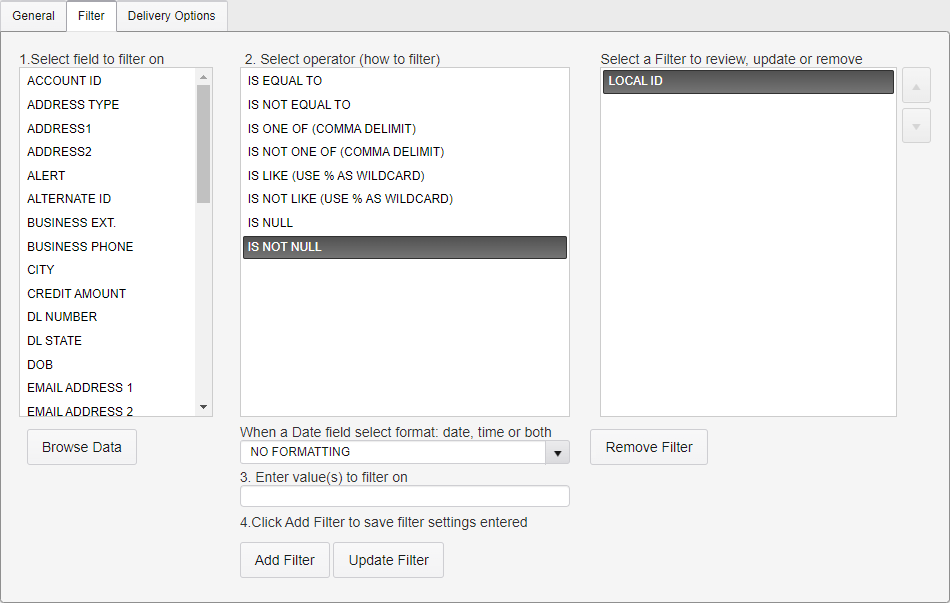
Mass Communication - Filter Tab
Click on a field to select it. Once a field is selected, you can click the Browse Data button to see the 20 most recent entries with data in that field. This provides a sample of the accounts that will be picked up using that field and the data format.
Select an operator to use to filter the field. The Filter Value box will appear based on if it is needed for that specific Filter type.
Date fields can be formatted to have just the Date, just the Time, or both the Date and Time. This changes how the Filter Values box is presented for data entry.
Once the filter is filled out, click Add Filter to save it.
To edit an existing filter, click on it in the right column. This will load its settings into the middle column of the form. Make the needed adjustments and click Update Filter to save them.
To Remove a filter, click on it in the right column and then click Remove Filter.
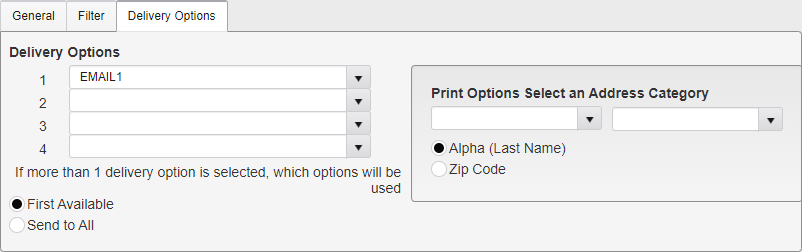
Mass Communication - Delivery Options Tab
Enter the Delivery methods that you want to use to send this communication.
Delivery Order - This is the order in which the letters are processed and emailed or printed. You may use the First Available address or Send to All addresses.
If you are printing letters, you must also select which address to use, as multiple addresses are possible.
Billing - Multiple billing addresses are possible, so you must also select Last Entered or Address Type.
Last Entered - This is the last or latest address in the system.
Address Type - Choose to send to a specific address type.
Choose the print order, by Last Name or by Zip Code.
National DMV
Note: National DMV is an optional utility.
The National DMV utility allows you to create a list of Vehicles and send it to the National DMV. You will receive a list of people associated with those Vehicles in response.

National DMV Selection
To run the National DMV utility, select the criteria you wish to use and click the Preview button.
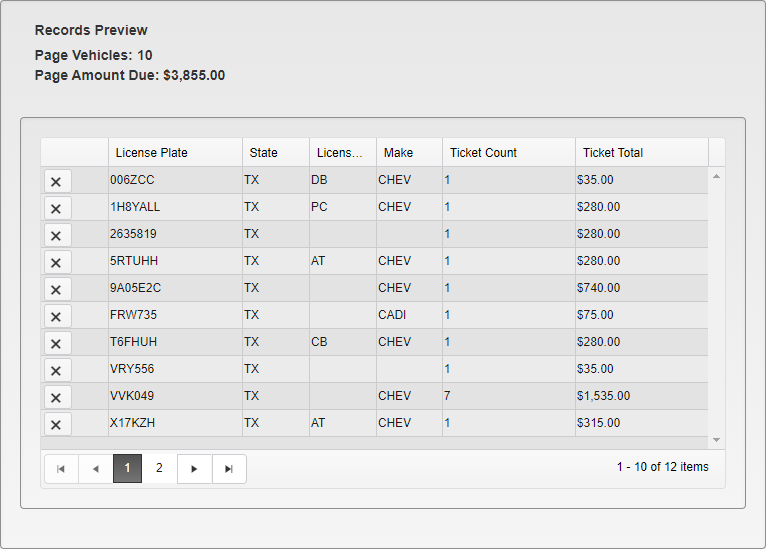
National DMV Preview
A preview of the records will be generated. This preview lists the License Plate and State, the License Type, and the Make of the Vehicle, as well as the total number of Tickets associated with the Vehicle and the total due on them.
Ten entries will be shown at a time. Use the arrows at the bottom of the list to navigate to other pages. To remove a specific Vehicle from the list, click the X icon next to it.
When you are ready to send the Vehicles to the DMV, click the Process button. This will compile the Vehicle information into a file and send it to the National DMV.

National DMV Inquiry Complete Notification
You will receive a notification stating the number of records sent and a file with the individual Vehicles listed. The response will be automatically handled by the National DMV Response scheduled service set up in System Settings. There is no way to manually check for a Response.
Payment Import
Note: Payment Import is an optional utility.
Payment Import allows you to upload payment information that was taken through another system. Currently only Ticket Payment Imports are available. Data order is set in System Settings and is unique to your organization.

Payment Import Selection List
To run an Import, click on the Import format you wish to use to highlight it.

File Upload Button
Select the file you wish to upload by clicking the button and navigating to the file, or drag and drop the file over the button.
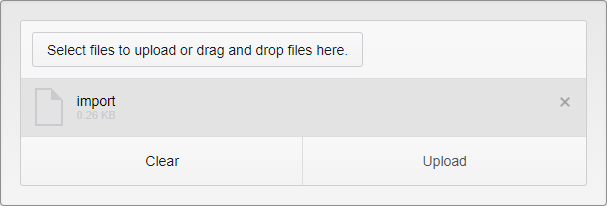
Import Upload
To remove a single file, click the X by the file you wish to remove. To remove all files, click Clear. Once all files have been selected, click Upload to upload the files.
After uploading the files, click Process in the upper right to run the utility.
Once the Import has finished running, you will receive a notification stating that the process is complete. This notification will have a link to the log file for reference.
Past log files can also be viewed on the Payment Import page.
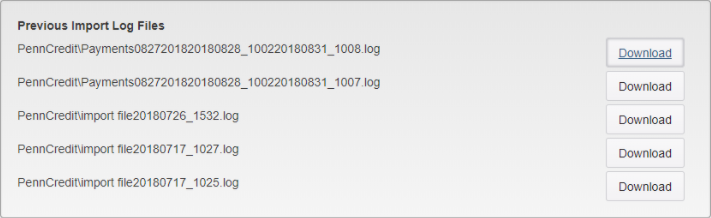
Previous Import Log Files
Click on the Download button next to a file to download it for viewing.
The logs contain the file name, the date and time of the Import, and a list of each payment and the related receipt number.
Void Ticket
The Void Ticket Utility is used to remove a Ticket that has been issued.
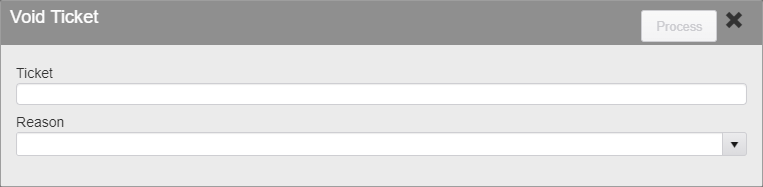
Void Ticket
Enter the exact Ticket number to be Voided. Partial searches are not allowed.
Select the Reason for the Void.
Click Process to process the Void.
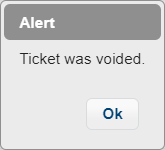
Void Ticket Alert
When the process is complete, a pop up will appear stating that the Ticket was successfully Voided.
Undo Utilities
Appeals
The Appeal Void Undo Utility is used to retract an Appeal that has been approved.
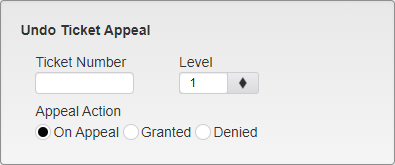
Undo Ticket Appeal
Enter the exact Ticket Number that needs to be undone and select the Appeal Action that will be undone. On Appeal, Granted, and Denied are available. Select the Level of Appeal to be undone. If the Ticket has Appeal levels above the one entered, those will also be undone in addition to the one entered.
Click Process to process the Undo. A soft notification will appear confirming that the process has worked.
Holds/Encumbrance
The Holds/Encumbrance Undo Utility is used to undo Holds and Encumbrances placed on Tickets.

Undo Holds/Encumbrance
Enter the Ticket Number to remove a Hold/Encumbrance from a single Ticket, or enter the Hold/Encumbrance Date to undo a batch of Holds/Encumbrances. Click Process to process the Undo.
Late Fees
The Late Fee Undo Utility is used to undo processed Late Fees. This utility will remove Late Fees from all Tickets that meet the selected criteria.

Undo Late Fee
Select the Late Fee Level to keep Late Fees on. Any Late Fees added to Tickets that are above this level will be removed.
Select the Late Fee Date to Undo Late Fees from, or remove them from a single Ticket by entering the Ticket Number. Click Process to process the Undo.
Notices
The Notices Undo Utility is used to remove Notice records from Tickets. Any Notices after the selected Notice Level will also be removed to maintain sequential notice levels.
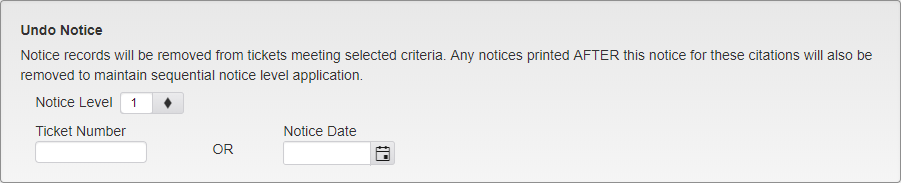
Undo Notices
Select the Notice Level to Undo. Select the Notice Date to Undo Notices from, or remove them from a single Ticket by entering the Ticket Number. Click Process to process the Undo.
Person Fees
The Person Fees Undo Utility is used to remove Person Fees that have not yet been paid are not on a Payment Plan.

Undo Person Fees
Search for the Person you wish to remove Person Fees from. Once the Person is selected, their Local ID and Account ID will automatically populate the relevant fields.
Select the Person Fees you wish to remove from the list that appears below the search. Click Select All to select all of the listed Fees. Click Process to process the Undo.
Ticket Void
The Ticket Void Undo Utility is used to remove Tickets that have been issued. This removes the Ticket records entirely, as opposed to marking it Void or Appealed.
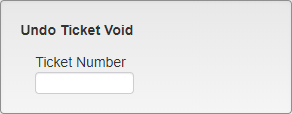
Undo Ticket Void
Enter the Ticket Number you wish to remove. This must be the exact Ticket Number. Click Process to process the Undo.
Was this article helpful?
That’s Great!
Thank you for your feedback
Sorry! We couldn't be helpful
Thank you for your feedback
Feedback sent
We appreciate your effort and will try to fix the article