Introduction to TickeTrak
Logging Into TickeTrak
Using the link provided, enter your User Name and User Password then click Login. If you have caps lock on, you will see a message below the Password field when it is active.
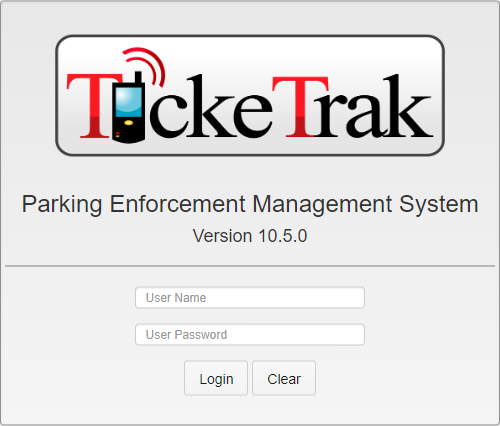
TickeTrak Login Page
Moving Around in TickeTrak
You can use the Navigation Bar to access a particular function or module within TickeTrak.

Navigation Bar
Clicking Modules opens a menu with links to the main Modules of TickeTrak.

Modules Menu
Clicking Finance opens a menu with links to the various Finance features in TickeTrak.
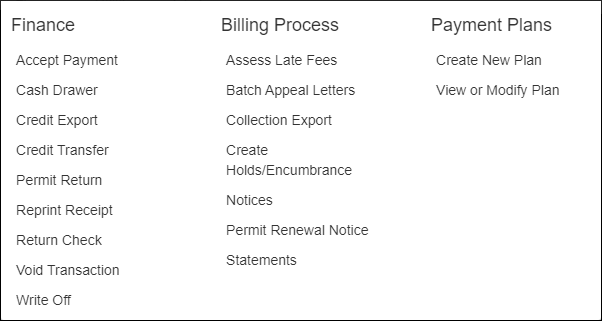
Finance Menu
Clicking Utilities opens a menu with links to various Utilities. Utilities are features added to assist in day-to-day tasks, as well as to assist in cleaning up data in the event an error is made.
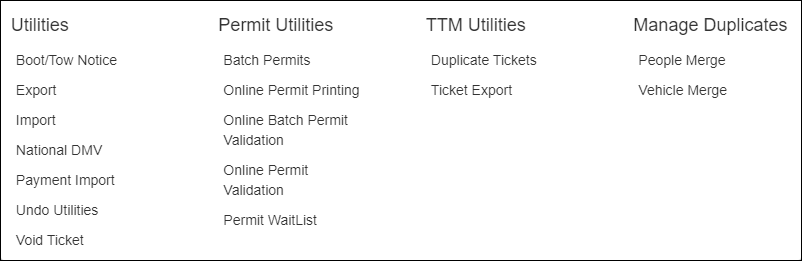
Utilities Menu
Clicking Admin opens a menu with links to various Admin functions. Admin functions allow high-level Personnel to control software settings and the permissions granted to other users.
Admin Menu
Clicking the Skyview icon opens the Skyview dashboard in a new tab. This feature requires an additional log in to view.
Clicking the Notifications icon will show system notifications that have been sent to you. If you have no notifications, this icon will not appear.
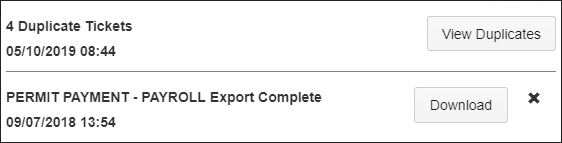
Notifications Menu
Clicking Help opens a menu with links to various help functions, including Remote Support to allow our technicians to assist if needed.
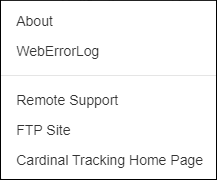
Help Menu
Clicking your User Name opens a menu with links to reset your password or log out of the system.
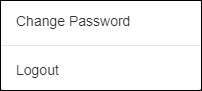
User Menu
Was this article helpful?
That’s Great!
Thank you for your feedback
Sorry! We couldn't be helpful
Thank you for your feedback
Feedback sent
We appreciate your effort and will try to fix the article