TickeTrak Mobile
TickeTrak Mobile TreeView
General Settings
Issue Options
Enable Individual Comment Settings - Check this box to enable Individual Comment settings. To set these, go to the Comments section of the TickeTrak Mobile settings.
Allow Audio Recordings - Check this box to allow Officers to make audio recordings via TickeTrak Mobile. These recordings are sent to the server for future review.
Capture Office Signature for Tickets - Checking this box will require Officers to enter a signature when they log into TickeTrak Mobile on their handheld. This signature can then be used as part of the printed Ticket layout.
Ticket Print Options - Select the default action when an Officer Issues a Ticket. Tickets that are not printed are sent to the eTicket Review system. There are three options:
- Always Print - A physical Ticket will always be printed out.
- Never Print - A physical Ticket will never be printed out.
- Prompt to Print - The Officer will be asked to select if a physical Ticket should be printed or not.
Scofflaw Options
Scoff Search - Check this box to allow Scoff searches from the handheld.
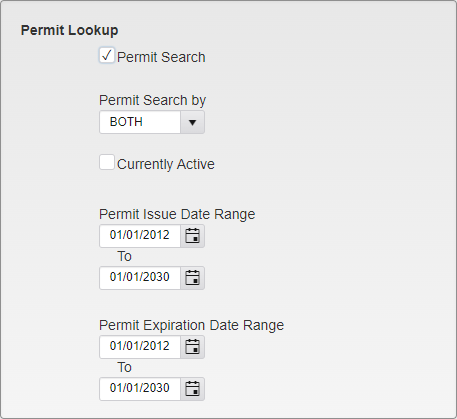
Permit Lookup Options
Permit Search - Allow Officers in the field to search for Permits on their handhelds.
Note: This option must be checked to set any other options in this section.
Permit Search by
- License - Only allow Permits to be searched for using the vehicle License Plate number.
- Permit - Only allow Permits to be searched for using the Permit number.
- Both - Allow Permits to be searched for using the License Plate or the Permit number.
Currently Active - Checking this box will include all Permits that are currently active, regardless of if they fall into the Date Ranges or not.
Permit Issue Date Range - Only Permits with an Issue Date in the entered range will be sent to the handhelds.
Permit Expiration Date Range - Only Permits with an Expiration Date in the entered range will be sent to the handhelds.
Timed Parking Options
Timed Parking Method
- Auto - Automatically track Vehicle parking times in the application.
- Manual - Manually track Vehicle parking times outside of the application.
Default OverTime Violation - Select the default Violation for Overtime Parking.
Enable Shared Timed Parking - Check this box to enable Shared Timed Parking. This allows officers to change the Vehicle using a Timed Location without resetting the time.
Space Mandatory - Require Officers to log the parking space when entering information.
Officer Can Change Zone / Locations - Allow Officers to change the Zone/Location information of a Vehicle.
When Clearing Timed Locations / Zones Clear Vehicles with Tickets - Check this box to remove Vehicles with Tickets attached to them when clearing Timed Locations and Zones.
When Vehicle Match Found
- Show Vehicle Details - Only show the Vehicle details when a match is found.
- Show Vehicle History - Only show the Vehicle details when a match is found.
- Auto Move and Retain Time - Automatically update the Vehicle Location and retain the remaining time when a match is found.
- Auto Move and Reset Time - Automatically update the Vehicle Location and reset the remaining time when a match is found.
Location Options
Sort Order
- Alphabetically By Code - Sort Location dropdowns and lists in alphabetical order by their codes.
- Sequence Order - Sort Location dropdowns and lists in sequence order.
Search Option
- By Code - Search Locations by their Codes.
- By Description - Search Locations by their Descriptions.
- By Search String - Search Locations by their Search Strings.
Body
Body is used to define the Body type of a Vehicle.
Body Options
Sequence - Enter the Sequence number. This decides where on the dropdown the option will appear.
Code - Enter the Code for the Body.
Description - Enter a description of the Body.
Inactive - Inactivates the Body.
Note: The same Body fields are used in multiple places in TickeTrak, they are just listed multiple times in the settings.
Color
Enter the Colors to be used.
Color Options
Sequence - Enter the Sequence number. This decides where on the dropdown the option will appear.
Code - Enter the Code for the Color. 4 character limit.
Description - Enter a description of the Color.
Inactive - Inactivates the Color.
Note: The same Color fields are used in multiple places in TickeTrak, they are just listed multiple times in the settings.
Comments
Enter common Comments for Officers to use when issuing Tickets.
Comment Options
Sequence - Enter the Sequence number. This decides where on the dropdown the option will appear.
Description - Enter the Comment.
ShowInC1 - This will make the Comment appear as an option in the Comment 1 box.
ShowInC2 - This will make the Comment appear as an option in the Comment 2 box.
ShowInC3 - This will make the Comment appear as an option in the Comment 3 box.
ShowInC4 - This will make the Comment appear as an option in the Comment 4 box.
Inactive - Inactivates the Comment.
Devices
Devices lists all of the handheld units their software status. Each handheld must have its own unique Device ID to connect to the TickeTrak system.
To add a new Device, click the Add button. To Edit an existing Device, click the pencil icon next to the Device listing. To delete a Device listing, click the X icon next to the listing.
Note: Device listings can only be deleted if a handheld has not used that Device ID to connect to the system.
Device Options
Device ID - Enter the Device ID. This will be entered into the handheld.
Description - Enter the Device Description. This is for recordkeeping and audit purposes only.
Transfer Mode - Transfer Mode determined how much data is sent to the handheld. When making a new Device, this is set to Configuration. Once the Device syncs, it is changed to Data Only.
- Data Only - The Device is only sent new and updated data from the system.
- Configuration - The Device is sent all of the relevant data in the system, including settings updates. Once the Configuration download is complete, the Transfer Mode is automatically set to Data Only.
Last Sync Date - The last time the Device syned with the server. This is updated automatically.
Inactive - Check this box to inactivate the Device ID. A Device using an Inactive ID will not be able to sync data to the system.
SoftwareVersion - The version of TickeTrak Mobile that the Device was running when it last synced. This is updated automatically.
Push Configuration To All Button
At the top of the page, there is a “Push configuration to all devices” button. Clicking this sets the Transfer Mode on all Devices to Configuration.
License Type
Enter the License Types to be used.
License Type Options
Sequence - Enter the Sequence number. This decides where on the dropdown the option will appear.
Code - Enter the Code for the License Type. 4 character limit.
Description - Enter a description of the License Type.
Inactive - Inactivates the License Type.
Note: The same License Type fields are used in multiple places in TickeTrak, they are just listed multiple times in the settings.
Location
Locations are used to note specific lots and other designated parking locations.
Location Listing Sample
To add a new Location, click the Add button. To edit an existing Location, click the pencil icon next to the Location you wish to edit. To delete an existing Location, click the X icon next to the Location you wish to delete.
A Permit Lot is a parking lot that is designated for Permit use. A Timed Lot is a parking lot designated for timed use and may be enforced by meters, chalking, etc.
To create a Permit or Timed Lot, click the Click To Create button under the relevant header for the Location you wish to change.
Note: Once a Location has been made into a Permit or Timed Lot it cannot be undone.
Location Options
Sequence - Enter the Sequence number. This decides where on the dropdown the option will appear.
Code - Enter the Code for the Location. 10 character limit.
Description - Enter a description of the Location.
HHDisplay - Enter what the Location will be listed as on handheld displays.
Inactive - Inactivates the Location.
LPR
Note: LPR is an optional feature.
LPR stands for License Plate Recognition. These are system that use video systems to read License Plates off of cars as an Officer drives by and notifies them when there are hits in the system.
Genetec Settings
Enter the Genetec settings used by the handhelds to pull hits.
Genetec Options
Enable Genetec - Check this box to enable the use of Genetec on the handhelds.
URL - Enter the URL of the site where Genetec hits are listed. This will be set when Genetec is set up.
Default Overtime Violation Code - Select the default code to be applied to a Ticket for an Overtime Parking Violation.
Default No Permit Code - Select the default code to be applied to a Ticket for a No Permit Violation.
Default Shared Permit Violation Code - Select the default code to be applied to a Ticket for a Shared Permit Violation.
Vigilant Settings
Enter the Vigilant settings used by the handhelds to pull hits.
Vigilant Options
Enable Vigilant- Check this box to enable the use of Vigilant on the handhelds.
URL - Enter the URL of the site where Vigilant hits are listed. This will be set when Vigilant is set up.
Makes and Models
Enter common Makes and Models of Vehicles to be used when entering a Vehicle in the system or issuing a Ticket.
Makes must be added first by clicking the Add button under Makes. They can then be clicked on and Models can be added by clicking the Add button under Models.
Makes and Models Options
Sequence - Enter the Sequence number. This decides where on the dropdown the option will appear.
Code - Enter the Code for the Make or Model. 4 character limit for Makes, 5 character limit for Models.
Description - Enter a description of the Make or Model.
Inactive - Inactivates the Make or Model.
Note: The same Make or Model fields are used in multiple places in TickeTrak, they are just listed multiple times in the settings.
Officers
Enter Officers that will have access to TickeTrak Mobile.
Officer Options
Code - Enter the Code for the Officer. 10 character limit.
Last Name - Enter the Last Name of the Officer.
First Name - Enter the First Name of the Officer.
Password - Enter the Password the Officer will use to log in to TickeTrak Mobile.
Security Level - Enter the Officer's Security Level.
- 1 - Officer - Officers can issue Tickets and see if their handhelds are downloading existing Ticket and Scoff information.
- 2 - Admin - Admins can change settings such as the Printer and Sync settings, as well as change Ticket numbers in addition to everything Officers can do.
Inactive - Inactivates the Officer.
Vigilant Username and Password - Enter the Username and Password that the Officer will use to log into the Vigilant LPR system. If you do not use Vigilant, these fields can be left blank.
Parking Rights
Note: Parking Rights is an optional feature.
Parking Rights allows your Officers in the field to check plates against a list of Vehicles approved to park in specific locations. Current Parking Rights integrations include Cale, ParkMobile, Parkeon, PayNGo, LukeIris, Passport, PayByPhone, and OffStreet. Up to 3 Parking Rights integrations can be activated at once.
Note: These settings are set up when you decide on a provider. Changing these settings will prevent Parking Rights from functioning properly.
Screen Configuration
Determine which modules will show on TickeTrak Mobile and what order they will be in.
Views
Screen Configuration - Views
Click on a View to highlight it. The associated Fields will appear in the Fields list to the right.
Fields
Screen Configuration - Fields
Click the edit icon to edit the Fields settings.
Screen Configuration - Fields Options
Field Name - The name of the Field. This cannot be changed.
Visible - Unchecking this box will prevent this Field from appearing on the TickeTrack Mobile handheld. The View it is a part of will still be accessible.
Mandatory - Checking this box will require this Field to be filled out when submitting a Ticket through this module.
States
The State dropdown is used to define the State section of an address or the registration of a Vehicle. It can be arranged so that the most commonly used States are at the top of the list.
State Entry Options
Sequence - Enter the Sequence number. This decides where on the dropdown the option will appear.
Code - Enter the Code for the State. 2 character limit.
Description - Enter a description of the State.
Inactive - Inactivates the State.
Note: The same State fields are used in multiple places in TickeTrak, they are just listed multiple times in the settings.
Timed Parking Locations
Timed Parking Locations are areas with a set time limit for parking, but do not require a Permit or Meter usage.
Timed Parking Location Options
Sequence - Enter the Sequence number. This decides where on the dropdown the option will appear.
Code - Enter the Code for the Timed Parking Location. 10 character limit.
Description - Enter a description of the Timed Parking Location.
Minutes - Enter the number of minutes an individual can be parked at a Timed Parking Location before being ticketed.
Inactive - Inactivates the Timed Parking Location.
TTMSync Settings
This section sets where images sent from the handhelds to the server are stored.
Note - These settings are configured when your server is set up. Changing these settings will prevent images from downloading properly.
Violation
Violations are defined here, with the Amount and other settings set up for each individual Violation.
Violation Options
Sequence - Enter the Sequence number. This decides where on the dropdown the option will appear.
Code - Enter the Code for the Violation. 15 character limit.
Amount - Enter the default Fine for the Violation.
Description1, 2, 3, and 4 - Enter descriptions for the Violation. Only Description1 will appear in the Ticket module.
Allow Warning - Allow the Violation to be cited as a Warning, with no Fine attached.
Send to TTM - Send to TickeTrak Mobile. This allows the Violation to be recorded in the field via handhelds.
Inactive - Inactivates the Violation.
Min Image Count - Only active if Send to TTM is checked. Enter the number of images required to be submitted when a Ticket for the Violation is made.
Allow Payment Online - Allow Tickets with this Violation to be paid online.
Allow Appeal Online - Allow Tickets with this Violation to be Appealed online.
Note: The same Violation fields are used in multiple places in TickeTrak, they are just listed multiple times in the settings.
Was this article helpful?
That’s Great!
Thank you for your feedback
Sorry! We couldn't be helpful
Thank you for your feedback
Feedback sent
We appreciate your effort and will try to fix the article