Billing Process
Assess Late Fees
This utility will process Late Fees for all eligible Tickets. Late Fee eligibility is set up in System Settings under Late Fees. This process can be set up run automatically on a schedule through the Schedule Service in System Settings.
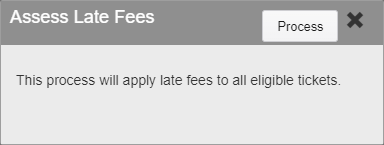
Assess Late Fees
Click Process to manually process the Late Fees.

Late Fees Assessed Notification
When Assess Late Fees is run, either manually or through a scheduled service, a notification will be sent to the account that ran the process or the accounts listed in the scheduled service.
Batch Appeal Letters
This utility will process all resolved Appeals and send the relevant letters to the appellants.

Batch Appeal Letters
Click Process to process the letters.

Appeal Letters Notification
When the process is done running, you will receive a notification stating the number of letters emailed and printed.
Collection Export
Note: Collection Export is an optional utility.
The Collections Export process can be run manually or set to run on a schedule.
To run the process manually, click the Collection Export link in the Finance menu.
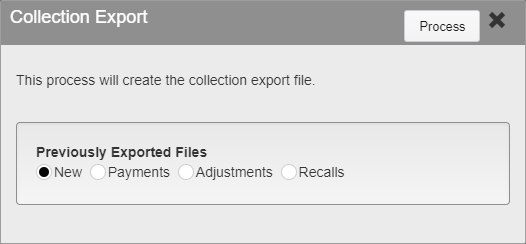
Collection Export
Click Process to run the Collection Export.
The options on the menu are used to filter previously generated Exports. These are shown below the options, and a full log of all past Collection Exports is kept.
When the process is finished running, you will receive a notification with a link to the newly created file.

Collection File Notification
Click Download to download the individual files. Once the files have been downloaded, they can be uploaded or sent to your collections agency.
Notices and Statements
Notices and Statements list all of the Notices and Statements respectively that are set up in System Settings. Select the Notice or Statement you wish to run and click Process in the upper right hand corner of the screen. This will generate letters for all of the eligible Tickets and Persons as defined for that Notice or Statement and e-mail them or prepare the letters for printing.
Create Holds/Encumbrance
Create Holds/Encumbrance runs a process that finds all Tickets matching criteria set in System Settings and creates a file containing them. The Tickets are then marked with a Hold flag and either marked as paid or left outstanding, depending on your set up. Click Process to run. You will receive a notification when the process is complete, with a link to download the file containing the Tickets that can then be sent to an outside agency.
The five most recent Holds/Encumbrance files are available for download at all times. Running the process will automatically remove the oldest file from the menu and add the new one when the process is complete.
Permit Renewal Notice
Permit Renewal Notice runs a process that finds all Permits that meet the criteria set up in System Settings and sends them a Renewal Notice. Select the notice you wish to run and click Process in the upper right hand corner of the screen. This will generate letters for all of the eligible Persons with Permits that are about to or have recently expired, depending on the notice run. You will receive a notification when the process is complete, with a link to download the file containing any letters that need to be printed. E-mailed notices will be sent out automatically.
Was this article helpful?
That’s Great!
Thank you for your feedback
Sorry! We couldn't be helpful
Thank you for your feedback
Feedback sent
We appreciate your effort and will try to fix the article