Finance
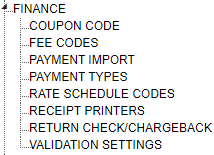
Finance TreeView
General Settings
General Finance settings can be found here. These include Check codes, partial payment settings, and more.

Checks Settings
Pay Type for Check - Select the default Payment Type for checks.
Select Return Check Fee Code - Select the default return check Fee Code.
Select Charge Back Fee Code - Select the default charge back Fee Code.

Appealed Tickets and Cash Drawer Settings
Allow Payments on Appealed Tickets - Check this box to allow Persons to pay for Tickets that have been placed on Appeal.
Use Cash Drawer Balancing - Check this box to use Cash Drawer Balancing when closing out a Cash Drawer.
Allow Cash Total Entry - Check this box to allow cash total entry when closing out a Cash Drawer.
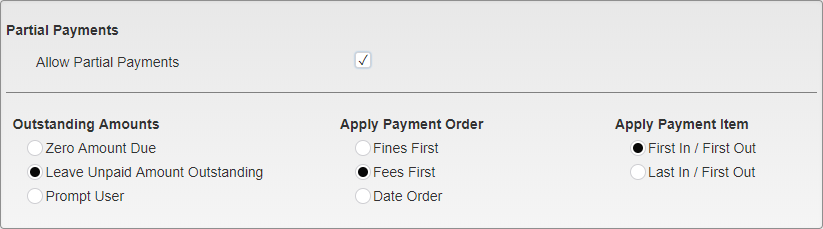
Partial Payments Settings
Allow Partial Payments - Check this box to allow Partial Payments on Tickets.
Outstanding Amounts
Zero Amount Due - Select this option to zero the amount due on a Ticket when a partial payment has been made.
Leave Unpaid Amount Outstanding - Select this option to leave the remaining amount of the Ticket outstanding. This amount will still be subject to Late Fees.
Prompt User - Select this option to prompt the user at the time of the Partial Payment to choose if a Ticket will have the amount due zeroed or left outstanding.
Apply Payment Order
Fines First - Select this option to apply payments to any existing Fines first, paying them off before any additional Fees.
Fees First - Select this option to apply payments to any existing Fees first, paying them off before any Fines.
Date Order - Select this option to apply payments to Fines and Fees in date order.
Apply Payment Item
First In / First Out - Select this option to apply payments to the oldest Fine or Fee first.
Last In / First Out - Select this option to apply payments to the newest Fine or Fee first.

Batch Payment and Import Payment Settings
Batch Payments
Allow Partial Payments - Check this box to allow Partial Payments when processing a Batch Payment.
Allow Overpayment - Check this box to allow Overpayment when processing a Batch Payment.
Note: Batch Payment settings override regular Finance settings. As such, Batch Allow Patrial Payments must be active to allow non-Admin users to take Partial Payments through Batch Payment.
Import Payment
Allow Partial Payments - Check this box to allow Partial Payments when Importing Payments.
Allow Overpayment - Check this box to allow Overpayment when Importing Payments.
Remove Leading Zeros - Check this box to have the software look for and remove any leading zeros present in an Import file.
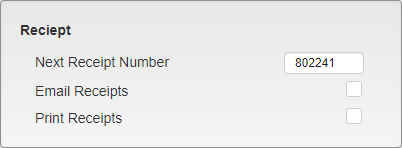
Receipt Settings
Next Receipt Number - This is the next Receipt Number that will be used when generating a new Receipt. This number can be edited manually, and will automatically increase when a new Receipt is generated.
Email Receipts - Check this box to use this counter when Emailing Receipts.
Print Receipts - Check this box to use this counter when Printing Receipts.
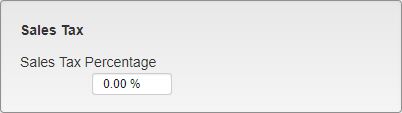
Sales Tax Settings
Sales Tax Percentage - Enter the percentage amount for Sales Tax in your state. If you do not apply Sales Tax to your Permits, leave this set at 0.00%.
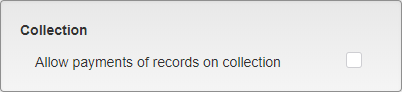
Collection Settings
Allow payments of records on collection - Check this box to allow payment of records that have been sent to Collections.
Coupon Code
Coupon Codes can be set up to give discounts on Permits. Codes can be set up in a large number of ways, allowing for one time use codes, codes that require specific numbers of Permits to be purchased, and many other options.
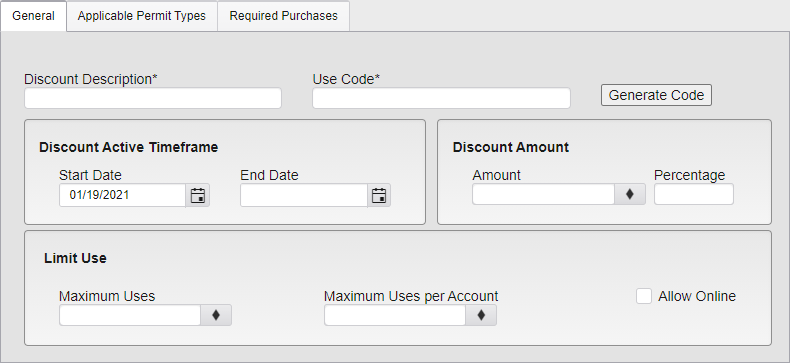
Coupon Code Settings - General
Enter the Discount Description for the Code.
The Use Code is the actual Code that will be used to apply the discount. This can be entered manually, or you can press the Generate Code button to generate a random string of letters and numbers to use as the Code.
The Discount Active Timeframe is the dates over which the Code is active. A Start Date is required and is automatically set to the current date when the form is loaded, but can be changed. An End Date is not required and means that the Code will be active forever or until other limits are reached.
The Discount Amount is the amount the Code will take off the price of a Permit. Enter either a flat Amount, or a Percentage. Selecting one will prevent the other from being filled in.
Limit Use sets limits on the number of times the Code can be used. Maximum Uses sets the total number of uses, while Maximum Uses per Account sets the number of times a single user can use the Code. The Allow Online checkbox allows the Code to be entered and used for online purchases through the Web Portal. If this box is not checked, the Code is only valid when used in the Accept Payment module within TickeTrak.
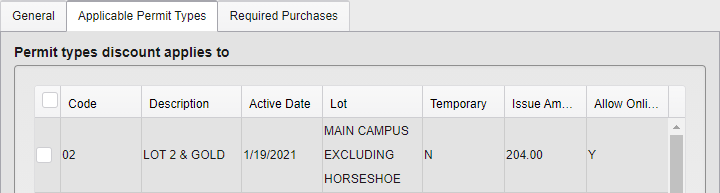
Coupon Code Settings - Applicable Permit Types
Select the Permit Types that the Code can be applied to. All active Permit Types are listed. Click the checkbox to the left of a listing to include that Permit Type. Click the checkbox in the header at the top of the list to select all Permit Types. If you do not select any Required Permit Types, the code will be usable without any limits from the options in this tab.
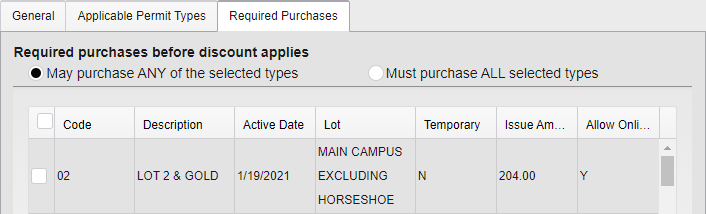
Coupon Code Settings - Required Purchases - Permits
Required Purchases can be set as required before a Code will work.
Choose if the user may purchase any of the selected types of Permits for the Code to apply, or if they must purchase all selected types of Permit.
Select which Permit Types are required. These can be any active Permit Types, and are not limited to those that the Code applies to.
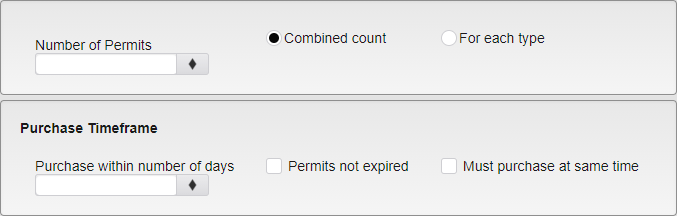
Coupon Code Settings - Required Purchases Options
Select how many Permits from the Required Purchase list must be bought for the Code to apply. This can either be a Combined count of all of the Permits from the list, or a minimum number for each Type.
Select how far apart the Permits can be purchased for the Code to apply. This allows a user to buy several Permits over a certain amount of time before applying the Code. For example, you may have a weekly Permit and set up a Code such that if a Person buys three of that Permit over the course of a month, they get a free or discounted one.
This can also be set such that only Permits not expired are counted, or that all of the required Permits and any the Code applies to must be purchased at the same time.
Fee Codes
Enter Fee Codes that can be applied to a Ticket, Person, Permit, or as a general Fee in the Accept Payment module. Include a Start Date and Amount. The Inactive box can be used when a Fee is no longer needed. The Sales Tax option will add the tax to the Fee at the time of sale. Codes have a 10 character limit.
Note: If a Fee has 0 as an amount, you can type in any amount when the Fee is selected.

Fee Codes List
Click Add in Fee Codes to add a new record. The Start Date is automatically set to the current date and the Amount defaults to $0.00.
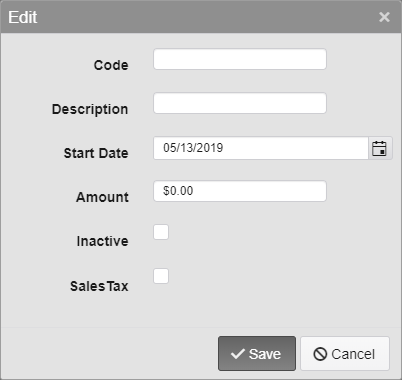
Fee Codes Options
After the Fee is added, a record is created in the Fee Time Structure that includes the Amount and the Start Date. If the amount of the Fee changes in the future, you may add another record in the Fee Time Structure to reflect the dates of the changes. Select the Fee in the Fee Code and click Add in the Fee Time Structure to add changes as needed.
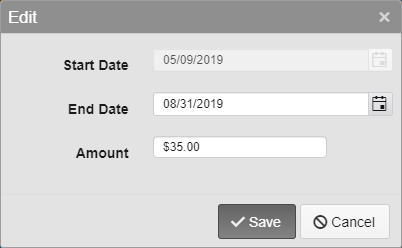
Fee Time Structure Options
Payment Import
Note: Payment Import is an optional module.
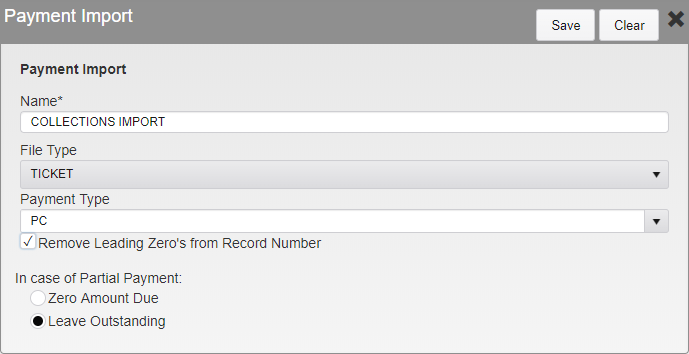
Payment Import Options
This is an optional module used to import payment from an outside source. This process is able to be scheduled once it has been set up.
This process will take all payments even if there are errors.
If no matching Ticket number exists, the payment will be applied to the Suspense account.
If the Ticket is already paid, the payment will be applied to the Suspense account.
If the amount paid is greater than the amount due, the Ticket is paid and an overpayment is created in the form of a Credit on the related Person account.
If there is no related Person account, this overpayment will be applied to the Suspense account.
Name - Enter a name for the import.
File Type - At this time the only payments that can be imported are Ticket payments.
Payment Type - Select a payment type to be used in this process.
Note: It is recommended that a specific payment type is created to be used just for the import to make reporting easier.
Remove Leading Zero’s - Check if the Ticket numbers include leading zeros that must be removed. Some systems that send payments pad the Ticket numbers with leading zeros.
In case of Partial Payment:
Zero Amount Due - This will accept the partial payment and post an adjustment to the remaining amount, leaving an amount due of zero.
Leave Outstanding - This will accept the partial payment but leave the remainder outstanding.
Ticket Payment Import File Layout
All fields are right-aligned.
Data Fields | Start Position | Length | Comments |
Misc | 1 | 6 | Combined with check number, separated with a - and inserted into Transact.Payment_Detail |
Unused | 7 | 2 | |
Unused | 9 | 2 | |
Unused | 11 | 4 | |
Amount Paid (Dollars) | 15 | 9 | |
Amount Paid (Cents) | 24 | 2 | |
Ticket Number | 26 | 10 | |
Check Number | 36 | 6 |
Payment Types
Each Payment made in TickeTrak will have a Payment Type. The payment types are used in reporting as well as in various functions inside the application, such as opening cash drawers and being on the Web Portal.
Select a Code and Description for each Payment Type. Codes have a 10 character limit.
Monetary - If a Non-Monetary Payment is voided, no credit is created. Group Security is used to limit a user's rights to make Non-Monetary Payments. Generally, only adjustments made to Fees and Fines are Non-Monetary.
Cash - Counts in the cash drawer as physical money and does not create an overpayment record. The system expects the overpayment to be returned as change.
Cash Drawer - Pops open the cash drawer and shows in the cash drawer balancing.
Credit Card - Used as part of the chargeback process.
Banner - Used with the Banner custom module.
Inactive - Inactivates the Payment Type.
Allow Online - Allow the payment type to be used on the Web Portal.
Allow ECommerce - Uses the E-Commerce provider to process the payment.
Exclude Online Tickets - Allows the payment type to only be used for Permits when paying for something via the Web Portal.
Rate Schedule Codes
Rate Schedule Codes are used to apply special Permit Rates to specific Person accounts in TickeTrak. These just be set up to use the Rate Schedule feature.
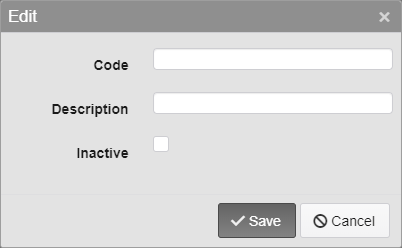
Rate Schedule Code Options
Enter a Code and Description for the Rate Schedule. The Code has a 15 character limit.
The Inactive checkbox inactivates the entire Code, including all Rate Schedules set up using it. Person accounts that still have the Code applied to them will be charged the normal amounts for Permits.
Receipt Printers
Each web-based receipt printer must be set up before use.
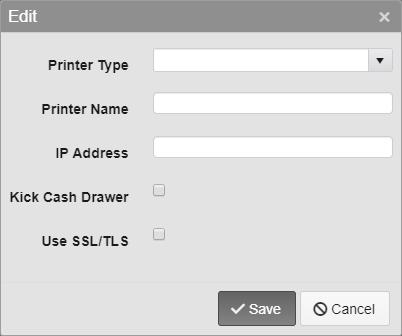
Receipt Printer Options
Printer Type
Epson
Star Micronics
Printer Name - Select a printer name.
IP Address - Enter the IP address of the printer.
Kick Cash Drawer - Opens Cash Drawer. Use if a Cash Drawer is attached to the printer.
Use SSL/TLS - Check if using secure data transmission.
Was this article helpful?
That’s Great!
Thank you for your feedback
Sorry! We couldn't be helpful
Thank you for your feedback
Feedback sent
We appreciate your effort and will try to fix the article