Hold/Encumbrance Settings
Hold/Encumbrance can be run as a scheduled procedure after it has been set up.
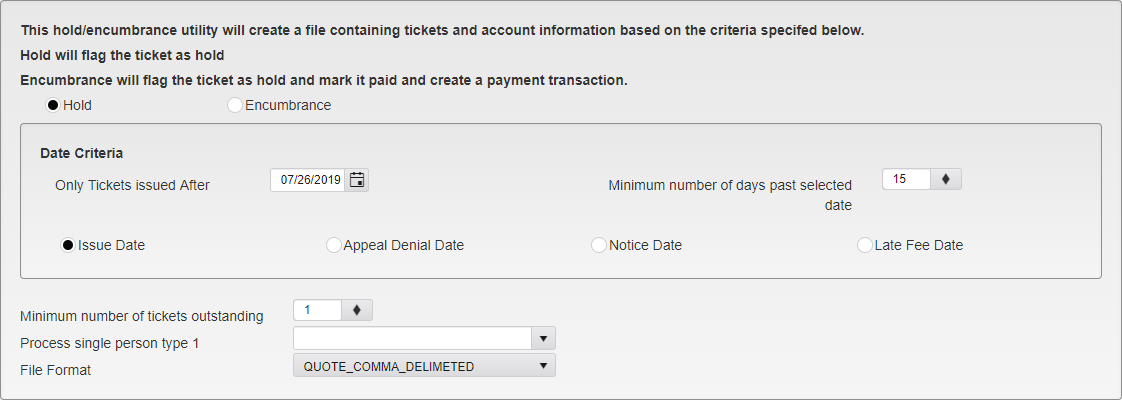
Hold/Encumbrance Settings
Hold - Sets the Hold flag on a Ticket. Limits can then be set for inclusion on notices and Late Fees as needed. The balance is still due on the Ticket. A file will be generated to be sent to an outside agency with this information.
Encumbrance - Sets the Hold flag on the Ticket and also posts an adjustment to the Ticket to mark it paid in full. A file will be generated to be sent to an outside agency with this information.
Only Tickets Issued After - Only Tickets issued after this date will be included.
Minimum number of days past selected date - Tickets must be at least this many days past the selected date type to be included.
Date Type - Select the stage at which a Ticket will have a Hold/Encumbrance placed on it.
Issue Date - Tickets will be placed on Hold/Encumbrance the selected number of days after their Issue Date.
Appeal Denial Date - Tickets will be placed on Hold/Encumbrance the selected number of days after their Appeal Denied Date.
Notice Date - Tickets will be placed on Hold/Encumbrance the selected number of days after the date they are sent a Notice about the Ticket. Note: Requires a Notice Level to be selected.
Late Fee Date - Tickets will be placed on Hold/Encumbrance the selected number of days after the date they receive a Late Fee. Note: Requires a Late Fee Level to be selected.
Process single person type 1 - Only Tickets attached to Persons with this Person Type will be included.
For example, you might choose to place an encumbrance on student Tickets and move the amount to the bursar's office rather than try to collect in the parking office.
File Format - select a file format.
Comma Delimited
Quote Comma Delimited

Hold/Encumbrance - Owner Data Settings
Check the Only include owners box to only include Tickets with an attached Person that has a Local ID, a Driver’s License, or an Alternate ID on their account.
Was this article helpful?
That’s Great!
Thank you for your feedback
Sorry! We couldn't be helpful
Thank you for your feedback
Feedback sent
We appreciate your effort and will try to fix the article