Finance
Accept Payment
This module is used to make payments.
The module can be opened from Global Search and the record clicked on the account will be present.
or
Searches may be done in accept payment by:
Ticket Number
License Plate
Account ID
Last Name
First Name
Local ID
Alternate ID
Permit Number
All related information will be included
If any Credit exists on the account it will be listed and may be used to pay any outstanding Fine or Fee.
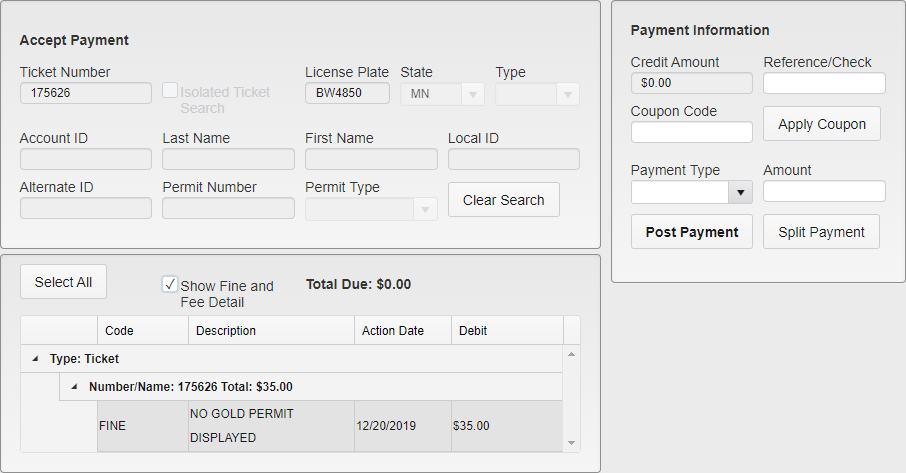
Accept Payment Module
Select the item to pay by clicking on it, or select all of the items by using the Select All button.
Fill out the Reference or Check Number field if using.
If there is a Coupon Code being applied, enter it and click Apply Coupon. The discount will be applied as part of the payment and is shown below the Post and Split Payment buttons.
Select the Payment Type.
Click the Amount field. The selected amount will automatically be entered, or a new amount can be overwritten.
If more than one Payment Type is being used, enter the Amount and Payment Type for the first part of the transaction. Then, click Split Payment. This will log that section of the payment in the Payment Information box.
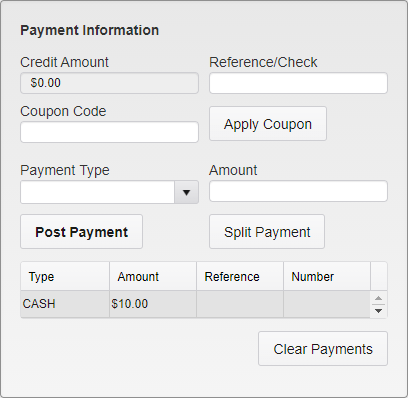
Split Payment
Select the Payment Type and Amount for each Payment Type being used. If an entry mistake was made, click Clear Payments. This will remove all of the currently entered payment information.
When all of the Payment Types have been entered, click Post Payment.
The receipt will appear on the screen. If a cash payment was made, the change due will appear on this screen.
The receipt can be emailed or printed.
The Persons Email Address 1 will be displayed. This can be overwritten and the email address will be updated in the Person record if Update Email is selected.
Action Menu
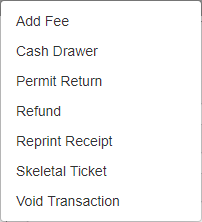
Accept Payment Action Menu
Add Fee is used to add a fee to accept payment that is not linked to a Person, Ticket, or Permit.
Select the Fee to be added and the count. If the Fee does not have an amount you may type in the amount to be charged.

Add Fee Menu
The fee will be added to the Accept Payment screen.
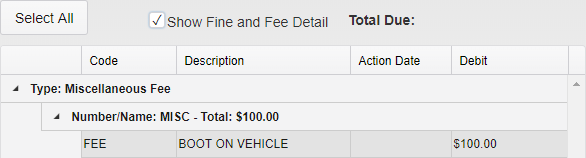
Fine and Fee Listing
Cash Drawer is used to balance the cash drawer if used.
Permit Return opens the Permit Return utility and allows for Permits to be returned if Permit Proration has been set up for that Permit type in System Settings.
Refund is used to return Credit to the user as cash. A record with Credit must be selected before a Refund can be issued.
Reprint Receipt is used to reprint existing receipts. The transaction may be searched for by Ticket Number, Permit Number, Receipt Number, or Transaction Date.

Reprint Receipt Search
Skeletal Ticket allows you to accept payment on a Ticket that has not been entered from the handheld yet.
Void Transaction allows you to void a previously processed transaction and will take you to the Void Transaction utility.
Batch Payment
Batch Payment allows you to enter multiple, unrelated payment items at the same time for processing. This feature is intended for use when entering multiple paid items that have been sent in through the mail.
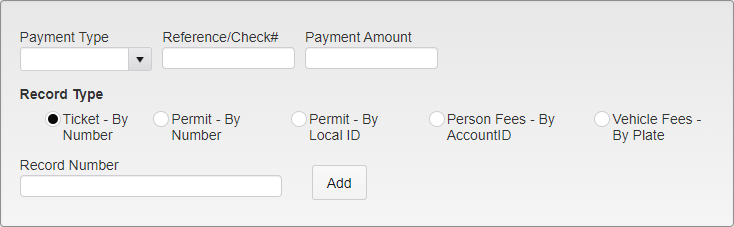
Batch Payment - Record Entry
Select the Payment Type being used and enter the Reference/Check #, if any, and the Payment Amount.
Select the Record Type. There are several options for this.
Ticket - By Number - This option searches for the entered Record as a Ticket Number.
Permit - By Number - This option searches for the entered Record as a Permit Number.
Permit - By Local ID - This option searches for the entered Record as a Person Local ID, then applies the payment to unpaid Permits attached to that Account. Multiple Permits can be paid at once with this option.
Person Fees - By Account ID - This option searches for the entered Record as a Person Account ID, then applies the payment to any Person Fees on that Account.
Vehicle Fees - By Plate - This option searches for the entered Record as a Vehicle License Plate, then applies the payment to any Vehicle Fees on that Vehicle.
The Record Number is the actual item being searched for in TickeTrak.
Once the form has been filled out, click the Add button. The item will be added to the Record Listing.
Note: Individual Records cannot be entered into the same Batch Payment multiple times. If an individual Record has two or more payments being applied to it, that Record will either need to be entered via Accept Payment, or entered into multiple Batch Payment runs.
If Cash Drawer is active and not all ready open, you will be prompted to open the Drawer and enter the starting amount for it.
If there are any errors with the payment, you will be shown a message explaining them at this point. Errors include:
Tickets that are on Appeal, Collections, or Exported. These errors can be overwritten by a user with Admin rights.
Partial or Overpayments. These errors can be overwritten by a user with Admin rights.
Items that are all ready paid or otherwise have no amount due on them.
Items that are invalid or otherwise do not exist.
Once all of the records have been entered, click the Process button in the upper right corner of the module.
Each record entered into Batch Payment generates its own individual receipt. These receipts are generated when the records are processed and listed out in a file provided in the Batch Payment notification.

Batch Payment Notification
The notification file lists all of the Records taken through Batch Payment along with the Payment Type, Reference/Check #s, Payment Amounts, and remaining balance. Overpayments are listed as separate items on the same receipt.
Cash Drawer
Cash Drawer allows you to track cash and other monetary payments made in the office. Cash Drawer must be enabled in System Settings to be used.
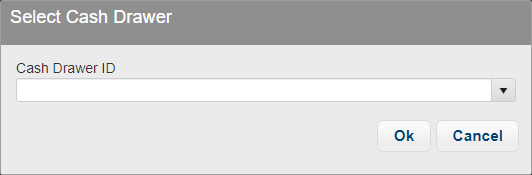
Cash Drawer - Select Cash Drawer
Personnel can be assigned a specific Cash Drawer to use, or select the one they are using from a list of Cash Drawers.
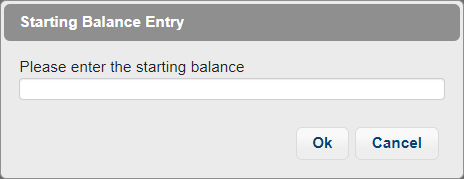
Cash Drawer - Starting Balance
Regardless of how Cash Drawers are assigned, when the personnel open Accept Payment for the day, they will be prompted to enter the Starting Balance.
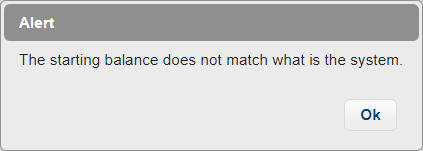
Cash Drawer - Balance Does Not Match
If the Starting Balance entered does not match the Balance of the Cash Drawer from the last time it was used, you will receive a message saying so. The Drawer will still be opened for use normally.
If you do not enter a Starting Balance and cancel out of the entry box, you will not be able to take any payments in Accept Payment.
Once the Cash Drawer is open, monetary payments taken through Accept Payment will be included in the Cash Drawer totals.
At the end of the day, the Cash Drawer needs to be Balanced and Finalized. This is done through the Cash Drawer Finance page.

Cash Drawer - Header
When the Cash Drawer is open, the User ID, Cash Drawer ID, and Issue Date are automatically filled in. The Beginning Balance is the balance entered when the Drawer was opened. The Actual Drawer Balance is the total amount currently recorded as in the Drawer. The Balance Should Be field shows what the Cash Drawer Balance should come out to, taking into account all payments taken, refunds made, and the starting balance of the Drawer. Amount Over/Under is an easy reference for how far off the Drawer is. Cash Refunds is the amount of cash given out to cover refunds or returns.

Cash Drawer - Cash Entry
Here, you can enter either the exact numbers of each bill and coin in the drawer, or enter a single Cash Total. Using one will prevent the other from being used.
Cash Withdrawal is the amount of cash being removed from the drawer after it is finalized. This number will not impact the balancing numbers, but will change the Beginning Balance that the Drawer expects the next time it is used.
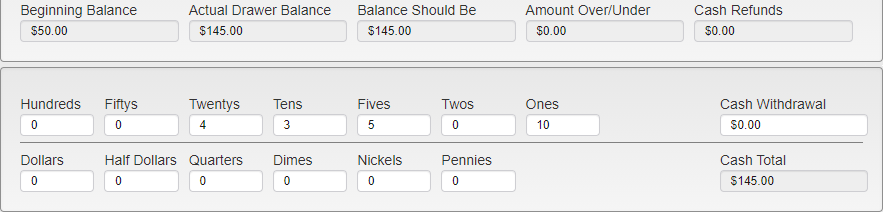
Cash Drawer - Bill Entry Example
If bills are logged, they will be totalled and a running total will be kept in the Actual Drawer Balance and Cash Total fields. Amount Over/Under will also update accordingly.
If Cash Total is used, the Actual Drawer Balance will update to match and you will not be able to adjust the bill totals.
Regardless of the Balance Method used, click Save in the upper right hand corner of the utility to save the current Drawer balance. This will also clear the Drawer information from the screen. Either search for the Drawer in the Cash Drawer utility and select the one that is still open, or open Accept Payment to reload the Cash Drawer information.
If the Open Drawers checkbox is marked when the Drawer is saved, it will pop open the physical Drawer.
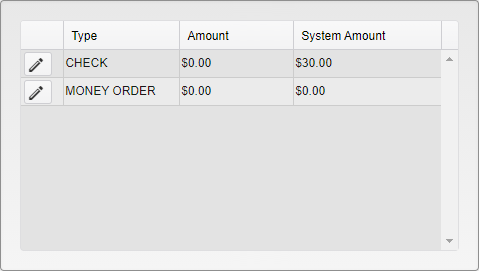
Cash Drawer - Non-Cash Transactions
Non-cash transactions are recorded below the cash entry box. To balance these sections, click on the pencil icon to the left of the section that needs balancing.
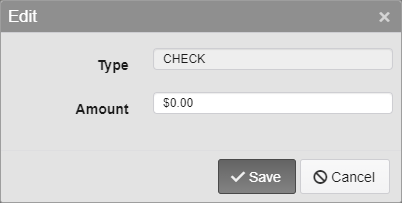
Cash Drawer - Non-Cash Transaction Balancing
Enter the total Amount of all of the payments made with that payment type. For example, if you received checks that were for $10 and $20, enter $30 in the box and click Save.
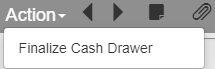
Cash Drawer - Action Bar
Notes and Attachments can be added to the Cash Drawer record from the Action bar. These work the same as the Notes and Attachments found in other modules of TickeTrak.
When the Cash Drawer has been balanced, open the Action Menu and click Finalize Cash Drawer. This will save all changes made to the balance and close the Drawer, recording a record of the state it is in and all transactions applied to it.
To view the state of a past Drawer, enter the User ID, Cash Drawer ID, or Issue ID or some combination of those fields and click Find in the upper right hand corner. This will bring up a list of matching Cash Drawer records. Select one by clicking Select to the left of the chosen record. This will load the state of the Drawer as it was when it was Finalized. No edits can be made to Finalized Drawers.
Credit Export
Credit Export allows you to create a file that contains Credit information that can be used in a third party system. Once the Credit is exported out of TickeTrak, the tables will be updated and the Credit will be removed from the Person and reflected in the Person History. This process cannot be scheduled.
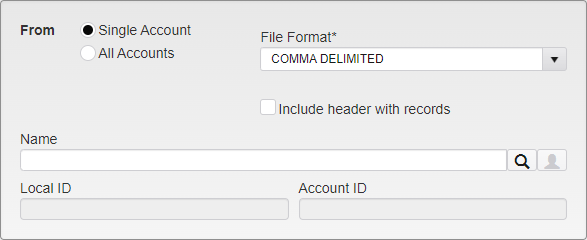
Credit Export Search - Single Account
Select the File Format. The available choices are Comma Delimited and Quote Comma Delimited. Check the Include header with records box to include a header in the Exported file.
Select if Credit is being exported from a Single Account or All Accounts.
Single Account allows you to search for a specific account and load all of the Credit transactions that have been made to the account.
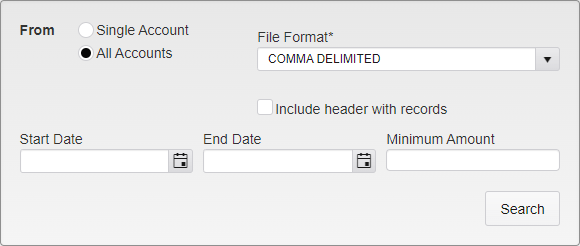
Credit Export - All Accounts
All Accounts allows you to pull up all Credits added to accounts within a specified date range. To further narrow the results, a Minimum Amount can be included in the search. This minimum applies to the individual Credit transactions, not full Credit amounts on an account.
Click Search once all of the criteria has been entered to bring up a list of Credit transactions.
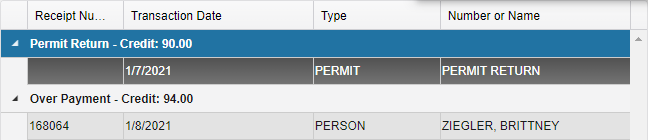
Credit Export - Credit Selection
Click on a transaction to select it as part of the Export. Selected items will be highlighted in blue.
Once all of the transactions have been selected, click Process in the upper right corner of the utility to process the Credit Export.

Credit Export Notification
Once the Export is complete, you will receive a notification with a link to download the generated file.
Credit Transfer
The Credit Transfer module is used to transfer Credits from one account to another, or from the Suspense account to a Person account.
Search for the account to transfer the Credit from (a Single account or the Suspense account). All available Credits will be listed. Select a second existing account or use the mini Person module to create a new account to transfer the payment to.
Once the accounts are selected, type in the Credit amount to be transferred between the accounts.
Process the transfer.
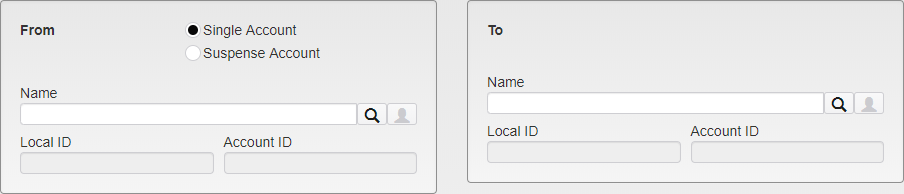
Credit Transfer Menu
Permit Return
Permit Return can only be used if Permit Return Proration has been set up in System Settings.
Permit Return can be used to exchange and replace Permits that are all ready in the system.
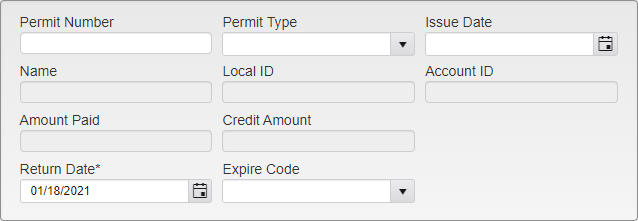
Permit Return - Permit Search
Search for the Permit to be returned using the Permit Number, Permit Type, or Issue Date. Click the Find button in the upper right corner of the utility to run the search.
When the Permit is selected, the Name, Local and Account IDs, Amount Paid, and the amount of Credit the Permit will return will be automatically filled in.
Return Date is automatically set to today's date. If the Permit Type has an Expire Code set for it, the Code will also be filled in. If there is no Expire Code set, one can be selected.

Permit Return - Return Type Selection
Return Only will return the Permit and credit the linked account with the prorated amount for that Permit Type.
Return and Create Permit will return the current Permit and create a new one, applying the credit to the price of the new Permit.
Note: Prorated Return amounts MUST be set up in System Settings for the Permit Type in order or use Return Only or Return and Create Permit.
Exchange for New Permit will return the current Permit and create a new one with a $0 Issue Amount.
Return Only does not need any additional information. Click Process in the upper right corner of the utility to process the Return.
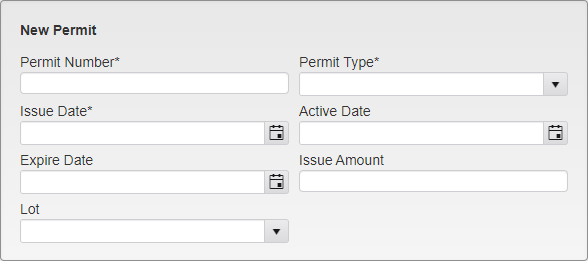
Permit Return - New Permit
The other two options require information for the new Permit.
Enter the new Permit Number, Type, and Issue Date. The Active and Expire Dates, Issue Amount, and Lot will automatically be filled in, though they can be changed.
Once the new Permit information has been entered, click Process in the upper right corner of the utility to process the Permit changes. You will not be prompted to send any kind of letter when the new Permit is created.
Reprint Receipt
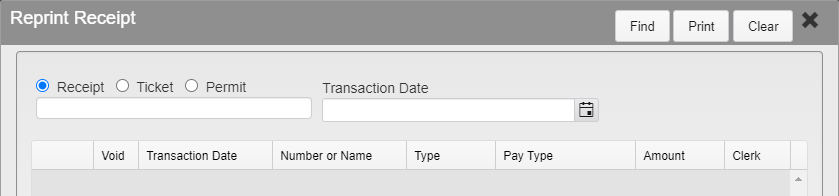
Reprint Receipt
To reprint a receipt, enter the Receipt, Ticket, or Permit number with the related selection made or the Transaction Date of the payment and click Find. The full number or date must be entered. Partial searches are not allowed.
Click on the receipt you wish to reprint and click Print. A confirmation screen will appear with a preview of the receipt and print options. Click Process to finalize and print the receipt.
Return Check
This utility is used to return checks and process credit card charge backs.
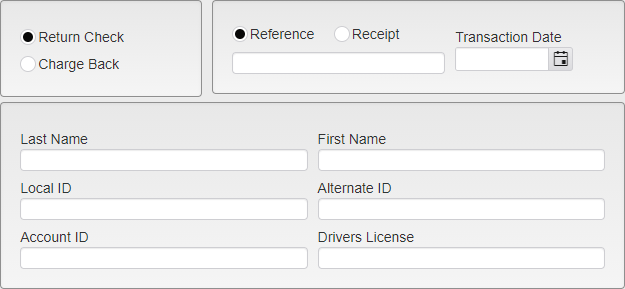
Return Check Search
Select if a Return Check or Charge Back is being processed. Enter the Reference or Receipt number or the Transaction Date of the payment, or enter the information of the Person who made the payment. If searching for a Reference or Receipt number or a Transaction Date, the full number or date must be entered. Partial searches are not allowed.
Once the search terms have been entered, click Find. If a Reference or Receipt number was used to search, the only transaction found will be the one related to that number. If a Transaction Date or Person was used to search, a list of transactions will be shown.
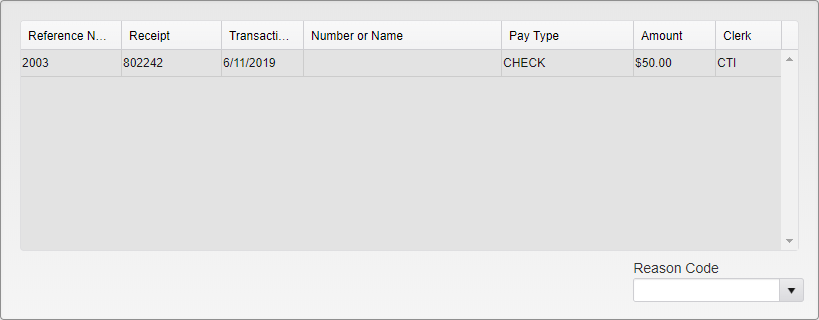
Return Check Selection
Click on the transaction you wish to return. Select the Reason Code for the return. Click Process in the upper right. A soft notification will appear in the Action bar if the return was successful.
The returned check or charge back will be logged in the history of the item that was originally paid. An Alert will be added to the Person account that paid with the check.
Void Transaction
This utility is used to Void payments made in error. This process creates a Credit that can be applied to another account. Credits are not made for Non-Monetary Transactions.
When voiding a payment made with Credit, the Credit will be remitted to the original owner.
To Void a payment, enter the Receipt, Ticket, or Permit number or the Transaction Date of the payment and click Find. The full number or date must be entered. Partial searches are not allowed.
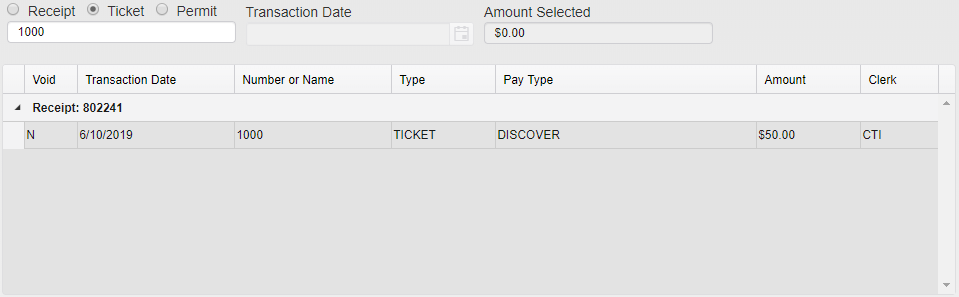
Payment Selection
Click on the payment you wish to Void. If the payment will be returned as Credit, check Apply Voided Amount as Credit to and select the account to apply the new Credit to.
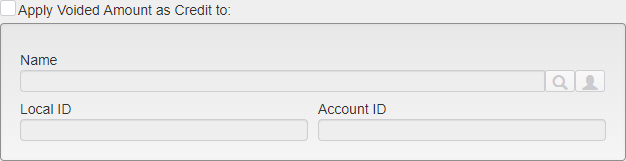
Apply Amount as Credit Menu
Click Process in the upper right to process the Void.
Note: Do not use this utility for returned checks or credit card chargebacks. This utility is only for use for payments made using credits, cash, or non-monetary transactions.
Write Off
This utility is used to pass adjustments to Tickets to Write Off a remaining balance. It can be run for single Tickets or by State, Issue Date, or Amount Outstanding.
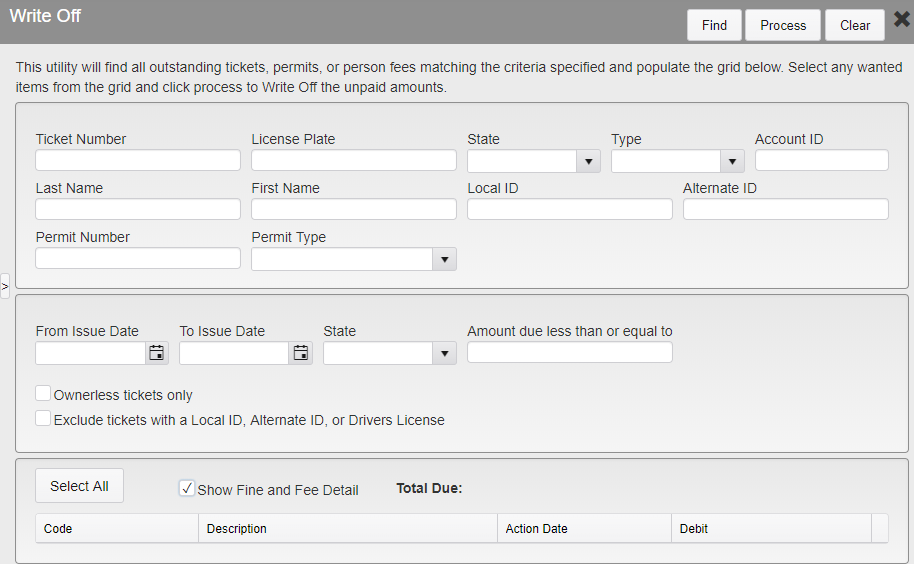
Write Off Menu
To find a specific Ticket to Write Off, search for the Ticket in the upper box. This will grey out the options in the middle box, preventing it from being filled in.
To find multiple Tickets to Write Off, use the middle box to enter the From and To Issue Dates, the State, the minimum amount due on the Ticket, or a combination thereof. Searches can also be limited to Ownerless tickets only or set to Exclude tickets with a Local ID, Alternate ID, or Drivers License. This allows you to limit the results to Tickets that are not connected to any Person, or to those that are connected to a Person, respectively.
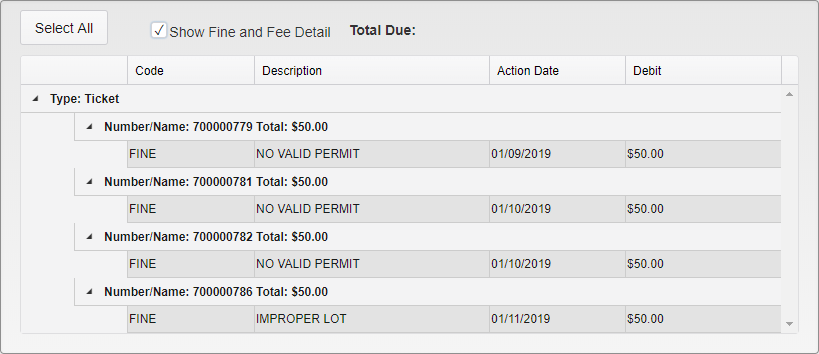
Ticket Write Off Selection
Once a search has been run, relevant Tickets will populate the bottom box in the utility. Uncheck Show Fine and Fee Detail to collapse all of the listed Tickets to just the Ticket numbers and Totals.
Click on individual Tickets to select them or click Select All to highlight all of the Tickets.
When all of the Tickets to be Written off are selected, click Process in the upper right. A soft notification will appear in the Action bar if the Write Off was successful.
The Write Off will be logged in the history of the Ticket and the amount due on the Ticket will be zeroed out.
Was this article helpful?
That’s Great!
Thank you for your feedback
Sorry! We couldn't be helpful
Thank you for your feedback
Feedback sent
We appreciate your effort and will try to fix the article