Import
Note: Import is an optional module.
The import process is used to import Person information from an outside system into the TickeTrak Database. The setup and data mapping will only need to be done one time. All saved settings will be used in subsequent imports. Imports can be run as a scheduled procedure after it has been set up.
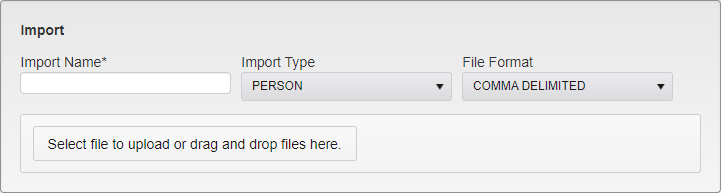
Person Import Options
Import Name - Select a name for this import.
Import Type - Select a file type. (Person, Person/Vehicle/Permit, Scofflaw, and Scoff2 are available at this time.)
File Format - Select a File Format. Comma Delimited or Quote Comma Delimited are available for Person Imports. Legacy Format 8.0 is available for Person/Vehicle/Permit and legacy Scoff2 Dat is available for Scoff2.
If Person or Scofflaw Import is selected, you will need to upload a sample file to set up the Import Fields. Person/Vehicle/Permit and Scoff2 Imports require a specific format that cannot be altered.
Select file to upload or drag and drop files here - Click on the button to open windows explorer on the PC and navigate to the sample file location. You can also drag and drop the file on top of the button.

File Upload Button
This will activate the fields needed to link the import data to the TickeTrak database.
When the file has been uploaded it will be shown below the button.
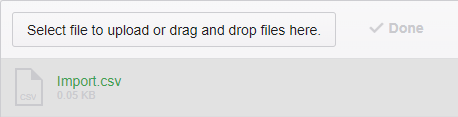
File Uploader
The bottom of the screen will now change to allow import data to be mapped to the TickeTrak database.
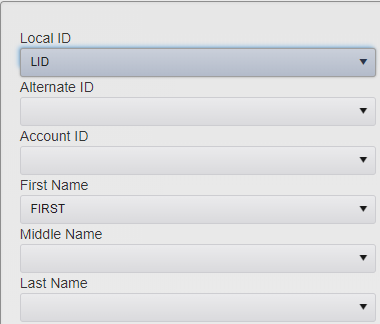
Field Data Options
All the fields available will be listed and the dropdown arrow will list the top row of data to be imported to allow field selection.
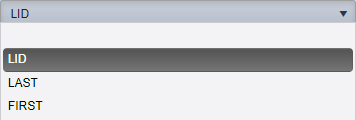
Field Data Dropdown
Select the data name from the dropdown that corresponds to the listed field. If a field is not included in the upload file, leave it blank. Once all fields are assigned, click Save in the upper right.
Duplicate Processing
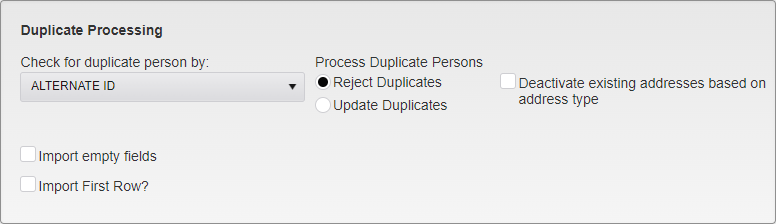
Import Duplicate Processing Settings
Check for duplicate person by - Select the field that will be used to compare the new data in the import file to existing data in the database when searching for duplicate records.
Options are:
Local ID
Alternate ID
Drivers License Number
Process Duplicates
Reject - If a matching record is found, no updates will be made.
Update - If a matching record is found, all data will be updated.
Deactivate existing addresses base on address type will check if the Person has an Address with the same type, and deactivate the old address if this box is checked. Uploading Addresses with different types will not affect existing Addresses. If this box is not checked, uploading a new Address for a Person will inactivate all existing Addresses attached to that record.
Import Empty Fields - If a field is empty in the Export but has data in it in TickeTrak, checking this option will overwrite the existing data with a null value.
Note: This is all or nothing on the Import it is active on. If the field is blank in the Import, it will remove any existing information from that field, regardless of how it was added or what it is (with a few exceptions, such as Account ID, which cannot be changed).
Import First Row - If the first row of data contains header info you can choose not to import it. Only available for Person Imports.
Note: Having header information in the file will make the initial linking step easier.
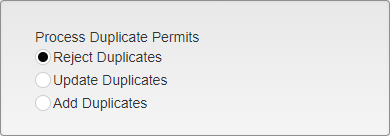
Duplicate Permit Processing
Person Vehicle Permit Imports also allow for Permit Duplicate handling. All Permits are processed based on their Permit Number.
Reject Duplicates rejects any duplicate Permits.
Update Duplicates updates any existing Permits with the information in the Import file.
Add Duplicates adds the duplicate Permits as new, without altering the existing entries.
Person Fields
Person fields that can be imported are:
Local ID
Alternate ID
Account ID
First Name
Middle Name
Last Name
Suffix
Date of Birth
Drivers License Number
Drivers License State
First Address: Address Type
First Address: Address 1
First Address: Address 2
First Address: City
First Address: State
First Address: Zip
Second Address: Address Type
Second Address: Address 1
Second Address: Address 2
Second Address: City
Second Address: State
Second Address: Zip
Home Phone
Mobile Phone
Business Phone
Business Phone Extension
Email 1
Email 2
Email 3
Person Type 1
Person Type 2
Rate Schedule
User Defined 1
User Defined 2
User Defined 3
User Defined 4
User Defined 5
Person Status 1
Person Status 2
Person Status 3
Person Status 4
Person Status 5
Person/Vehicle/Permit Fields
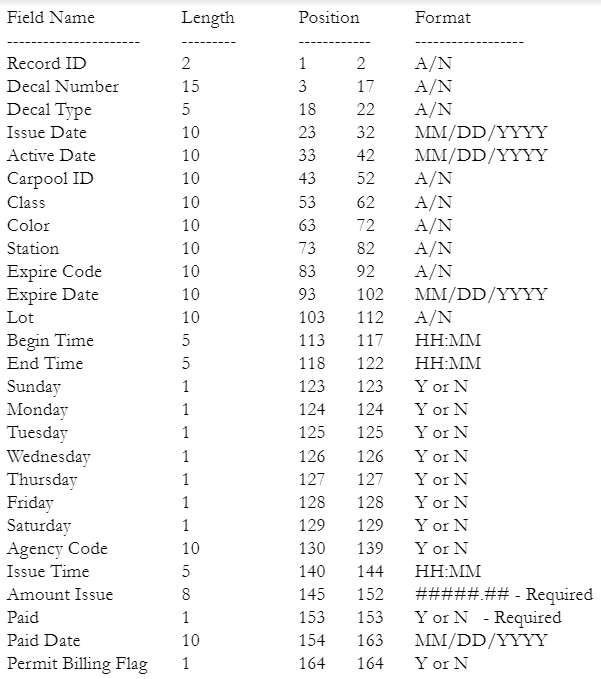
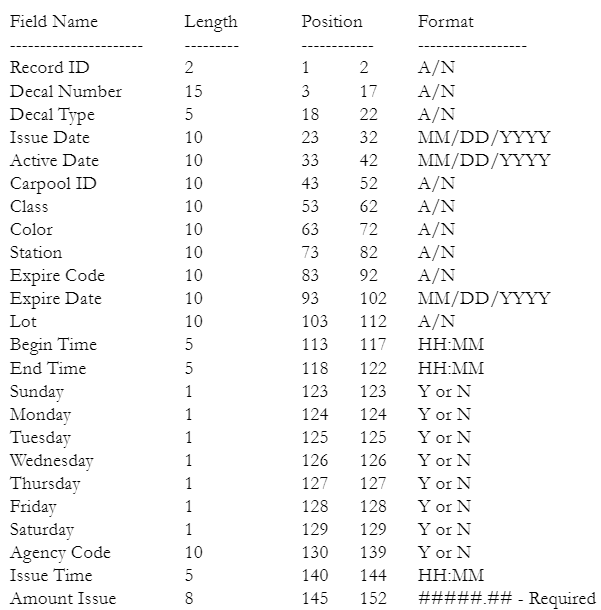
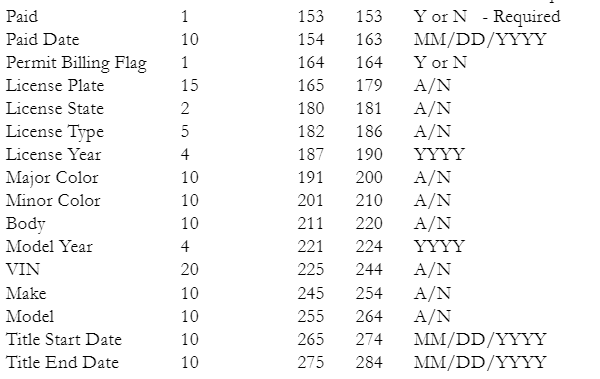
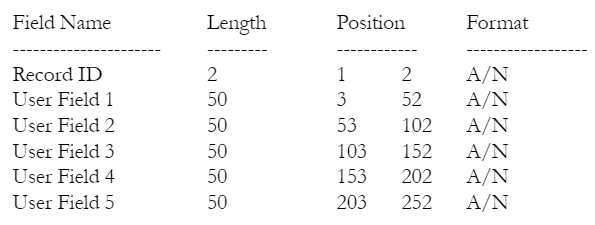
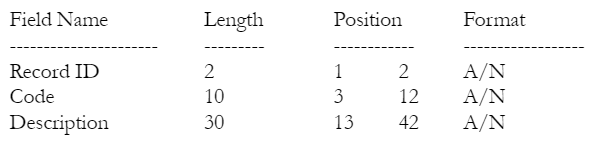
Each line of the file is made up of the record ID, followed by each field in order. Data that is less than the allotted space has to have the remaining space filled with ' ' space characters. Numeric values do not have to have leading zeros.
Non-Unique records can repeat any number of times. Records that depend on another record are linked to the most recent record of that type. For example Permit records are linked to the most recent Owner record. Permit User Defined records are linked to the most recent Permit record.
The file must be saved as a .txt file with each new record type on a new line.
Record Type: Person
Required: Yes
Record ID: OW
Unique: Yes
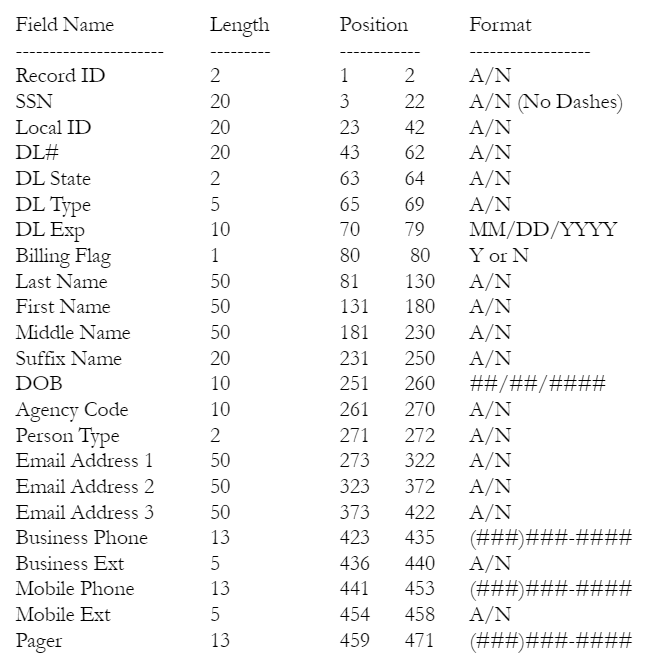
Record Type: Person User Defined Fields
Required: No
Record ID: OA
Unique: Yes
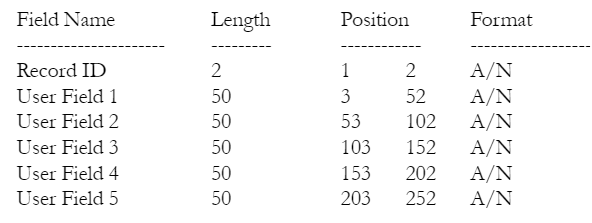
Record Type: Person User Defined Flag
Required: No
Record ID: OS
Unique: No
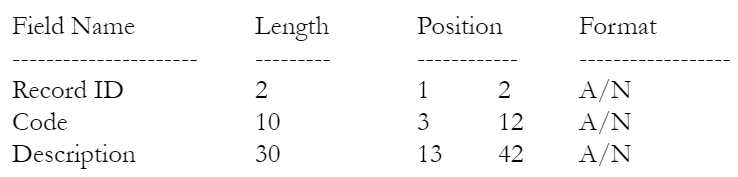
Record Type: Person Address
Required: No
Record ID: AD
Unique: No
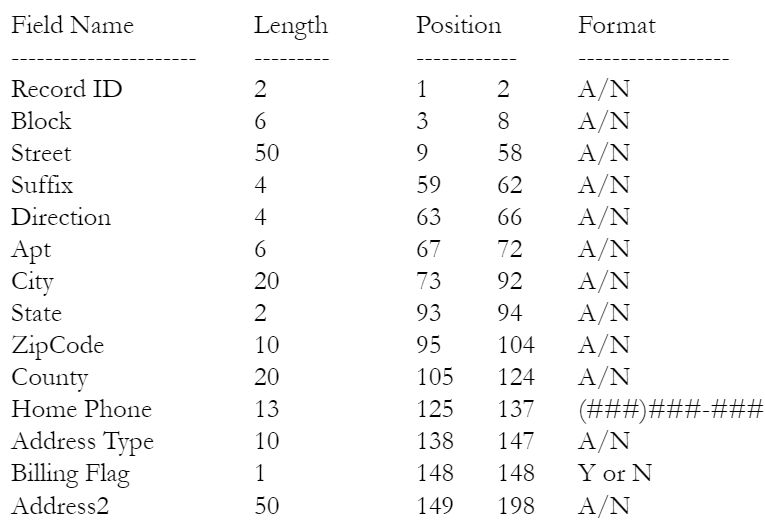
Record Type: Person Additional
Required: No
Record ID: AA
Unique: Yes
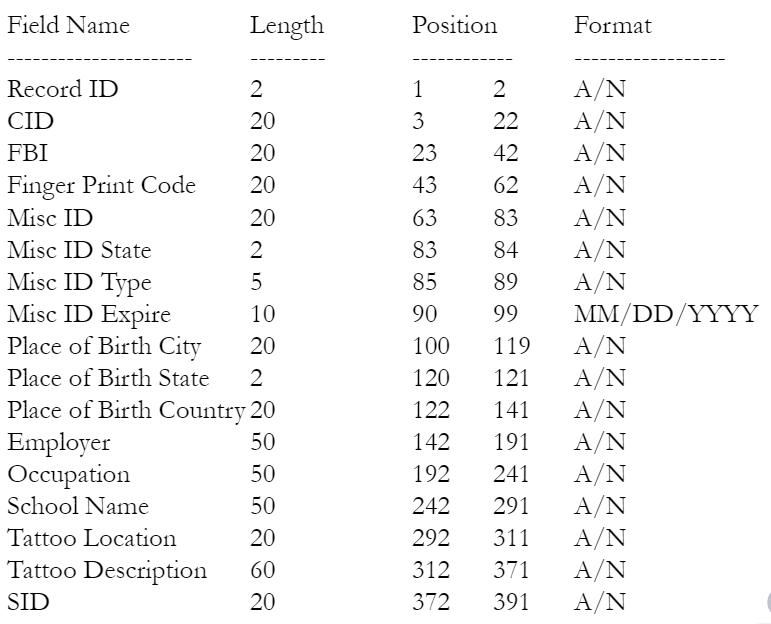
Record Type: Person Vehicle
Required: No
Record ID: VE
Unique: No
Note: This Vehicle record will link to the Person.
Field Name Length Position Format
---------------------- --------- ------------ ------------------
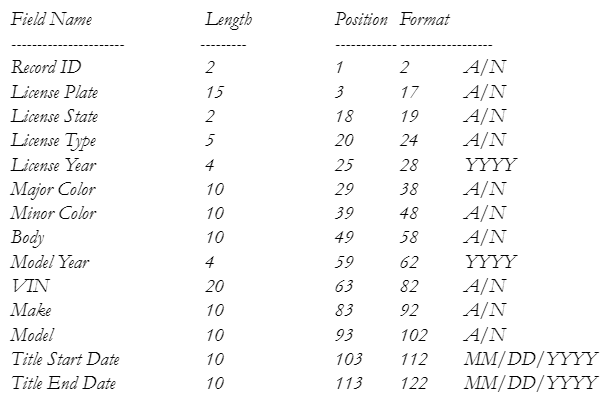
Record Type: Permit
Required: No
Record ID: PE
Unique: No
Note: This Permit record will not be linked to a Vehicle.
Record Type: Permit and Vehicle
Required: No
Record ID: PV
Unique: No
Note: The Vehicle information in this record will be linked to the Permit and Person.
Record Type: Permit User Defined Fields
Required: No
Record ID: PA
Unique: Yes
Record Type: Permit User Defined Flag
Required: No
Record ID: PS
Unique: No
Scofflaw Fields
Scofflaw fields that can be imported are:
License Plate
License State
License Type
VIN
Permit Number
Code
Description
License Plate and State, VIN, or Permit Number must be included so the system can match the incoming data wirh any existing Vehicle records or create new ones as needed.
Code and Description must match those all ready set up in the Scofflaw Settings section.
Previously imported Scoff data will be deleted and overwritten with each new import. Scoff data entered in other ways, such as manually through a handheld or through TickeTrak’s automatic Scofflaw settings, will not be impacted.
Scoff2 Fields
Scoff2 uses a Scoff2.dat file format generated by out legacy TickeTrak 9 system. This Import is only used for upgrading clients. Its functionality can be entirely mimicked with the Scofflaw Import.
Was this article helpful?
That’s Great!
Thank you for your feedback
Sorry! We couldn't be helpful
Thank you for your feedback
Feedback sent
We appreciate your effort and will try to fix the article