Person
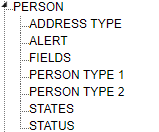
Person TreeView
General Settings
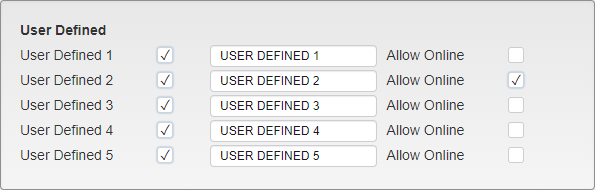
Person User Defined Field Settings
User Defined 1 - 5 - User Defined fields add up to 5 more fields to be used for agency-specific needs. The User Defined 1 field is available in Global Search. Enter the name of the field in the box. Check the box next to one of the fields to have it show up on the module. Field names can be entered and saved even if they are not active. Check the Allow Online box to show the field on the Account Creation page of the Web Portal.
Address Type
Address Types are used to distinguish where an address is. This can be used to restrict Permits to certain Address Types, such as only allowing resident Permits to be sold to Persons with campus addresses.
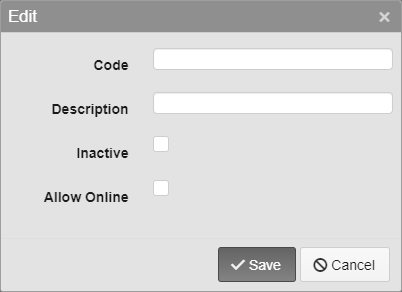
Address Type Options
Code - Enter the Code for the Address Type. 10 character limit.
Description - Enter a description of the Address Type.
Inactive - Inactivates the Address Type.
Allow Online - Allow Web Portal users to select this Address Type when registering.
Alert
Alerts are used to indicate a problem with a Person. This can be as straightforward as someone having a returned check on their account, or as extreme as someone being banned from campus.

Alert Type Options
Code - Enter the Code for the Alert. 10 character limit.
Description - Enter a description of the Alert.
Inactive - Inactivates the Alert.
When a Person with an Alert is loaded in the Person module, the Accept Payment module, or in Global Search, a red Alert icon will appear in the Action bar.

Alert Icon Example
Clicking on the icon brings up a window with the details of the Alert.
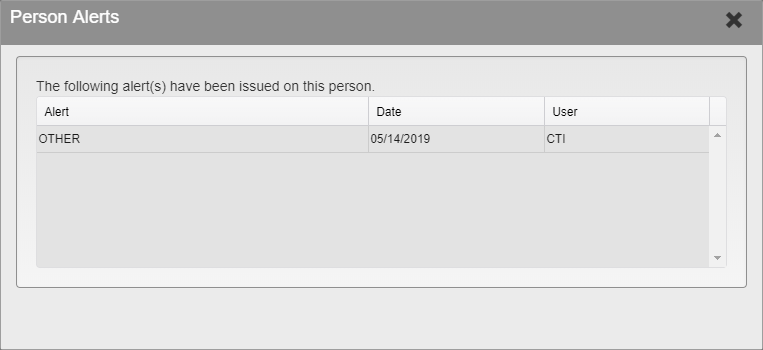
Person Alerts
Fields
Settings for the Fields that appear in the Person module are found here.
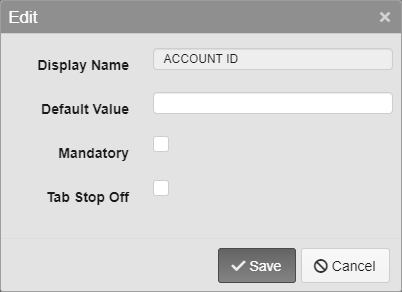
Fields Options
Display Name - The name of the Field being edited. This cannot be changed.
Default Value - Enter the default value for the Field. This is the value that will appear in the field when the Insert key is pressed on the keyboard while in that field.
Mandatory - Check this box to require this Field when saving a new Permit.
Tab Stop Off - Check this box to skip this Field when pressing tab to move through the Fields.
Note: Custom Fields are set up under the general Person settings.
Person Type 1 and 2
Person Type 1 and Person Type 2 are used to distinguish different Person classifications. For example, these can be used to define if a Person is a student or a faculty member, a resident, or a guest.
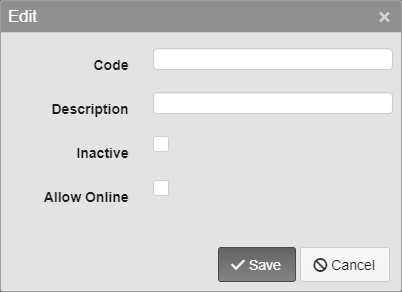
Person Type 1 Options
Code - Enter the Code for the Person Type. 5 character limit.
Description - Enter a description of the Person Type.
Inactive - Inactivates the Person Type.
Allow Online - Allow Web Portal users to select this Person Type when registering.
States
The State dropdown is used to define the State section of an address or the registration of a Vehicle. It can be arranged so that the most commonly used States are at the top of the list.
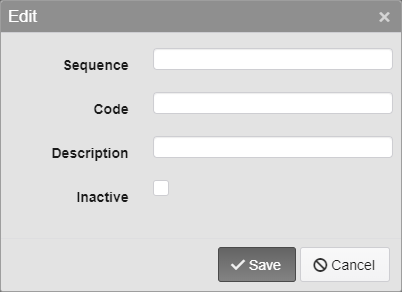
State Entry Options
Sequence - Enter the Sequence number. This decides where on the dropdown the option will appear.
Code - Enter the Code for the State. 2 character limit.
Description - Enter a description of the State.
Inactive - Inactivates the State.
Note: The same State fields are used in multiple places in TickeTrak, they are just listed multiple times in the settings.
Status
Enter other Statuses to be attached to Persons. These can be anything your organization wishes to make note of.
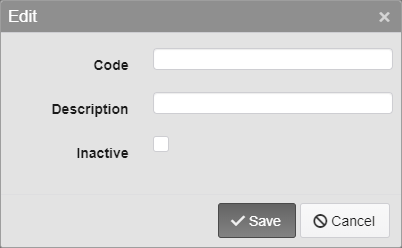
Status Options
Code - Enter the Code for the Status. 15 character limit.
Description - Enter a description of the Status.
Inactive - Inactivates the Status.
Was this article helpful?
That’s Great!
Thank you for your feedback
Sorry! We couldn't be helpful
Thank you for your feedback
Feedback sent
We appreciate your effort and will try to fix the article