Vehicle
Action Menu
Add Fee - Opens a window that allows you to select a Fee to add to the Vehicle.
Audit History - Opens the Audit History for the Vehicle.
Template Letters - Opens a window that allows you to select a Template Letter and send it to the Person attached to the Vehicle.
Delete Vehicle - Deletes the Vehicle. You will be prompted to confirm that you wish to delete the Vehicle.
Accept Payment - Opens the Accept Payment window with the Vehicle information filled in.
Vehicle Information
Header

Vehicle Header
The Amount Due is the total amount of the Fees on the Vehicle.
Clicking the Scofflaw truck icon brings up a list of the Scoffs associated with the Permit.
General Information
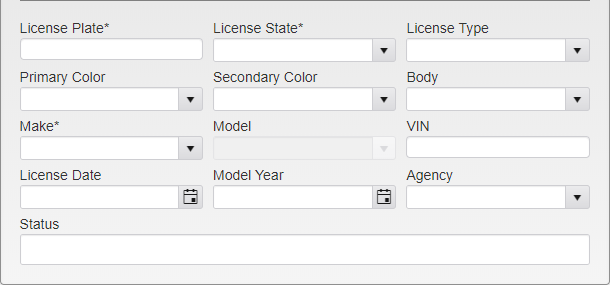
Vehicle Menu
Enter the License Plate and License State and click Find to perform a partial search for the entered Plate. Click Select next to the entry you wish to view, or click Cancel in the upper right to continue data entry.
The License Type is only used in certain states. Select the License Type from the dropdown if your state uses them.
The Primary and Secondary Color of the Vehicle, the Body type, and the Make and Model are used to note the physical description of the Vehicle.
Note: The Model option will only become active after the Make is selected.
The Vehicles VIN, License Date, and Model Year can be entered if that information is known.
The Agency is used to associate the Vehicle with a particular agency associated with your organization.
Status is used to enter statuses for the Vehicle that have been defined by your organization. Click the box to open the Status dropdown. Click on the Status you wish to include to add it to the Vehicle.
To remove a single Status, click the X next to that Status. To clear all of the Statuses, click the X at the end of the box.
Additionally, up to five User Defined Fields can be added to the module via System Settings. These fields can be used for any bookkeeping or notes as decided by your agency. Each field allows entries of up to 50 characters.
Person
Multiple Persons can be linked to a Vehicle.
The Person icon is used to open the Person module to make changes to the Person, such as Email Address and Person Type.
The edit icon is used to change the relationship.
Title Start and Title End are used to assign Tickets to the correct Person. If the Title End date is reached, new Tickets will no longer link to the Person.
Primary is used to make the Person the primary owner of the Vehicle. All new Tickets on the Vehicle will be linked to this Person. If any Tickets exist on that Vehicle with no Person linked, you will be prompted to link them if desired.
To Add a New Person
Type in any of the following and press tab.
Last Name, First Name
Local ID
Alternate ID
DL Number
If no match is found you will be prompted to create a new record. A mini Person module will open and allow data entry. Click Save and you will be returned to the Ticket module.
The Person icon can be used to view the mini Person module and update the record if needed.
Tickets and Permits
The Ticket and Permit boxes show all of the Tickets and Permits linked to the Vehicle. The Ticket box also shows the total Ticket Amount attached to the Vehicle.
Finance
Each Fine and Fee attached to the Vehicle is displayed in the Finance grid. Click the arrow to expand and see payment information if present.
History
The History box contains a record of all major changes and additions to the Vehicle, as well as the dates they were made and the account that made them.
Was this article helpful?
That’s Great!
Thank you for your feedback
Sorry! We couldn't be helpful
Thank you for your feedback
Feedback sent
We appreciate your effort and will try to fix the article