Setting Up a STAR Micronics Receipt Printer
Requirements for Setup
Star Micronics Receipt printer
TSP 650II
Ethernet Cable
This will allow your receipt printer to connect to your network
A predefined static IP address ie: 192.168.1.109
Setting up the Receipt Printer IP Address
Plug in the power cable and an ethernet cable to the receipt printer.
Once you have all the proper cabling plugged in and connected, before turning on the power press and hold the feed button located on the front panel of your printer.
While holding the feed button, turn on your printer, wait a few seconds before releasing. Your printer will go through its setup configuration, this includes getting an IP address from your network.
After the printer goes through its installation process, it will print out a long list of settings and information. Locate at the very bottom of the printout the IP address.
Once you have located the IP address, enter that information into your web browser.
This will bring up a utility to allow you to assign a static IP address to your printer.
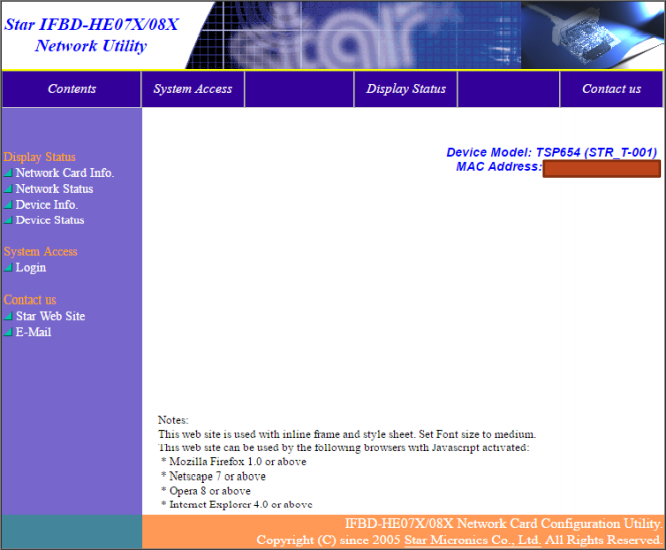
Network Utility
Speak with your network administrator and get a static IP address by either:
Asking for an open IP address, Subtnet Mask and Default Gateway you can use.
Giving them the MAC address of the printer found in the utility and allowing them to hardcode an IP address through the network itself (example: BOOTP).
Depending on how your network administrator handles the new receipt printer setup, follow the sub steps accordingly.
Option A
Once your network admin gives you an IP address to use, click “Login” in the utility. This is the same utility used in Step 6.
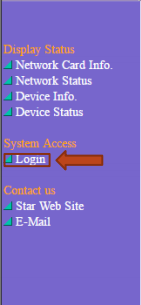
Network Utility - Login
You will be prompted to enter your Login credentials. Below are the default credentials though they might have been changed by your system administrator.
Username: root
Password: public
From the system access page, select “IP Parameters”.
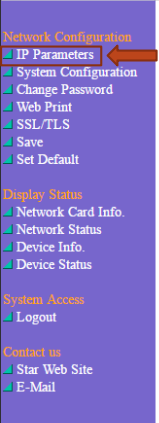
IP Parameters Link
Using Static IP Address
With the information obtained from your system administrator, enter the IP address, subnet mask and default gateway. Click submit.
Using Dynamic IP Address
Make sure that Dynamic is selected and that DHCP/BOOTP and RARP are enabled.

IP Parameters Form
Navigate to the “Save” tab.

Save Link
Make sure “Save -> Configuration printing -> Restart device” is selected and click “Execute”.
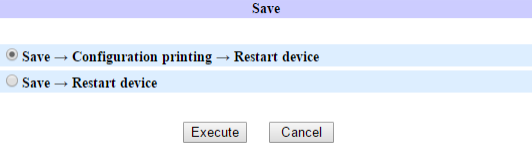
Save Options
Option B
Once your system administrator has set up the correct network configuration, restart your receipt printer.
If you ever lose/forget the IP address of the printer, you can repeat steps 2 through 4 to get the new IP address of the printer.
Proceed to Connect the Printer to TickeTrak 10 to continue setting up your printer.
System Configuration
Here are the steps to configure the receipt printer so it can talk with TT10 properly.
Select “System Configuration”
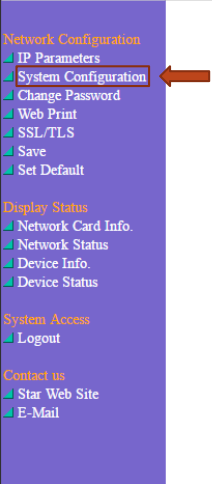
System Configuration Link
Make sure that the settings for your printer match this picture.
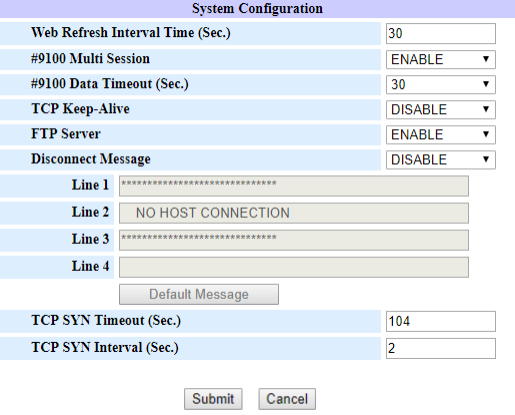
System Configuration Settings
Once the settings are correct, click “Submit”. The following message should appear.
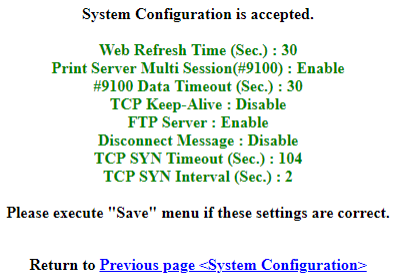
System Configuration Accepted
Navigate to the “Save” tab.
#heading=h.n6h8jax3nuvw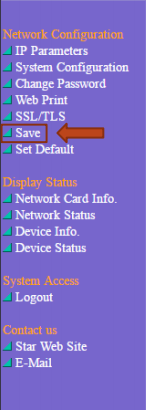
Save Link
Make sure “Save -> Configuration printing -> Restart device” is selected and click “Execute”.
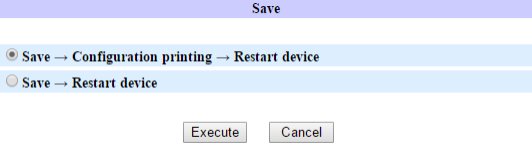
Save Options
If you set up your website as https, then you must create a certificate for the receipt printer. Proceed to Setting Up SSL.
Otherwise proceed to Connect the Printer to TickeTrak 10.
Setting Up SSL
While you are logged into the network utility, you can create a certificate that will allow for secure connections across the network.
Select “SSL/TLS”
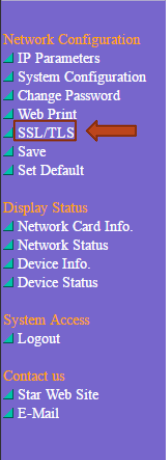
SSL/TLS Link
Select “Create Self-Signed Certificate”
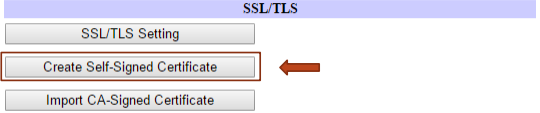
Create Self-Signed Certificate Button
Fill in the corresponding information related to your organization. The Domain is the assigned IP address. Click Create whenever you fill out the correct information. This is an example on how you should fill out the information.

Self-Signed Certificate Options
Once the settings are correct, click “Create”. The following message should appear.
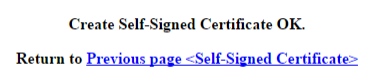
Self-Sign Certificate OK
Navigate to the “Save” tab.
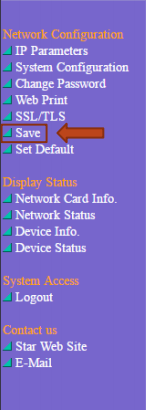
Save Link
Make sure “Save -> Configuration printing -> Restart device” is selected and click “Execute”.
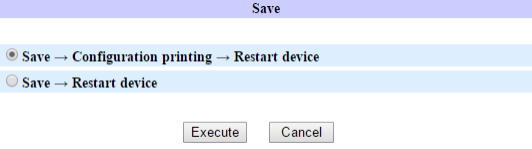
Save Options
Select “SSL/TLS Setting”
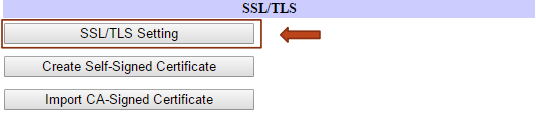
SSL/TLS Setting Button
Select “ENABLE” for SSL/TLS, assign a port number to the certificate and select “Self-Signed” for the certificate. Then click Submit
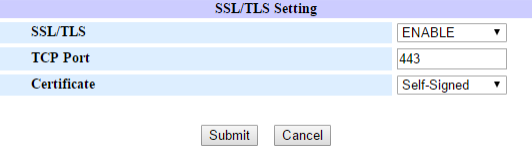
SSL/TLS Setting
Once the settings are correct, click “Submit”. The following message should appear.
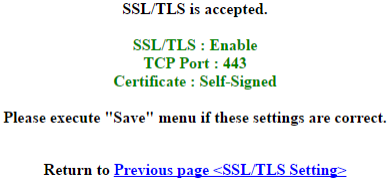
Navigate to the “Save” tab.
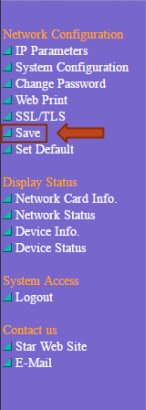
Save Link
Make sure “Save -> Configuration printing -> Restart device” is selected and click “Execute”.
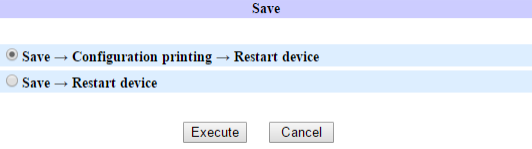
Save Options
Importing Certificate to a Different Device
NOTE: To setup Android / IOS Devices or to use a CA-signed certificate, please refer to the Star Web Printer SSL Instructions.
IOS – Page 8, Android – Page 10
CA-signed certificates – Page 12
Import to Web Browser
Select “SSL/TLS”
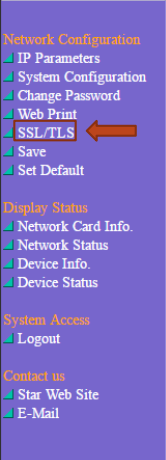
SSL/TLS Link
Select “Create Self-Signed Certificate”
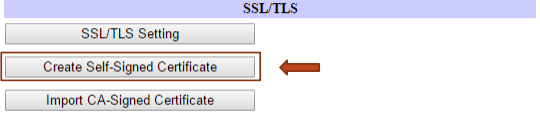
Create Self-Signed Certificate Button
Click “Download” and save the certificate to a secure location to your computer. (The file will save as “star.cer”)
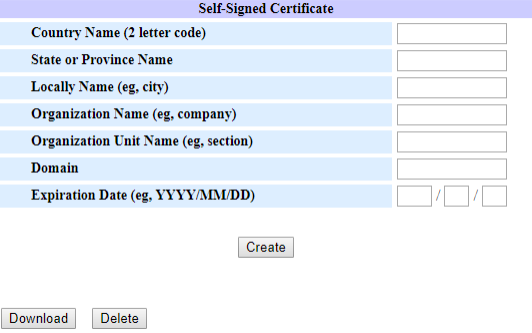
Self-Signed Certificate Download
Once the file downloads, click “Open”.
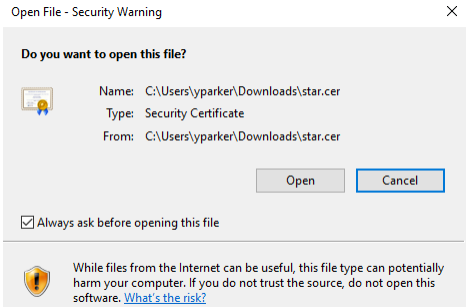
Open Self-Signed Certificate
Note: Make sure your printer is turned off.
When the certificate opens, click “Install certificate”.

Install Self-Signed Certificate
Click “Next”.
Select “Place all certificates in the following store” and click “Browse”.
Select a “Trusted Root Certification Authorities” and click “Ok”.
Click “Next”, then “Finish”, then “Yes” and then “Okay”. You can then exit out of the certificate.
Turn on your printer and verify that the address is now https.
Link Certificate to Chrome/Firefox Browser
For security purposes, Chrome and Firefox browsers take an extra step in terms of security through certificates. Follow these steps to use the printer through these browsers.
Setup for Chrome
Navigate to Settings -> Privacy and Security -> Security.
Click “Manage certificates”.
Click “Import…”
Click “Next” -> “Browse…”
Navigate to and select the downloaded certificate. Click “Next”.
Select “Place all certificates in the following store” -> Click “Browse…”
Select “Trusted Root Certification Authorities” -> Click “OK”.
Click “Next” -> Click “Finish”.
Setup for Firefox
Navigate to Settings -> Privacy & Security -> View Certificates.
Click “Import…”
Navigate to and select the downloaded certificate.
Select all of the trust boxes. Click “OK”.
Navigate to the printer IP address through your web browser.
Click Advanced -> Add Exception…
Click Confirm Security Exception.
Connect the Printer to TickeTrak 10
Now that you have set up the IP address for your printer, it’s time to connect it with TickeTrak 10.
Log in to TickeTrak with your credentials.
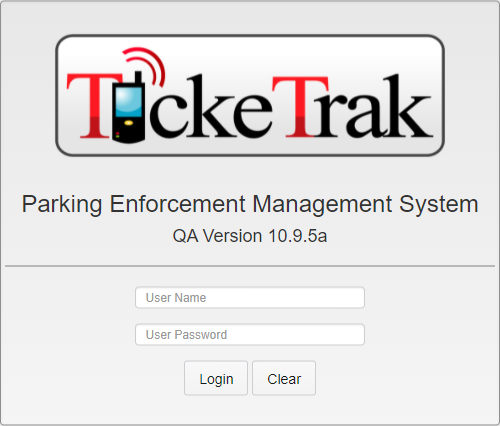
TickeTrak 10 Login
Click “Admin” and then “System Settings”.
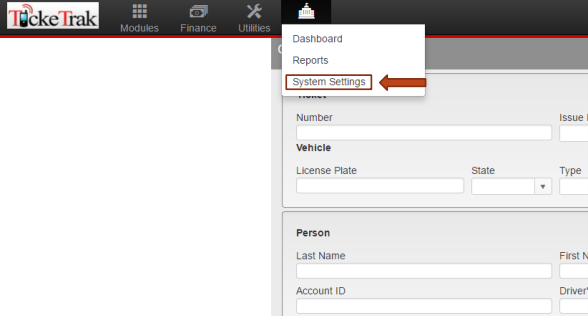
System Settings Link
Click the arrow next to “Finance” to open the sub menu and then “Receipt Printers”.
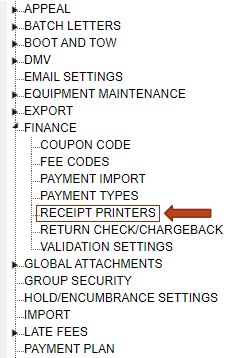
Receipt Printers Link
Click “Add” and input all required fields for the printer.
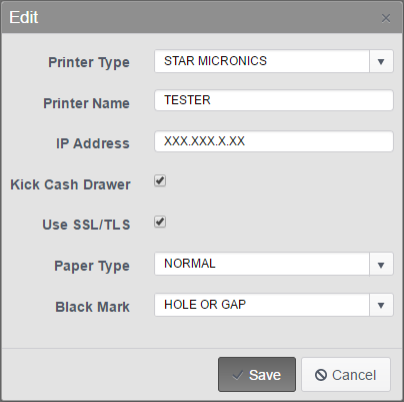
Add Printer Form
You are now ready to print with TickeTrak 10!
Troubleshooting
There is an easy to use printing manager that you can install to your desktop that will allow you to test your receipt printers and any connected cash drawers.
Go to the Star Global Support site using this link:
http://www.starmicronics.com/support/default.aspx?printerCode=StarPRNT
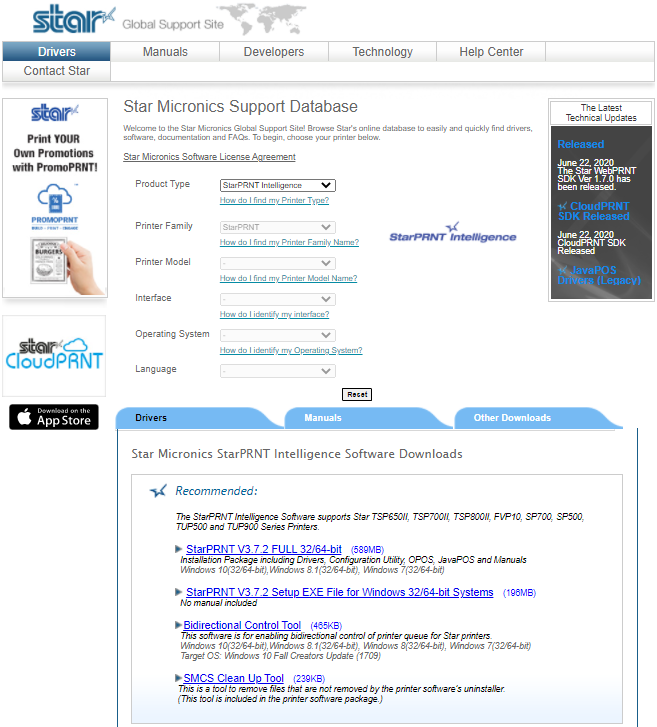
Star Global Support Website
From the website, download:
StarPRNT V3.7.2 Setup EXE File for Windows 32/64-bit Systems
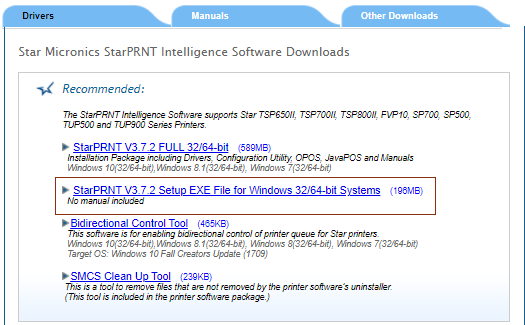
StarPRNT EXE File
Run the EXE and follow the prompted instructions to install the application.
Run the application.
Select your printer model from the list and the emulation mode. Click “Next”.
Select the connection type being used and search for and connect to the printer. Once the printer has been found, click “Done”.
Management Tools
There are many tools that allow the user to test the receipt printer and possible cash drawer.
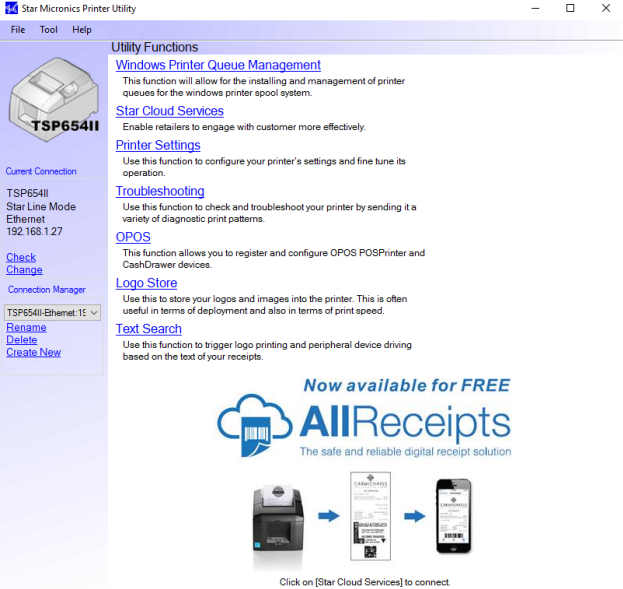
STAR Printer Manager
Check
This option allows the user to send a check message to the receipt printer with model and firmware version.
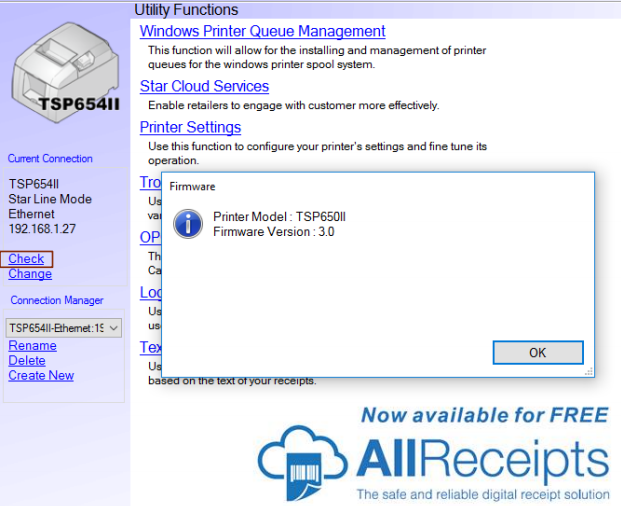
STAR Printer Check
Troubleshooting
This option allows you to send test inputs to any connected device for testing purposes.
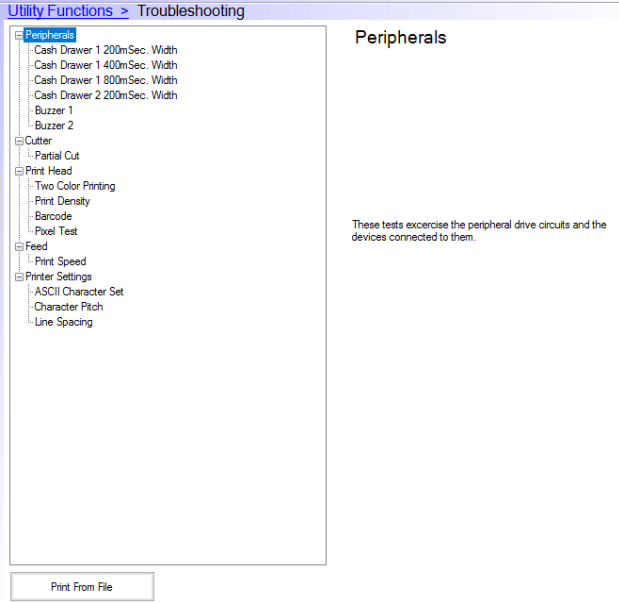
STAR Printer Troubleshooting
Return Check/Chargeback Reason Code
Return Check/Chargeback Reason Codes are used to record the reason for return checks or doing credit card chargebacks.
Enter a Code and Description. Codes have a 15 character limit.
Inactive - Inactivates the Code.
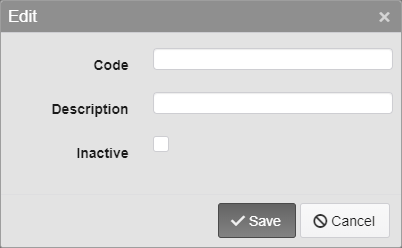
Return Check/Chargeback Reason Code Options
Validation Settings
If you are using a supported receipt printer, you can choose up to 10 validation lines to be printed on the back of checks.
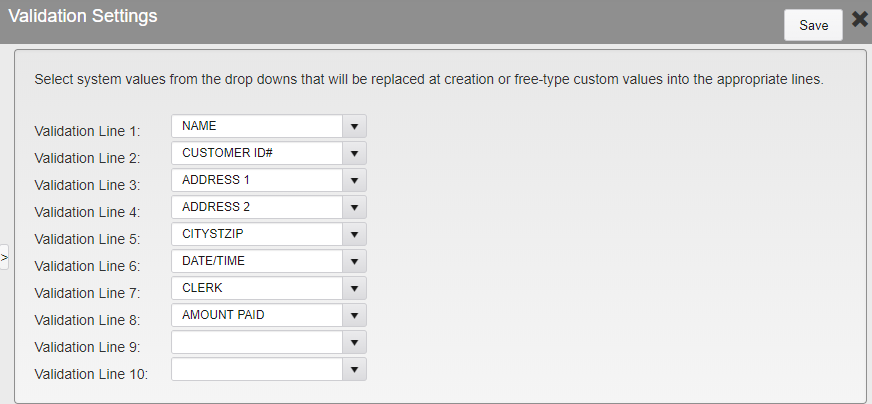
Validation Settings
Was this article helpful?
That’s Great!
Thank you for your feedback
Sorry! We couldn't be helpful
Thank you for your feedback
Feedback sent
We appreciate your effort and will try to fix the article